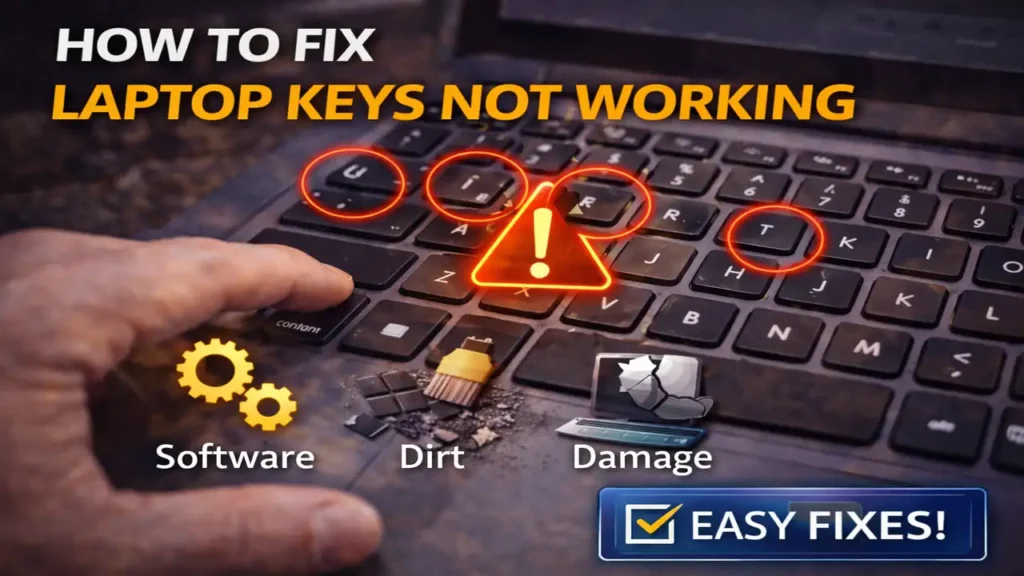
How to Fix Laptop Keys Not Working
If you are dealing with laptop keys not working, the cause is usually either a software setting, a driver problem, or dirt and damage under the key mechanism. Sometimes only a few keys stop responding. In other cases, an entire row or group of keys may fail at once. The right fix depends on which type of failure you have.
The good news is that most cases of laptop keys not working can be narrowed down quickly. You usually do not need to open the laptop immediately. Start with the software checks first, then move to cleaning and physical inspection only if the problem remains.
Start by checking whether it is a software issue
Before assuming the keyboard is damaged, restart the laptop. A simple reboot can clear a temporary keyboard driver glitch, wake the keyboard service properly, or fix a startup issue that left the keyboard half-responsive.
If the problem continues after restart, check whether Windows accessibility settings are interfering with normal typing. Filter Keys and Sticky Keys can sometimes make the keyboard feel unresponsive, especially if the issue appeared suddenly and no physical damage is visible.
Go to the keyboard accessibility settings and turn off Filter Keys and Sticky Keys. Also remember that holding the Shift key for several seconds can trigger Filter Keys by accident. This is one of the easiest causes to miss when laptop keys not working becomes a sudden problem.
Update or reinstall the keyboard driver
A damaged or unstable driver can also cause laptop keys not working, especially after a Windows update, laptop reset, or driver conflict.
Open Device Manager and find the keyboard section. First try updating the keyboard driver. If that does not help, uninstall the keyboard device and restart the laptop so Windows can reinstall it automatically.
This fix is especially useful when multiple keys stopped working at the same time or when the issue appeared after system changes rather than after a spill or physical impact. A reinstall resets the software side of the keyboard and often clears driver corruption without any hardware repair.
Run the Windows keyboard troubleshooter
Windows includes a built-in keyboard troubleshooter, and while it does not solve everything, it is still worth trying. It can detect some common configuration and driver-related issues and suggest corrections automatically.
This is not usually the most powerful fix, but it is a safe one. If laptop keys not working is being caused by a Windows-side configuration problem, the troubleshooter may catch it faster than random manual changes.
Check whether only certain keys are affected
This is a very important clue. If only one key or a few nearby keys are failing, the problem is much more likely to be physical. Dirt, crumbs, dust, sticky residue, or a damaged key mechanism is often the real cause in that situation.
If an entire line or larger group of keys is failing, the cause may be deeper. That pattern can point more toward a driver issue, ribbon cable problem, keyboard matrix fault, or motherboard-side issue.
So before doing anything aggressive, pay attention to the pattern. Knowing whether laptop keys not working affects one key, a few keys, or half the keyboard changes the whole diagnosis.
Clean the keyboard properly
Physical debris is one of the most common reasons for laptop keys not working, especially on laptops used daily for long periods. Dust, crumbs, and oily buildup can collect under the keys and interfere with the key mechanism.
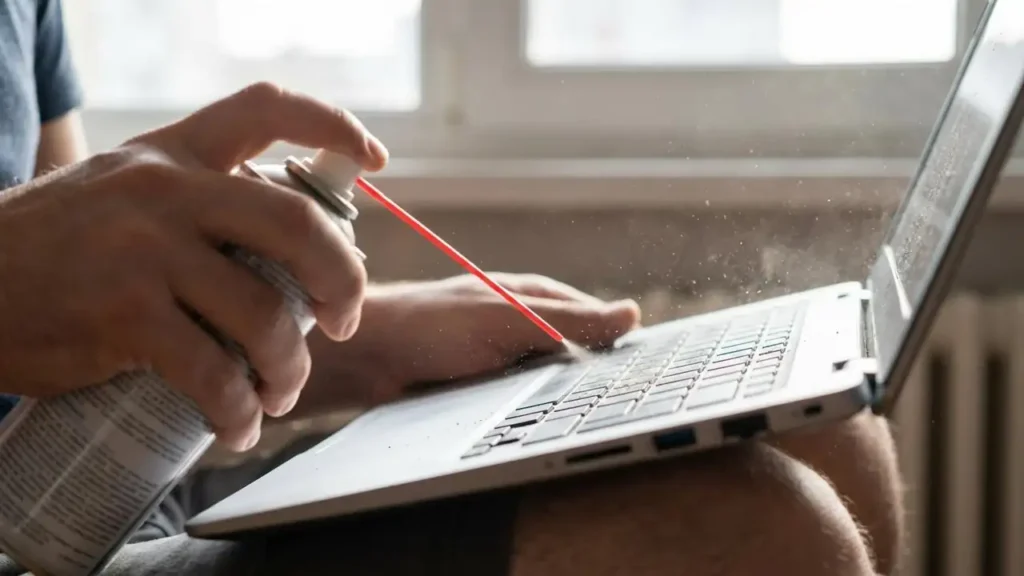
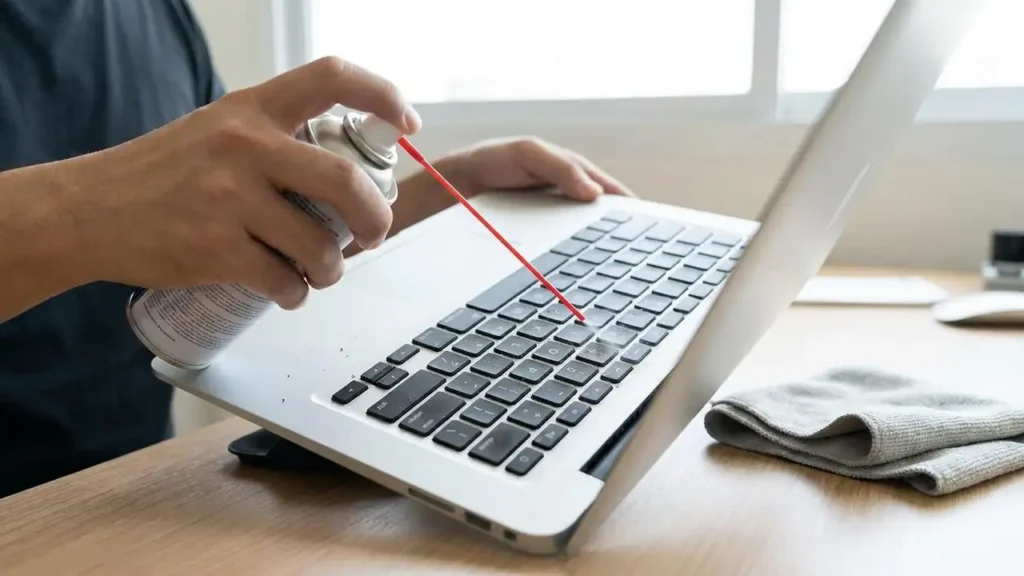
Start with compressed air. Blow short bursts around and under the affected keys while holding the laptop at a slight angle. This can help remove loose debris without opening the machine.
If one key feels loose, tilted, sticky, or partially jammed, inspect it more closely. On some laptops, a keycap can be removed carefully for cleaning, but this should be done with caution because laptop key mechanisms are delicate. Forcing a keycap off the wrong way can break the plastic clips or scissor mechanism underneath.
That is why gentle cleaning is the best first hardware step before trying anything more invasive.
Test with an external keyboard
One of the smartest ways to narrow down laptop keys not working is to connect an external USB or Bluetooth keyboard. If the external keyboard works normally, Windows is likely fine and the issue is probably limited to the built-in keyboard.
This test helps you separate software from hardware quickly. If both the built-in and external keyboard behave strangely, the problem may be system-related. If only the laptop keyboard fails, focus more on dirt, damage, internal connection issues, or keyboard replacement.
An external keyboard is also a useful temporary solution while you continue troubleshooting.
Inspect loose, bent, or damaged key mechanisms
If only a few keys are affected and cleaning did not help, inspect the key carriage or scissor mechanism carefully. A damaged, bent, or misaligned mechanism can stop the key from pressing correctly even if the cap still looks normal from above.
A key that feels softer, lower, tilted, or unstable compared with the others is a strong sign of physical damage. In that case, reinstalling drivers will not solve the real problem.
Some individual keys can be repaired by cleaning and reseating the cap properly. But if the clips underneath are broken, that key may need replacement parts rather than more cleaning.
When the issue is deeper than the keycaps
If many keys fail together, or if the keyboard stopped working after a spill, drop, or internal repair, the problem may be deeper than surface dirt. At that point, the internal keyboard ribbon cable, the keyboard matrix, or the keyboard module itself may be involved.
This is where many users waste time repeating software fixes. If laptop keys not working continues after driver reinstall, accessibility checks, cleaning, and external keyboard testing, the issue is likely hardware-related.
For most users, that is the point where opening the laptop becomes a repair job rather than basic troubleshooting. Internal cable checks and keyboard replacement are real solutions, but they require more care and vary by laptop model.
What to avoid
Do not pry off multiple keys aggressively just to “see underneath.” Laptop key mechanisms are easy to break. Do not keep forcing a dead key either, especially if it feels jammed or tilted. And avoid jumping straight into risky system changes when the problem clearly affects only one or two dirty keys.
A lot of people also waste time on advanced registry edits for a problem that is really caused by dust or a broken key mechanism. For most cases of laptop keys not working, it is better to stay with safe checks first and move to hardware repair only when the pattern clearly points there.
Frequently Asked Questions
If you are dealing with laptop keys not working, start with the easy software fixes, then move to careful cleaning and pattern-based diagnosis. In many cases, the issue is either a simple Windows setting or debris under the keys. If those checks do not help, the next likely cause is a physical keyboard fault rather than a deeper Windows problem.