
How to Fix Laptop No Sound
If you are dealing with laptop no sound, the problem is usually caused by one of three things: the wrong audio output device, a Windows audio service or driver issue, or a hardware problem with the speakers. In many cases, the laptop itself is still working fine, but the sound is being sent to the wrong place or blocked by a broken software setting.
The good news is that most cases of laptop no sound can be fixed without opening the laptop. The smartest way to approach it is to start with the simple checks first, then move to Windows troubleshooting, and only then consider driver or hardware failure.
Start with the easiest checks first
Before doing anything advanced, check the speaker icon in the taskbar. Make sure the laptop is not muted and the volume is not set too low. This sounds obvious, but it is one of the most common reasons people think there is a bigger issue.
Next, check the output device. Click the sound icon and make sure the laptop is using the correct playback device. Sometimes Windows sends audio to a monitor, a Bluetooth headset, a docking station, or disconnected headphones instead of the built-in speakers. That alone can create a full laptop no sound situation even though audio is technically working.
Also disconnect anything external. Unplug wired headphones, USB speakers, and docking stations. Turn off Bluetooth temporarily. This helps confirm whether the laptop speakers are failing or whether the sound is just being redirected somewhere else.
Restart the laptop before assuming anything is broken
A restart is still a real fix, not just a routine suggestion. Temporary driver glitches, stuck audio services, and bad wake-from-sleep behavior can all cause laptop no sound even when nothing is actually damaged.
Restart the laptop normally, then test audio again with a simple system sound or video. If sound returns after restart, the issue was probably temporary. If it does not, move to Windows-side fixes next.
Run the Windows audio troubleshooter
Windows includes a built-in Playing Audio troubleshooter, and it is worth using early in the process. It can detect muted devices, disabled outputs, service problems, and basic configuration issues automatically.
This is especially useful when laptop no sound appeared suddenly after an update or a settings change. It is not perfect, but it is fast and safe. If Windows can correct the problem for you, it saves time before you start changing drivers manually.
Restart the Windows Audio service
If the output device looks correct and the laptop is not muted, the next thing to check is the Windows Audio service. This service is responsible for managing sound playback. If it freezes, stops, or starts incorrectly, the laptop can lose sound completely.
Open the Services panel, find Windows Audio, and restart it. Then test sound again. This step often helps when laptop no sound happens after sleep mode, a failed update, or a background service problem.
It is a small fix, but a useful one because it refreshes the core audio service without requiring deeper system changes.
Update or reinstall the audio driver
A damaged or incompatible driver is one of the biggest causes of laptop no sound, especially on Windows 10 and Windows 11. Audio drivers can break after updates, conflicts, or partial installations.
Open Device Manager and expand the audio section. First try updating the audio driver. If that does not help, uninstall the audio device and restart the laptop so Windows can reinstall it automatically.
This is often enough to restore sound when the problem is software-based. It is especially effective if sound disappeared after a Windows update or if Device Manager shows a warning symbol near the audio device.
If your laptop uses a brand-specific audio package such as Realtek or another manufacturer driver, a clean reinstall can fix problems that a simple update does not.
Disable audio enhancements
Audio enhancements can sometimes cause distortion, low volume, or complete playback failure. They are meant to improve sound in some situations, but they can also interfere with normal output.
Go into the sound settings, open the properties for the default playback device, and disable all enhancements. Then test the speakers again.
This step is important because laptop no sound is not always caused by a missing driver. Sometimes the driver is present, but enhancements or special effects are preventing clean playback. Disabling them is a safe way to rule that out.
Check for a physical mute key or function key
Some laptops have a dedicated mute button or an F-key combination that disables sound at the hardware or firmware level. If that key was triggered by accident, Windows may look normal while the laptop still has no audible output.
Look for a speaker icon on the keyboard, especially on the top function row. Tap it once or use it with the Fn key if your model requires that combination.
This is easy to miss, especially if laptop no sound started after cleaning the keyboard, pressing shortcut keys, or using brightness and volume keys quickly.
Test with headphones
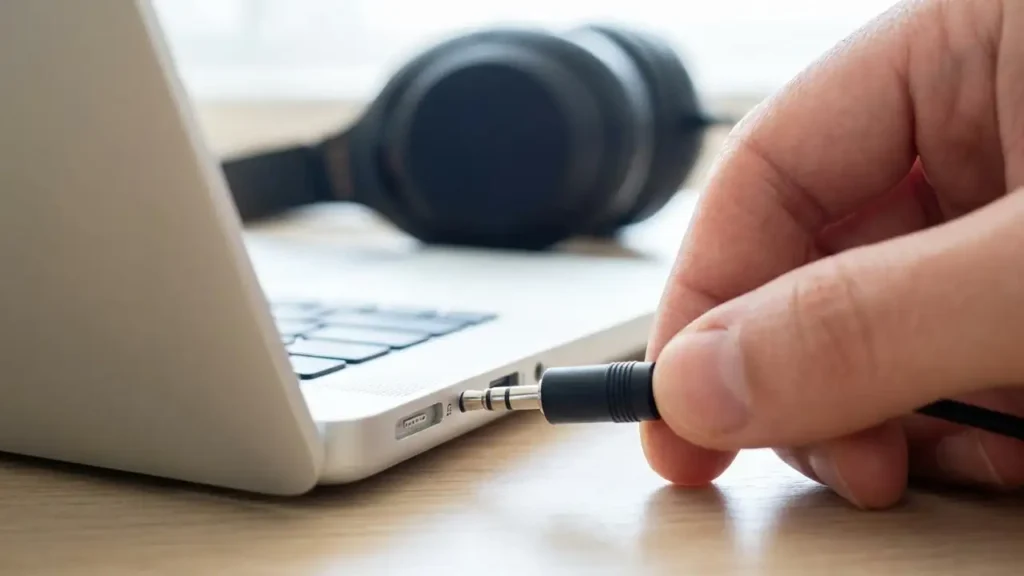
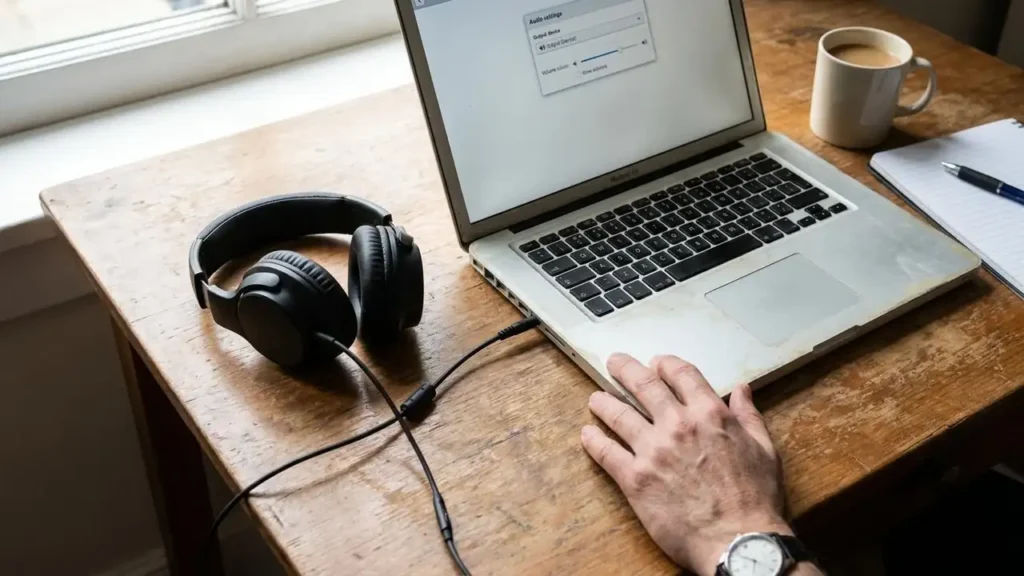
This is one of the best tests you can do. Plug in headphones and check whether sound works there. If audio plays through headphones but not through the built-in speakers, the issue is likely with the internal speakers, speaker wiring, or speaker connection rather than Windows itself.
If there is still no sound through headphones either, the problem is more likely software, driver, service, or deeper audio hardware.
This simple test tells you whether laptop no sound is a full audio failure or just a speaker-only problem.
Check BIOS or firmware audio settings
If nothing in Windows helps, check whether onboard audio is enabled in BIOS or firmware settings. This is not the most common cause, but it can matter after BIOS changes, resets, or unusual repair work.
If onboard audio is disabled there, Windows may behave oddly or fail to use the internal sound hardware correctly. Once re-enabled, sound may return without any further driver work.
This is more of a later-stage check, but it is useful when laptop no sound continues after all normal Windows fixes fail.
When the problem is hardware
If you already checked volume, output device, services, drivers, enhancements, and headphones, but the laptop still has no sound, hardware becomes more likely.
Common hardware causes include failed internal speakers, loose speaker connections, motherboard audio faults, or damage after a drop or liquid spill. If headphones work but speakers do not, the speakers themselves are the strongest suspect.
At that stage, you may need repair, a USB audio adapter, or external speakers as a practical workaround.
Frequently Asked Questions
If you are facing laptop no sound, start with the output device, volume, and restart checks first. Then move to the Windows troubleshooter, audio service, and driver reinstall. In many cases, the fix is software-related and fairly simple. If headphones work but speakers do not, the issue is much more likely to be hardware inside the laptop.
