
How to Fix iOS Update Errors
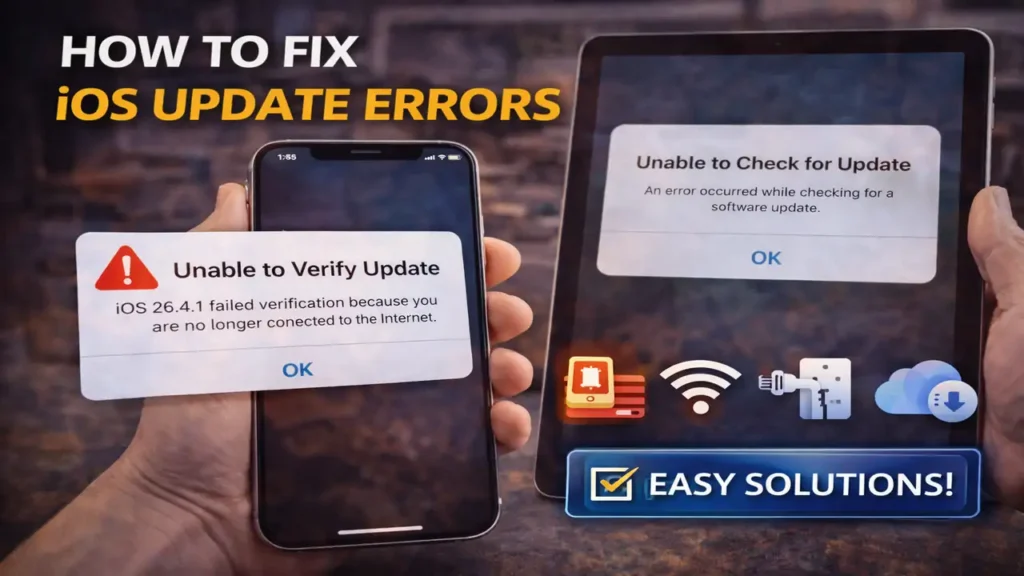
If your iPhone or iPad refuses to update, shows messages like “Unable to Check for Update,” “Unable to Verify Update,” or throws number-based failures such as 4005, 4013, 4014, 1600, or 3194, you are dealing with iOS update errors. These problems usually come from one of four places: not enough free storage, unstable internet, USB or computer-side issues, or Apple server communication failures.
The good news is that most iOS update errors can be fixed without restoring the device. In many cases, the solution is simply to free up more space, switch to a better Wi-Fi connection, delete the update file, or use a computer instead of updating over the air.
Why iOS update errors happen
Apple updates need enough room to download, prepare, verify, and install. They also need a stable connection to Apple’s servers and, when using a computer, a clean USB connection and up-to-date software on the Mac or PC.
That is why iOS update errors often appear even when the iPhone itself seems fine. The phone may not have enough working storage. The Wi-Fi may be weak. A VPN profile may interfere with verification. Or the computer may be using an outdated version of Finder, Apple Devices, or iTunes.
When you understand those causes first, the fixes become much easier and more logical.
Start by checking storage first
One of the most common causes of iOS update errors is low free space. If the device is almost full, the update may download partially, fail during preparation, or refuse to install at all.
Go to Settings, then General, then iPhone Storage or iPad Storage. Look at your available space before doing anything else. In real-world use, keeping at least several gigabytes free is wise, and having around 6 to 10 GB available often gives the update enough room to prepare and install more smoothly.
If storage is low, delete large videos, unused apps, offline downloads, or old files you no longer need. You can also offload apps temporarily. This step alone fixes many iOS update errors, especially those tied to preparation and installation failures.
Check your Wi-Fi and internet stability
Another major cause of iOS update errors is network instability. Messages such as “Unable to Check for Update,” “Unable to Verify Update,” or “Unable to Download” often point to an internet problem rather than a broken phone.
Turn Wi-Fi off and back on. If possible, switch to another trusted network. Avoid public Wi-Fi, weak range extenders, or unstable hotspots. Keep the phone connected to power during the update so the process is not interrupted.
If you use a VPN, disable it before retrying. A VPN or profile can interfere with Apple’s update verification path. This is especially important when the device keeps failing at the checking or verifying stage rather than during the actual installation.
Delete the update file and download it again
If the download is corrupted or incomplete, you can keep retrying forever and still get the same result. That is why deleting the update file is one of the most useful fixes for stubborn iOS update errors.
Go to Settings, then General, then iPhone Storage or iPad Storage. Find the downloaded iOS update in the list, delete it, then return to Software Update and try again.
This step is especially helpful when the issue began after the update started downloading but would not complete properly. A damaged update package can cause repeating failures that look like internet or software problems even when the real issue is the update file itself.
Restart the device before trying again
A simple restart is still worth doing. Temporary system glitches, frozen background processes, or incomplete update checks can trigger iOS update errors even when storage and internet are fine.
Restart the iPhone or iPad normally, then try again. If the device seems more stubborn or the update process has frozen, a force restart can help clear temporary update-related issues before the next attempt.
This is not always the main fix, but it is a clean and safe step that often helps before moving to more advanced methods.
Use a computer when over-the-air updating fails
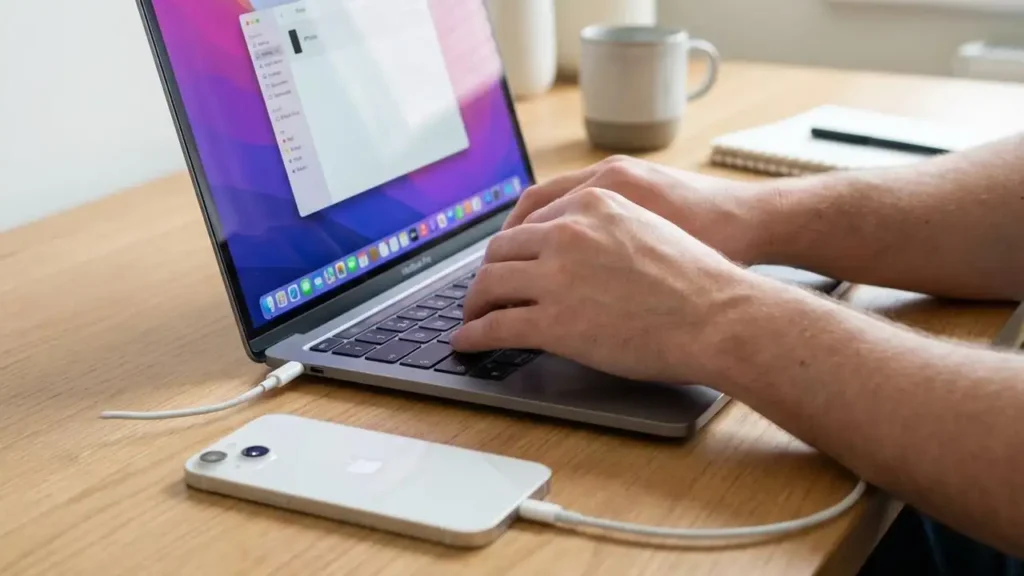
If the update keeps failing on the device itself, updating through a computer is one of the best next steps. On a Mac, use Finder. On Windows, use Apple Devices or iTunes, depending on your setup.
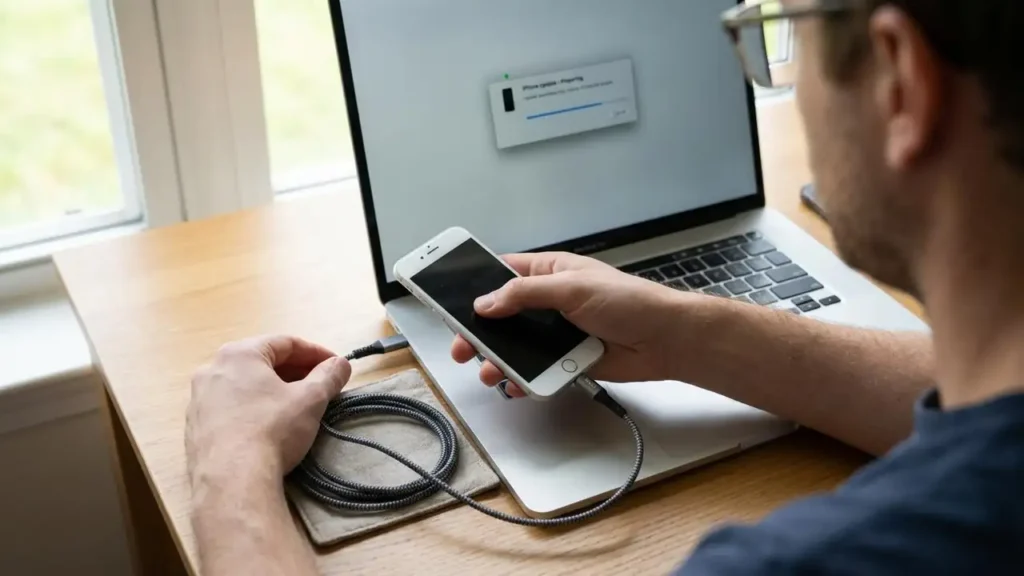
Connect the device directly to the computer with a reliable cable. Do not use a loose cable, a cheap damaged cable, a keyboard USB port, or a weak hub. If the computer asks whether to trust the device, unlock the iPhone or iPad and confirm it.
This method solves many iOS update errors because the computer handles the download and installation differently from the over-the-air process. It is often more reliable when the phone has networking issues, a damaged OTA package, or repeated verification failures.
What common error codes usually point to
Not every code means the same thing. Some iOS update errors are more about communication, while others are more about hardware or USB conditions.
Errors in the 4005, 4013, and 4014 range are commonly tied to connection interruptions during update or restore attempts. That is why changing the cable, using a different USB port, restarting both the computer and device, and trying another computer can help.
Errors in the 1600 to 1699 range often point to USB, software, or communication issues during update or restore attempts. These are the errors where cable quality, direct connection, and computer-side software updates matter a lot.
Errors like 3014 or 3194 often point to trouble reaching Apple’s servers or verifying the requested software build. In those cases, internet quality, security software, and update method matter more than storage.
Error 53 is more serious and can indicate a hardware-related issue. When that appears, the problem is not usually solved by ordinary retry steps alone.
Check the computer side too
When using a Mac or PC, many iOS update errors are actually caused by the computer, not the iPhone. Make sure the Mac is updated. On Windows, make sure Apple Devices or iTunes is current.
Also check security software. Antivirus, firewall, or endpoint security tools can interfere with Apple’s update connection. If an update keeps failing through the computer, temporarily reviewing those tools can matter.
And always connect the device directly to the computer, not through a keyboard port or low-power USB hub. This detail seems small, but it matters a lot for update stability.
When to suspect something more serious
If you already freed space, changed networks, deleted the update, restarted the device, tried a direct cable, and updated through a computer, but the same iOS update errors continue, then the issue may be deeper.
At that point, recurring connection-based errors may point to cable, port, or computer problems. Repeated hardware-type errors may suggest a device-level fault. Some users may need recovery mode if the update process has become badly stuck, especially if the device no longer boots normally.
Frequently Asked Questions
Most iOS update errors come down to a few repeat causes: low storage, bad network conditions, broken update files, or unstable computer connections. Start with free space, delete the update file if needed, turn off VPN, and move to a computer update when the wireless method keeps failing. In many cases, that is all it takes to get the update installed successfully.
