
Tag: windows update stuck

Windows Update stuck: Fix Downloading or Installing Issues

Windows Update stuck: Fix Downloading or Installing Issues

Drivers & Updates, Drivers
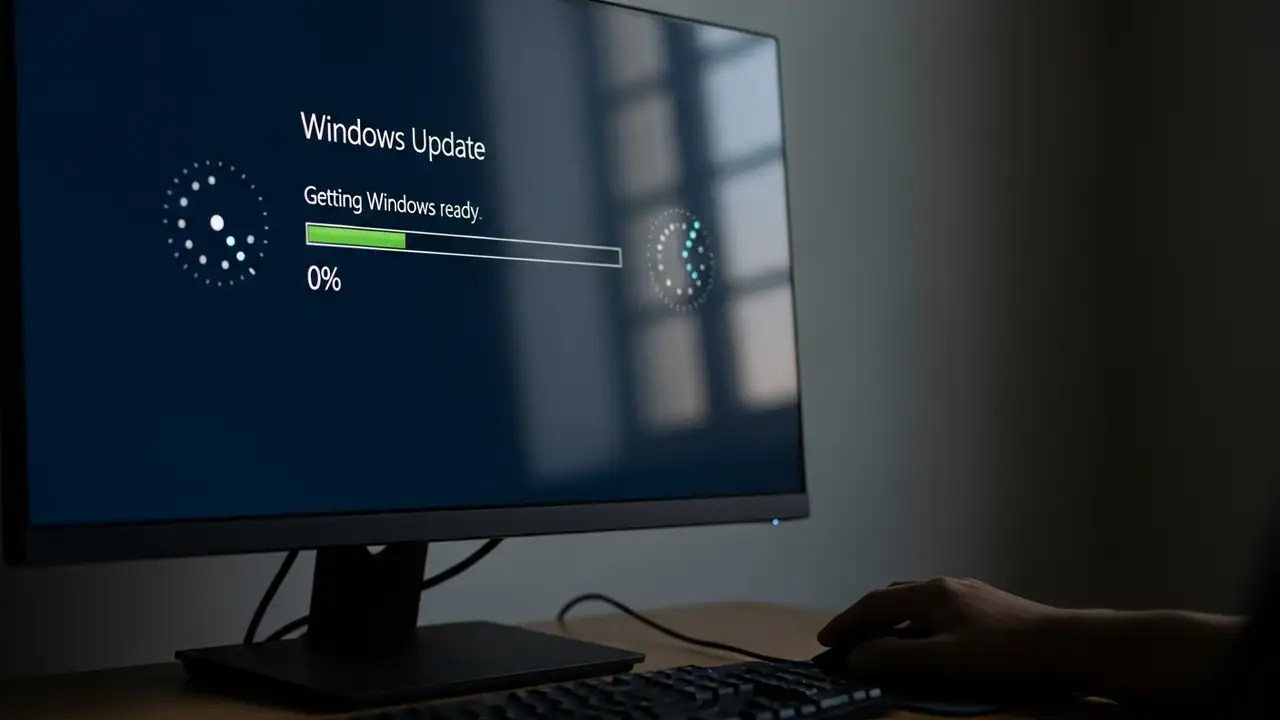
How to Fix Windows Update Stuck on Downloading or Installing Encountering a Windows Update stuck loop can be a frustrating experience, whether updates are at 0%, 100%, or simply failing to progress. This guide provides comprehensive steps to resolve common issues preventing your Windows 10 or Windows 11 system from properly updating. When your system is experiencing a Windows Update stuck problem, it often means the process has halted, not downloading or installing critical updates. This can lead to your computer becoming unresponsive or caught in a pending install state. Resolving this typically involves a series of diagnostic and repair actions, from simple reboots to more involved system utility usage. Initial Steps to Resolve Windows Update Stuck Before diving into complex troubl...
Windows Update Stuck: Fix Freezing, Restart Loops & More

Windows Update Stuck: Fix Freezing, Restart Loops & More

Drivers & Updates
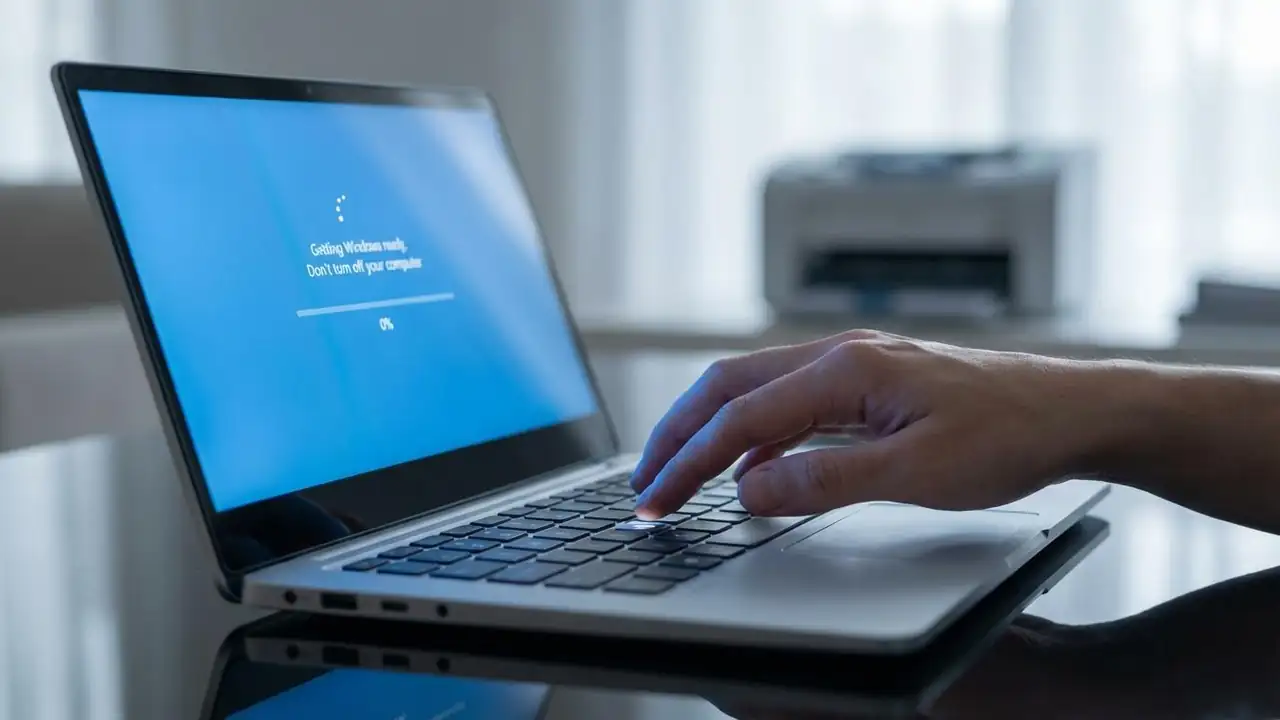
How to Fix a Windows Update Stuck Issue Resolve common freezing and looping problems to get your PC updated. Encountering a windows update stuck screen can be frustrating, especially when your system seems to freeze during crucial operations like "Getting Windows ready, Don't turn off your computer" or when the download progress stalls at 0% or 100%. This common issue prevents your PC from booting properly or completing necessary security and feature updates. Fortunately, several troubleshooting steps can help you resolve a windows update stuck situation and restore your system's functionality. These issues often stem from corrupted update files, insufficient disk space, software conflicts, or interrupted downloads. Addressing these underlying causes systematically is key to success...
🚫
AdBlock Detected!
It looks like you're using an AdBlock extension.
Ads help us provide free, high-quality content.
Please disable your AdBlocker for this website and refresh the page.

How to disable AdBlock:

  1. Click the AdBlock icon in your browser toolbar.
  2. Select "Don't run on this site" or "Pause on this site".
  3. Reload the page using the button below or press F5.
  4. If you still see this message, try temporarily disabling all ad-blocking extensions.