
Performance & Slow PC

SSD Windows Trim: Optimize for Peak Performance

SSD Windows Trim: Optimize for Peak Performance

Performance & Slow PC
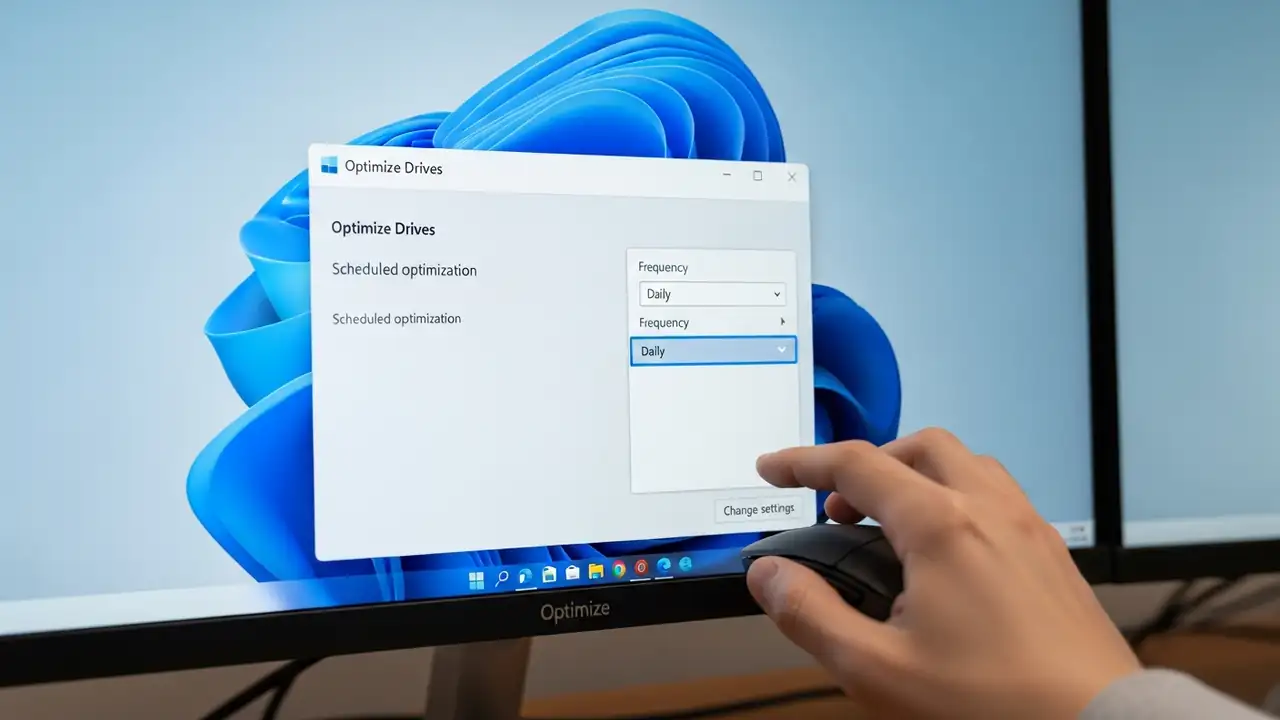
Optimize SSD Windows Trim for Peak Performance Maintain the responsiveness of your solid-state drive on Windows 11 by properly configuring its data management. Your solid-state drive (SSD) relies on the ssd windows trim command to sustain optimal performance. This crucial feature informs your drive which data blocks are no longer necessary following file deletions. While Windows operating systems usually perform this maintenance weekly by default, demanding tasks such as video editing or extensive database operations can greatly benefit from a more frequent, daily cycle to speed up ssd performance. Adjusting this schedule proactively prevents sluggishness and ensures your system remains responsive, contributing to overall speed up your pc efforts. Understanding SSD Windows Trim Benefi...
High CPU Usage in Windows 11: Fix Spikes & 100% Load

High CPU Usage in Windows 11: Fix Spikes & 100% Load

Performance & Slow PC
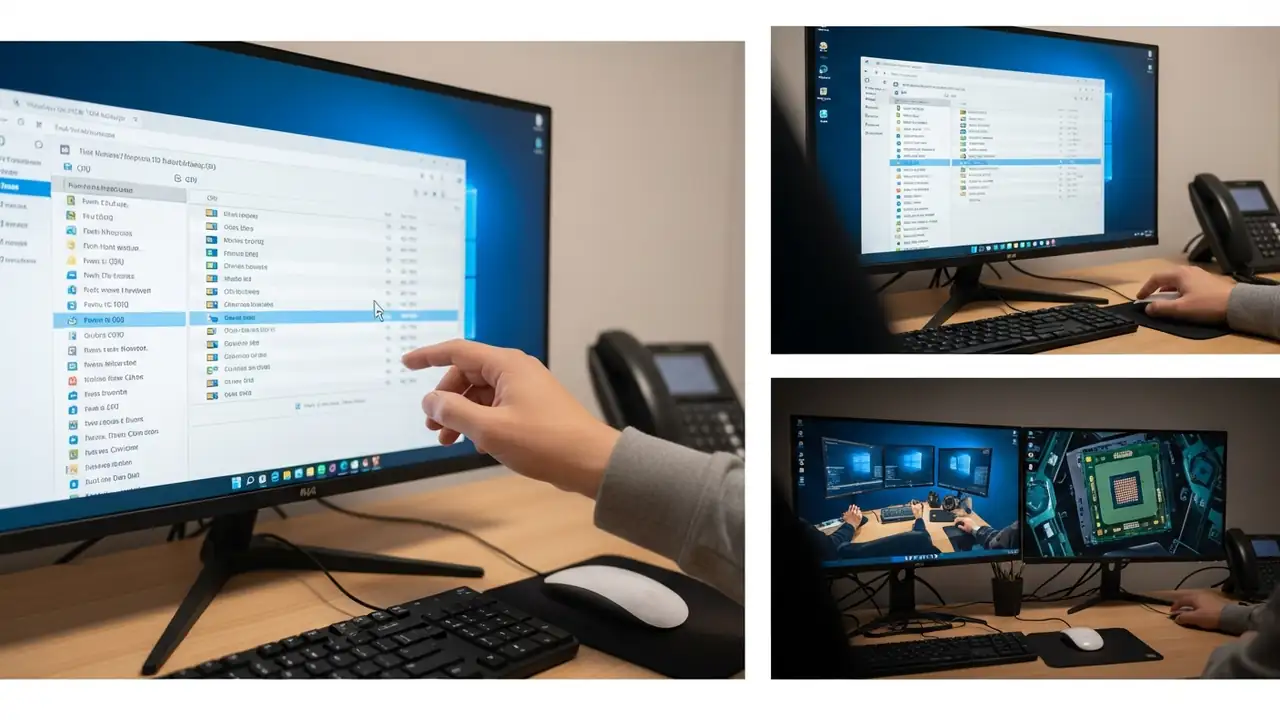
Fix High CPU Usage in Windows 11 Address Performance Issues and Spikes Encountering high cpu usage on Windows 11 can significantly hinder system performance, leading to slowdowns, unresponsiveness, or even crashes. This issue often manifests as unexpected spikes when launching applications, during gaming sessions, or an alarming display of 100% cpu usage but nothing in task manager clearly visible. Identifying and resolving the underlying causes is crucial for restoring your system's speed and stability. This guide outlines actionable steps to diagnose and mitigate CPU overutilization. The problem might arise from various sources, including background processes consuming excessive power, outdated drivers, or even malicious software operating discreetly. Addressing these issues syste...
🚫
AdBlock Detected!
It looks like you're using an AdBlock extension.
Ads help us provide free, high-quality content.
Please disable your AdBlocker for this website and refresh the page.

How to disable AdBlock:

  1. Click the AdBlock icon in your browser toolbar.
  2. Select "Don't run on this site" or "Pause on this site".
  3. Reload the page using the button below or press F5.
  4. If you still see this message, try temporarily disabling all ad-blocking extensions.