
Hard Drive / SSD Issues

external hard drive not showing Mac: Fixes & Troubleshooting

external hard drive not showing Mac: Fixes & Troubleshooting

Hard Drive / SSD Issues
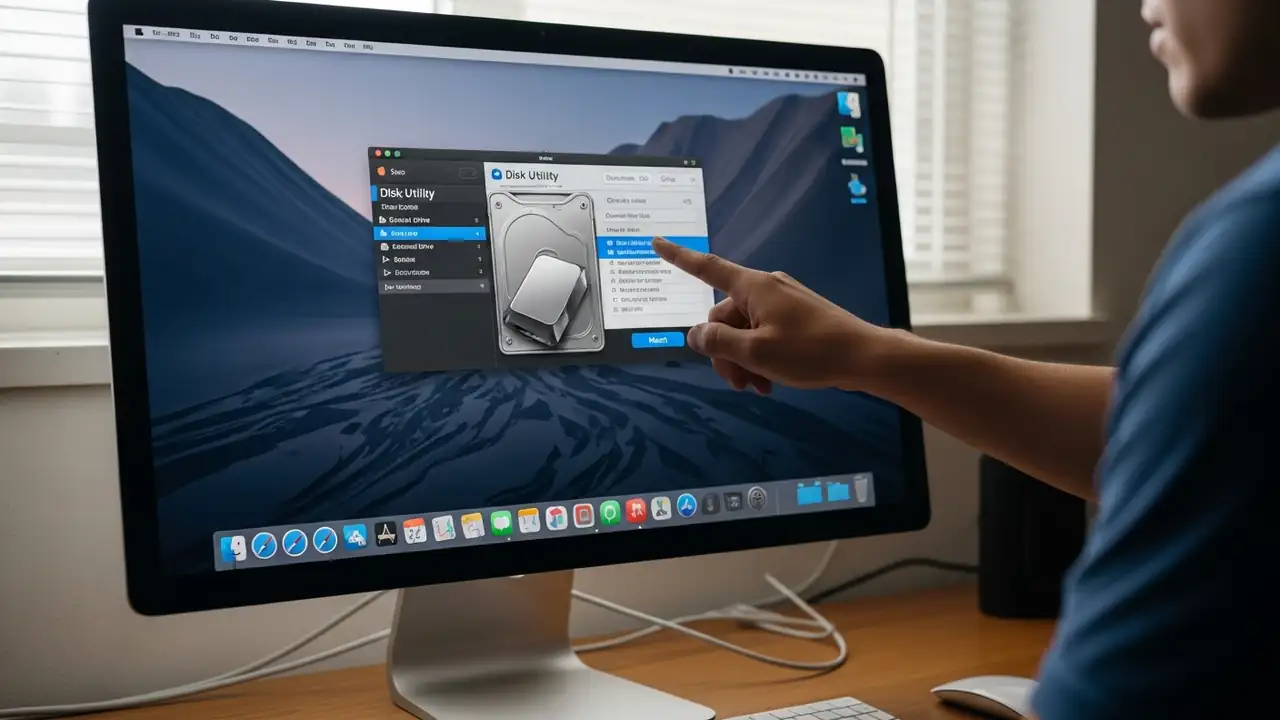
How to Fix an external hard drive not showing Mac Resolve common issues preventing your external storage from appearing on macOS. Encountering an external hard drive not showing Mac can be frustrating, whether you're using a traditional hard disk drive (HDD), a solid-state drive (SSD), or a standard USB flash drive. This guide outlines a series of steps to diagnose and resolve instances where your Mac doesn't detect or mount your external storage devices. We'll cover initial checks, system utility troubleshooting, and advanced solutions to help get your drive recognized and accessible. Initial Troubleshooting for external hard drive not showing Mac When your Mac fails to detect an external drive, begin with fundamental checks to rule out simple connectivity issues or software glitche...
System Data: How to Reduce Huge Mac Storage Bloat

System Data: How to Reduce Huge Mac Storage Bloat

Hard Drive / SSD Issues
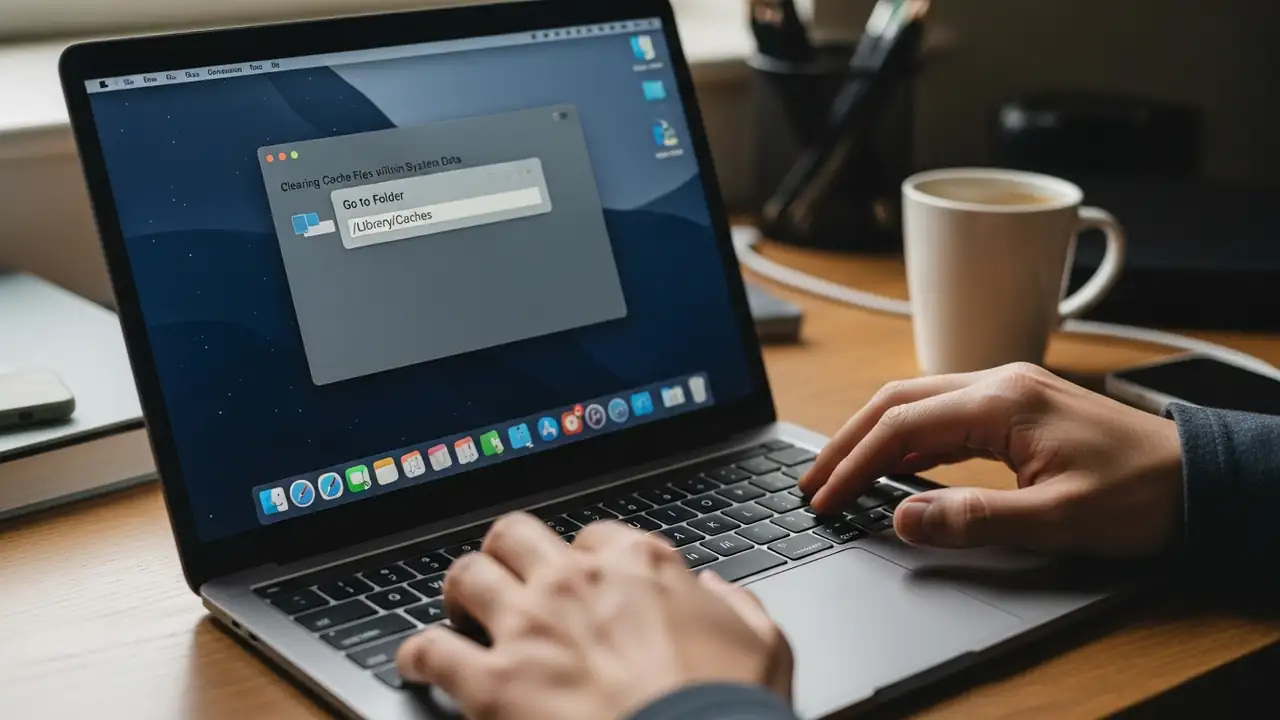
Managing System Data on macOS Reclaiming valuable storage space on your Mac. The System Data category on a Mac can expand significantly, consuming vast amounts of storage and leading to a full macOS storage drive. This growth often stems from various temporary files, logs, and backups that accumulate over time. When your device reports that its storage is full, this often points to an excessive build-up within this category. Addressing this bloat is key to freeing up critical space and maintaining device performance. Understanding what comprises this large category is the first step toward effective storage management. It encompasses items like system caches, application-generated log files, and various temporary files essential for ongoing operations. Additionally, older backups, s...
🚫
AdBlock Detected!
It looks like you're using an AdBlock extension.
Ads help us provide free, high-quality content.
Please disable your AdBlocker for this website and refresh the page.

How to disable AdBlock:

  1. Click the AdBlock icon in your browser toolbar.
  2. Select "Don't run on this site" or "Pause on this site".
  3. Reload the page using the button below or press F5.
  4. If you still see this message, try temporarily disabling all ad-blocking extensions.