
DNS & Connectivity Fixes

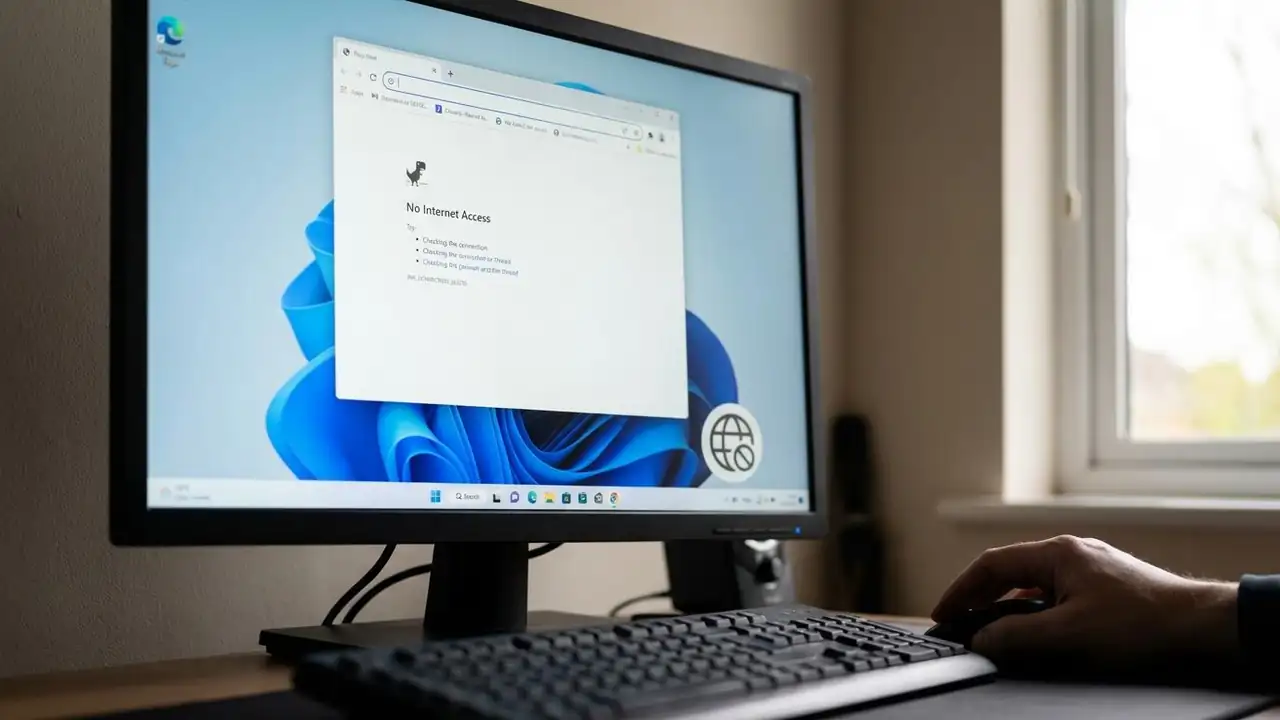
DNS server not responding Windows 11: 4 Quick Fixes

DNS server not responding Windows 11: 4 Quick Fixes

DNS & Connectivity Fixes
How to Fix DNS server not responding Windows 11 Resolve internet connectivity issues with these essential troubleshooting steps for your Windows 11 PC. Encountering the "DNS server not responding Windows 11" error can be frustrating, often preventing you from accessing the internet despite your Wi-Fi or Ethernet connection appearing active. This common issue indicates a problem with how your computer translates website names into IP addresses, a critical step for online communication. Fortunately, most instances of DNS server not responding Windows 11 can be resolved quickly using straightforward methods. This guide provides a series of effective solutions to get your Windows 11 system back online. We'll start with the simplest checks and move to more in-depth network adjustments, h...
Wifi Keeps Disconnecting? Fix Your Connection Now!

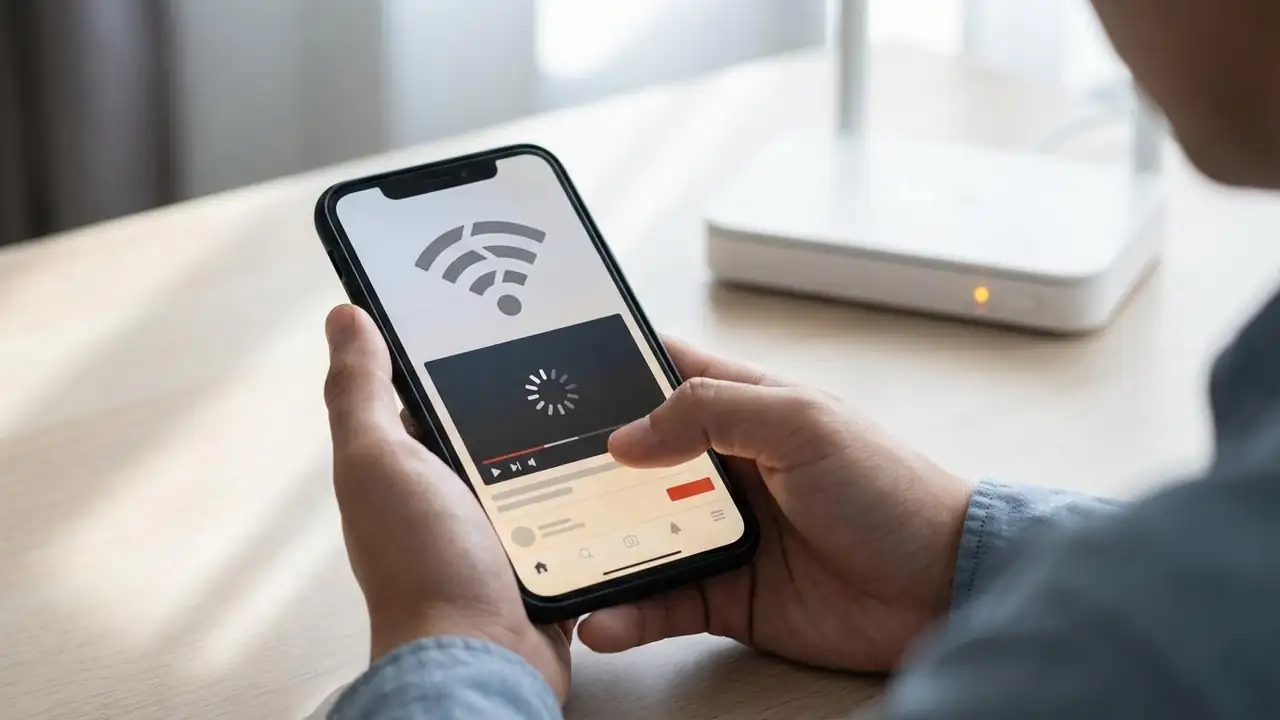
Wifi Keeps Disconnecting? Fix Your Connection Now!

DNS & Connectivity Fixes
How to Fix When Your Wifi Keeps Disconnecting Experiencing Wi-Fi drops can be incredibly frustrating, disrupting work, streaming, and online gaming. If your wifi keeps disconnecting, it's usually due to a minor software glitch, environmental interference, or a setting that's trying to be "too smart" for its own good. This guide will walk you through systematic steps to diagnose and resolve persistent Wi-Fi disconnections across your devices. Whether your wifi keeps disconnecting on phone, your PC running wifi keeps disconnecting windows 11, or your wifi keeps dropping on macbook, the underlying causes often share common solutions. The key is to start with simple fixes and gradually move to more advanced troubleshooting. Pinpointing if the issue affects all devices or just one specific ...
🚫
AdBlock Detected!
It looks like you're using an AdBlock extension.
Ads help us provide free, high-quality content.
Please disable your AdBlocker for this website and refresh the page.

How to disable AdBlock:

  1. Click the AdBlock icon in your browser toolbar.
  2. Select "Don't run on this site" or "Pause on this site".
  3. Reload the page using the button below or press F5.
  4. If you still see this message, try temporarily disabling all ad-blocking extensions.