
5 Easy Ways to Fix iPhone Stuck on Preparing Update
When your iPhone stuck on Preparing Update refuses to move forward, the issue is usually not as serious as it looks. In most cases, the update is being delayed by a weak Wi-Fi connection, limited storage, a damaged update file, or a temporary software hang that prevents iOS from moving to the next stage.
The good news is that this problem is often easy to fix without advanced tools. If your iPhone or iPad has been sitting on the same message for too long, work through the following methods in order. That gives you the best chance of getting the update to install cleanly without creating new issues.
1. Check Wi-Fi and keep the device plugged in
Start with the basics before trying anything deeper. A software update needs a stable connection and enough power to complete properly. If your network is weak or unstable, the iPhone may stay on Preparing Update far longer than expected.
Connect the device to a strong Wi-Fi network and plug it into a charger. Then leave it alone for a few minutes. Sometimes the update is not truly frozen at all. It may simply be taking longer because the file is large, the connection is slow, or the phone is still preparing system files in the background.
If you are using public Wi-Fi, try switching to a more reliable home or office network. Also avoid streaming, large downloads, or other heavy internet activity on the same network while the update is running.
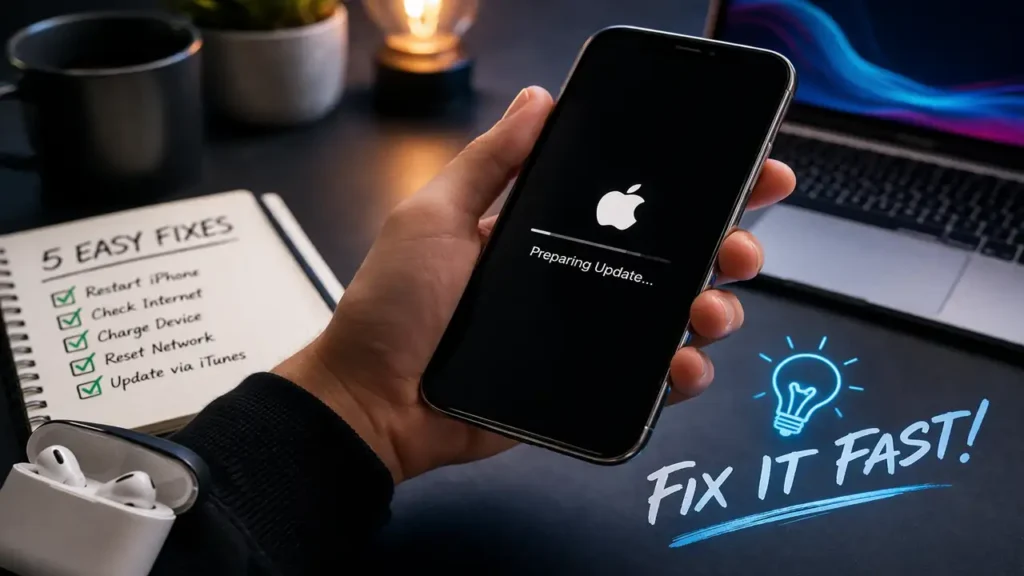
2. Delete the update and download it again
This is one of the most effective fixes when the screen has stayed on Preparing Update for too long. Sometimes the downloaded update file becomes incomplete or corrupted, and the phone gets stuck trying to prepare a file that is no longer usable.
To remove it, open Settings, go to General, then iPhone Storage. Scroll until you find the iOS update file in the list. Tap it, then choose Delete Update.
After that, go back to Settings > General > Software Update and download the update again. This forces the iPhone to fetch a fresh copy instead of trying to continue with the old one.
If the original file was damaged or partially downloaded, this step often solves the problem immediately.
3. Free up storage space
Low storage is another common reason an iPhone stuck on Preparing Update will not continue. Even if the download has already started, the device still needs enough free space to unpack and install the update correctly.
Go to Settings > General > iPhone Storage and check how much space is available. If the phone is nearly full, remove large videos, delete apps you no longer use, or clear old files that are taking up room.
This matters more than many users expect. A software update does not only need space for the file itself. It also needs working room while the system prepares and installs everything. If storage is too tight, the update may remain stuck without showing a clear warning.
Try to free a reasonable amount of space before downloading the update again. Then restart the process and see whether it moves past the preparation stage.
4. Restart the iPhone and try again
If the update file looks fine and storage is not the issue, a simple restart can help clear temporary system glitches. Sometimes the phone has not failed in a major way. It may just be stuck in a background process that needs a clean restart.
Turn the iPhone off normally, wait a few seconds, and turn it back on. After the device finishes loading, reconnect to Wi-Fi, plug it into power, and try the update again.
This step is especially useful if the phone feels slow, apps are hanging, or the update screen seems unresponsive. Restarting clears temporary memory and can help the software update process reset itself without requiring anything more aggressive.
If you use a VPN, disconnect it before trying again. It is also a good idea to avoid switching between networks while the update is downloading or preparing.
5. Update with a computer instead
If nothing changes and your iPhone stuck on Preparing Update still will not move, the next smart option is to update it using a computer. This bypasses the over-the-air update path and often works when the wireless method keeps failing.
Connect the iPhone to a trusted Mac or Windows PC. On a Mac, open Finder. On Windows, use the appropriate Apple device management software. Select your iPhone, check for an available update, and choose the option to download and install it.
This method can be more reliable because the update is managed through the computer rather than entirely through the phone’s wireless update system. It is often the best fix when the device repeatedly gets stuck at the same point no matter how many times you retry.
If even the computer method does not work, then the issue may be deeper, and recovery mode may become necessary. That should be treated as a later step, not the first thing you try.
What usually causes this problem?
Most cases come back to a small group of causes. Once you understand them, the fix becomes easier to choose.
Weak or unstable internet
If the Wi-Fi connection keeps dropping or is too slow, the update may not complete the preparation stage properly.
Corrupted update file
A broken or incomplete download is one of the most common triggers. Deleting and re-downloading the update often solves this.
Not enough free storage
The phone needs extra room to process and install the update. If storage is too low, the update may stall.
Temporary iOS glitch
Background processes sometimes hang during an update. A restart can clear the issue.
Wireless update failure
When over-the-air updating keeps failing, using a computer is often the cleanest alternative.
When to wait and when to act
Not every delay means the iPhone is truly stuck. A large update can take time, especially on an older device or a slower network. If the progress is still changing, even slowly, it is usually best to wait a little longer.
You should take action when the phone has remained on Preparing Update for a long time with no visible progress, especially if you already know the Wi-Fi is stable and the battery level is fine. In that case, deleting the update file and downloading it again is usually the best first move.
Frequently Asked Questions
An iPhone stuck on Preparing Update is frustrating, but it is usually fixable without much risk. Start with the simplest steps first, then move to deleting the update file, freeing storage, restarting the device, and updating through a computer if needed. That order gives you the best chance of fixing the issue quickly and cleanly.
