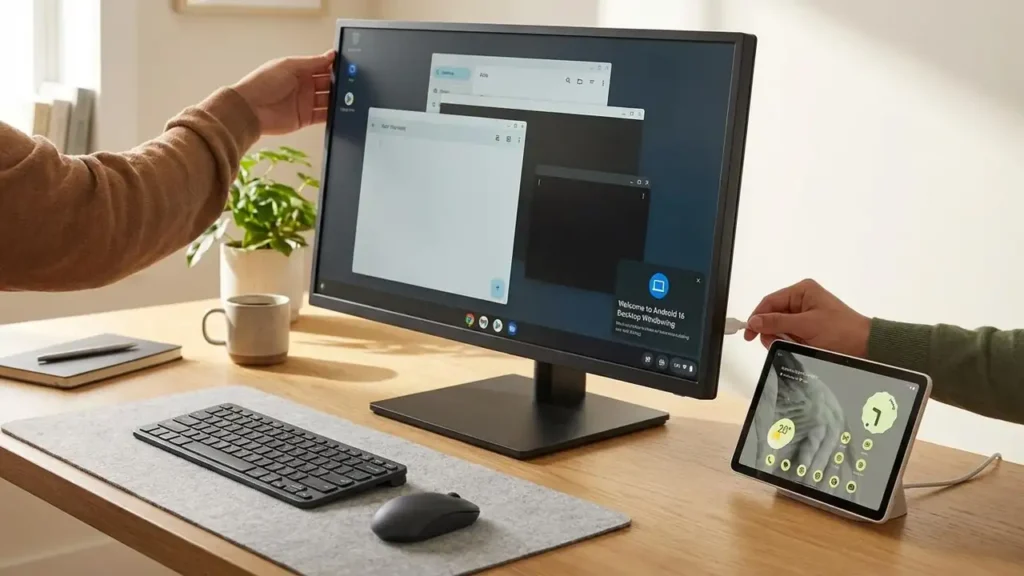
Android 16 desktop windowing on Pixel Tablet
New productivity features arrive for tablet users
The implementation of Android 16 desktop windowing marks a pivotal shift for users who demand more from their portable hardware. By introducing a desktop-style windowing interface, the operating system allows for the fluid management of several applications simultaneously. This change is most evident when users move from a standard touch interface to a dedicated workstation setup.
Android 16 QPR3 serves as the primary foundation for these significant improvements. It enables a versatile user interface that mimics the behavior of a standard computer. For those seeking better results from their mobile hardware, the addition of Android 16 desktop windowing is a major step toward making tablets viable laptop replacements in professional environments.
Hardware Requirements for Android 16 desktop windowing
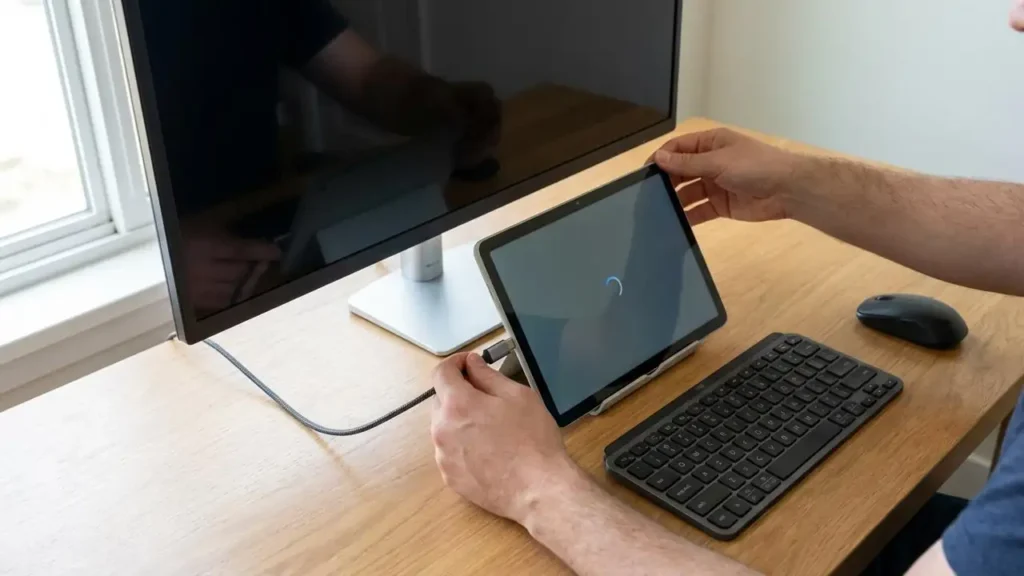
To utilize Android 16 desktop windowing effectively, specific hardware components are required. Users must connect their tablet to an external monitor to trigger the expanded interface. This connection typically requires a compatible cable or a docking station that supports video output from the device port.
Once the visual output is established, adding a keyboard and mouse completes the hardware transition. These peripherals are essential for navigating the desktop-style windowing system with precision. Without a physical mouse and keyboard, the productivity benefits of the new layout are limited. The system detects these inputs and adjusts the windowing behavior, ensuring the software behaves like a traditional desktop environment.
Maximizing Android 16 desktop windowing for Productivity
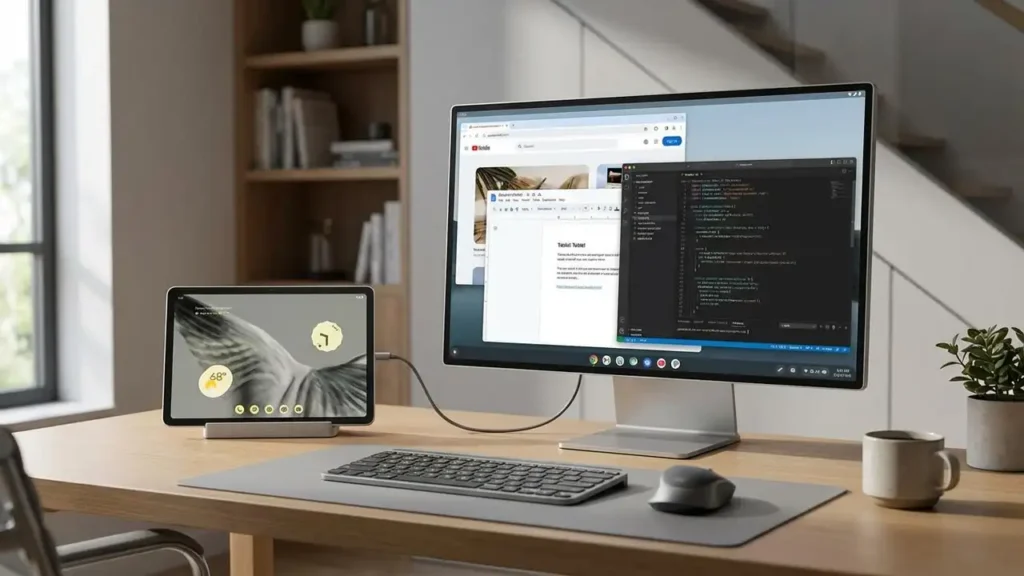
The primary goal of Android 16 desktop windowing is to enhance the overall output of the device. By allowing apps to exist in resizable windows, the interface moves away from the traditional full-screen or split-screen limitations of mobile software. This allows for better multitasking when handling complex projects or managing multiple streams of information.
Optimizing Workflows with Android 16 desktop windowing
When working within this new interface, users should focus on how apps interact on an external screen. The desktop-style windowing feature ensures that windows can be moved, resized, and layered. This behavior is crucial for users who need to reference one document while typing in another. Android 16 desktop windowing makes this process seamless by providing a taskbar and window controls that feel familiar. This layout ensures you can jump between tasks with the speed of a professional desktop setup.
Setup and Configuration for New Features
- Verify the tablet is updated to the Android 16 QPR3 system version.
- Connect the device to an external monitor using a high-quality video cable.
- Pair a Bluetooth keyboard or connect a wired version through a USB hub.
- Link a mouse to ensure precise navigation within the resizable windows.
- Observe the screen as it transitions into the new desktop-style windowing mode.
- Use the system settings to adjust window scaling if the display looks cramped.
If the desktop interface does not appear immediately, check the physical cable connections. Ensure the monitor is set to the correct input source. The system logic should recognize the external hardware and launch the enhanced windowing environment automatically. Once active, the external display becomes the primary workspace, while the tablet remains fully functional for secondary tasks.
Connection Troubleshooting for Android 16 desktop windowing
If the Android 16 desktop windowing mode does not engage when you plug in your hardware, verify the compatibility of your adapter. Not all USB-C cables support the high bandwidth required for video signals and desktop-style windowing. If the monitor remains dark, test the cable with another device to rule out a hardware failure.
Another check involves the mouse and keyboard inputs. If the system does not detect these peripherals, the windowing mode may not offer full desktop functionality. Ensure all Bluetooth devices are properly paired and that any wired hubs are receiving sufficient power. The synergy between your tablet and your peripherals is the key to a stable Android 16 desktop windowing session.
Safety and System Maintenance
When managing external hardware, always prioritize device safety. Power off the external monitor before disconnecting cables to prevent electrical surges. Avoid touching the internal pins of the tablet’s port or the cable connectors. If a connection fails to register, do not force the plug into the port, as this can cause permanent damage.
Using damaged or uncertified cables can lead to connectivity issues or system instability. If the software behaves unexpectedly or the desktop mode fails to trigger after multiple attempts, consult a professional. Opening the device or attempting internal repairs will void the manufacturer warranty. Regular system updates are also necessary to maintain the stability of the software environment during long productivity sessions.
FAQ: Android 16 desktop windowing Details
The transition to a desktop-style interface represents a significant leap for the Pixel Tablet. With Android 16 desktop windowing, the device transcends its mobile origins to become a versatile tool for work and creativity. By following the correct setup procedures and using the required peripherals, users can unlock a new level of efficiency. As Android 16 QPR3 continues to evolve, the capabilities of this windowing system will likely expand, further cementing the tablet’s role as a productivity powerhouse.