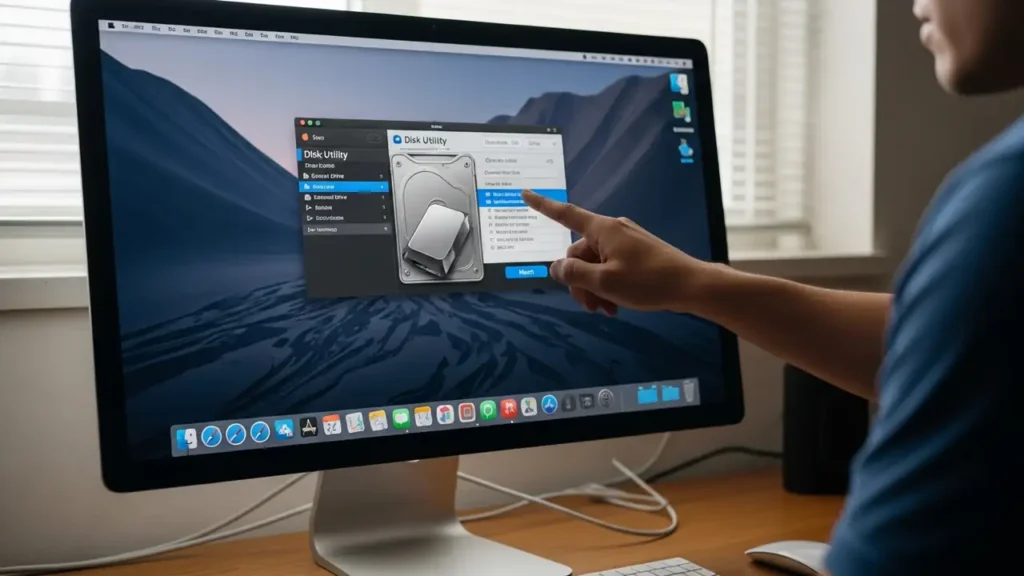
How to Fix an external hard drive not showing Mac
Resolve common issues preventing your external storage from appearing on macOS.
Encountering an external hard drive not showing Mac can be frustrating, whether you’re using a traditional hard disk drive (HDD), a solid-state drive (SSD), or a standard USB flash drive. This guide outlines a series of steps to diagnose and resolve instances where your Mac doesn’t detect or mount your external storage devices. We’ll cover initial checks, system utility troubleshooting, and advanced solutions to help get your drive recognized and accessible.
Initial Troubleshooting for external hard drive not showing Mac
When your Mac fails to detect an external drive, begin with fundamental checks to rule out simple connectivity issues or software glitches. These steps are often quick and can resolve many common recognition problems.
- Verify Physical Connections: Start by ensuring the drive is securely connected. Unplug the storage device from its current port and re-insert it firmly. If you are using a multi-port USB hub, try connecting the device directly to your Mac to bypass potential hub-related problems. Experiment with different USB ports on your computer; sometimes a specific port may be faulty.
- Adjust Finder Preferences: Your Mac’s Finder application has settings that control visible devices. Navigate to the Finder application’s settings. Within the “General” tab, confirm that the option for “External disks” is marked. If this setting is not enabled, external storage units will not appear in Finder windows.
- Perform a System Restart: A simple restart of your macOS system can often resolve temporary software conflicts or glitches preventing a drive from appearing. Power down your Mac completely, wait a few moments, and then restart it. After the system boots, check again for your external drive.
Using Disk Utility for external hard drive not showing Mac
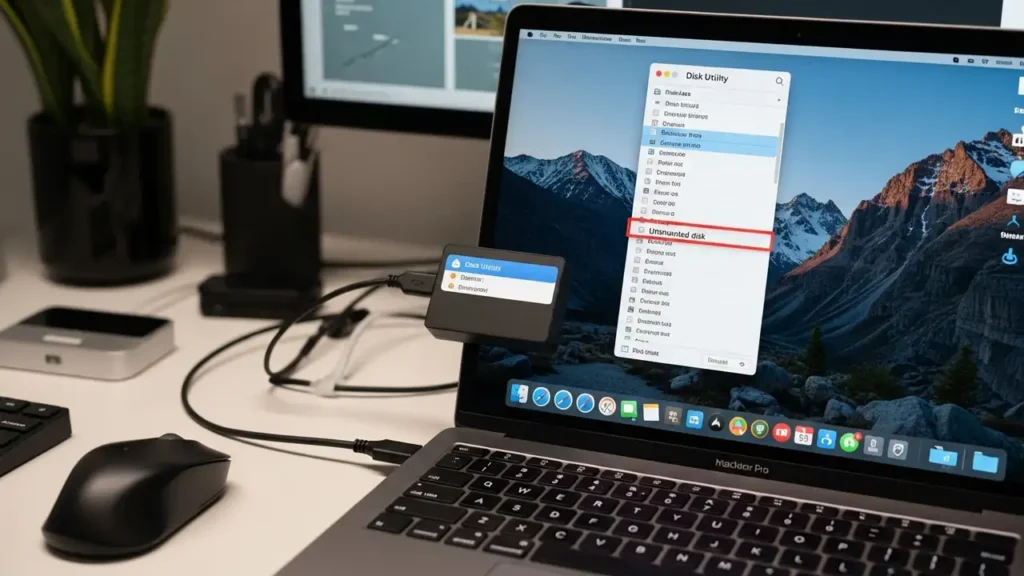
If initial checks do not resolve the issue, macOS’s built-in Disk Utility is your next tool for diagnosing and managing storage devices. This application can help identify the drive, attempt to mount it, or repair underlying file system errors.
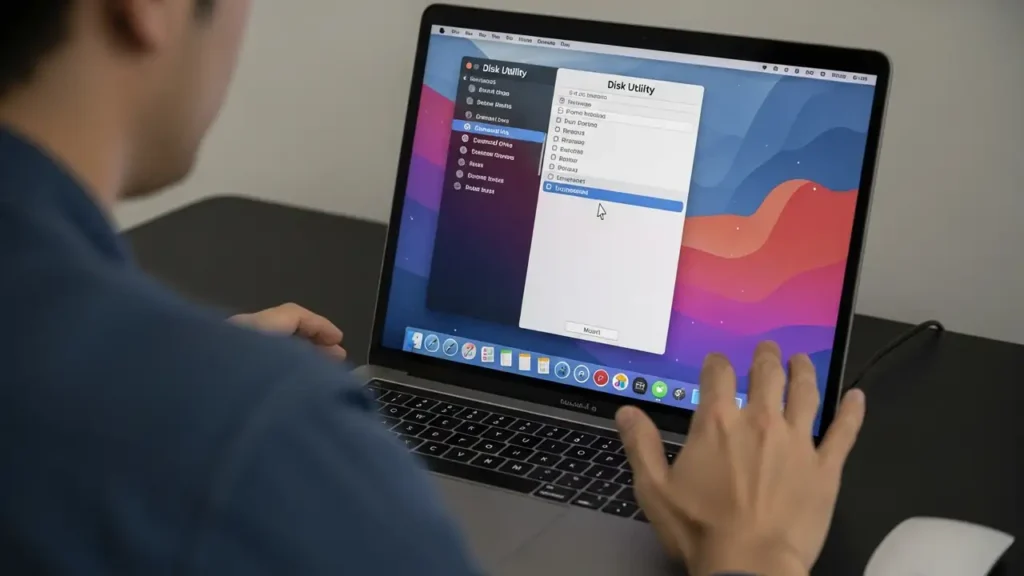
- Locate and Mount the Drive: Open Disk Utility, which can be found using Spotlight search. In the Disk Utility sidebar, look for your external drive. It might appear grayed out if it’s detected but not currently mounted. Select the drive, and then click the “Mount” button in the toolbar. If successful, the drive will become active and visible in Finder.
- Run First Aid Diagnostics: If the drive remains grayed out or does not mount, select it in Disk Utility and then choose the “First Aid” option. This function scans the drive for file system errors and attempts to repair them. Follow any on-screen prompts during the repair process. This can often fix logical corruption that prevents a drive from being recognized.
- Verify System Report Detection: To confirm your Mac’s hardware is detecting the drive, access the System Report. Go to the Apple Menu, select “About This Mac,” and then click “System Report.” In the sidebar, navigate to the “USB” section. This report will list all USB devices connected to your Mac at a hardware level. If your external drive appears here, it indicates a software or formatting issue rather than a physical connection problem.
Erasing and Reformatting an external hard drive not showing Mac
In situations where a drive is detected but remains unusable, often due to an incompatible file format, reformatting becomes necessary. This process will prepare the drive for use with macOS but will also erase all existing data. Ensure you have backed up any critical data before proceeding with reformatting, as this action is irreversible.
- Reformat for macOS Compatibility: Within Disk Utility, if your drive is visible but cannot be repaired or mounted, it might be in an unsupported format, such as NTFS, which macOS can typically read but not write to without third-party software. Select the drive in Disk Utility. Choose the “Erase” option. When prompted, select a macOS-compatible format such as APFS (Apple File System) for newer Macs and SSDs, or ExFAT for broader compatibility with both Mac and Windows systems.
- Complete the Erase Process: Confirm your selection and proceed with the erase operation. This will format the drive, making it ready for use with your Mac. After the process completes, the drive should mount automatically and be accessible.
Advanced Solutions for Persistent Recognition Issues
If the previous steps have not resolved the external hard drive not showing Mac problem, these advanced solutions address system-level configurations.
- Toggle Privacy Settings (Apple Silicon Macs): For Macs equipped with Apple Silicon processors, specific privacy and security settings can affect accessory connections. Go to System Settings, then “Privacy & Security.” Look for an option that allows accessories to connect. Ensure this setting permits your external drive to establish a connection.
- Reset NVRAM (Intel-based Macs): On older Intel-based Mac models, resetting the Non-Volatile Random-Access Memory (NVRAM) can resolve issues related to system configurations, including external device recognition. To perform this, restart your Mac and immediately press and hold the Option, Command, P, and R keys simultaneously for approximately 20 seconds. Your Mac will restart again, indicating the NVRAM has been reset.
Preventing Future Drive Recognition Problems
Maintaining good practices can help avoid future instances of an external hard drive not showing Mac. Always safely eject your external drives before disconnecting them to prevent file system corruption. Regularly check for macOS updates, as these often include improved device compatibility and bug fixes. Consider using reliable cables and avoiding overly congested USB hubs.
By systematically working through these troubleshooting steps, you increase your chances of successfully resolving issues where an external hard drive not showing Mac prevents access to your valuable data. Should the drive still not appear or function correctly after these comprehensive efforts, the device itself might be faulty and require professional inspection.