Addressing iOS 26.2.1 storage issues on Your iPhone
Resolving inaccurate space readings and excessive system data on your Apple smartphone.
Many iPhone users on iOS 26.2.1 encounter inaccurate storage information, particularly an inflated “System Data” category. This can lead to the perception of limited space, even when applications and personal files do not account for the reported usage. Effectively tackling these iOS 26.2.1 storage issues requires a systematic approach to refresh system calculations and clear hidden caches.
The problem often manifests as a discrepancy between the total reported storage used and the sum of known app and media data. This guide provides a series of steps, from simple reboots to more involved system resets, to help your device report its storage capacity correctly and free up misused space.
Initial Steps for Inaccurate Storage Display
Begin with these quick adjustments to prompt your device to re-evaluate its current storage statistics. These actions are designed to resolve minor glitches that might cause misleading data readings.
- Restart Your Device: A fundamental action is to power down your iPhone completely, then power it back on. This process can compel the operating system to re-index and precisely determine its storage allocation.
- Clear Browser Cache: Open your device settings and navigate to the Safari section. Select the option to remove all browser history and website data. This purges accumulated temporary files from web browsing that can consume hidden space.
- Offload Applications: Access the iPhone Storage section within your general settings. Activating the “Offload Unused Apps” feature allows the system to remove application binaries while preserving their associated data. This creates free space without losing personal information linked to those programs.
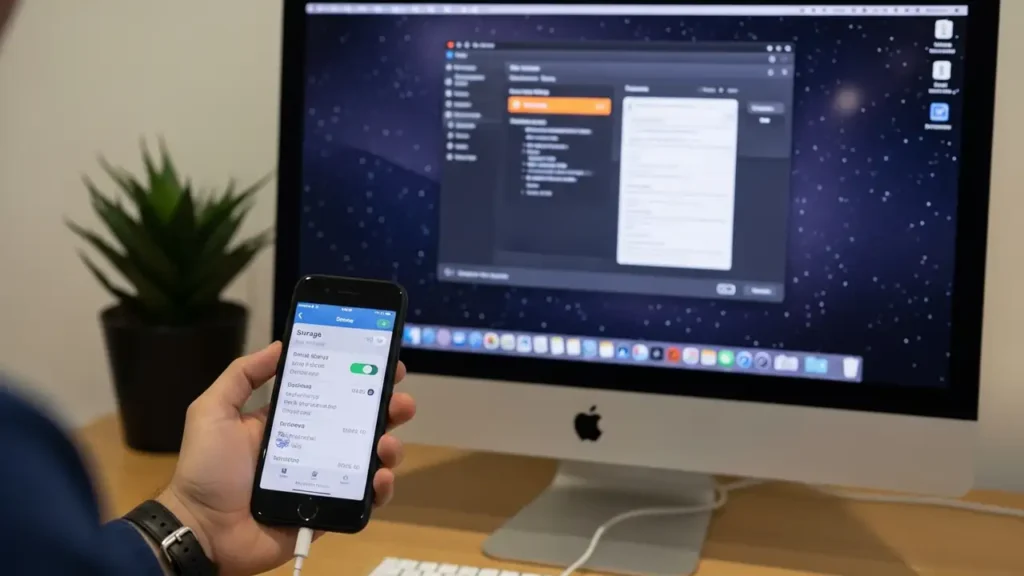
- Verify Via Computer: Connect your iPhone to a desktop computer and launch iTunes or Finder. The storage breakdown presented by your computer software can often offer a more reliable assessment of the device’s actual storage consumption compared to the figures displayed directly on the iPhone.
Addressing Persistent iOS 26.2.1 storage issues from System Data
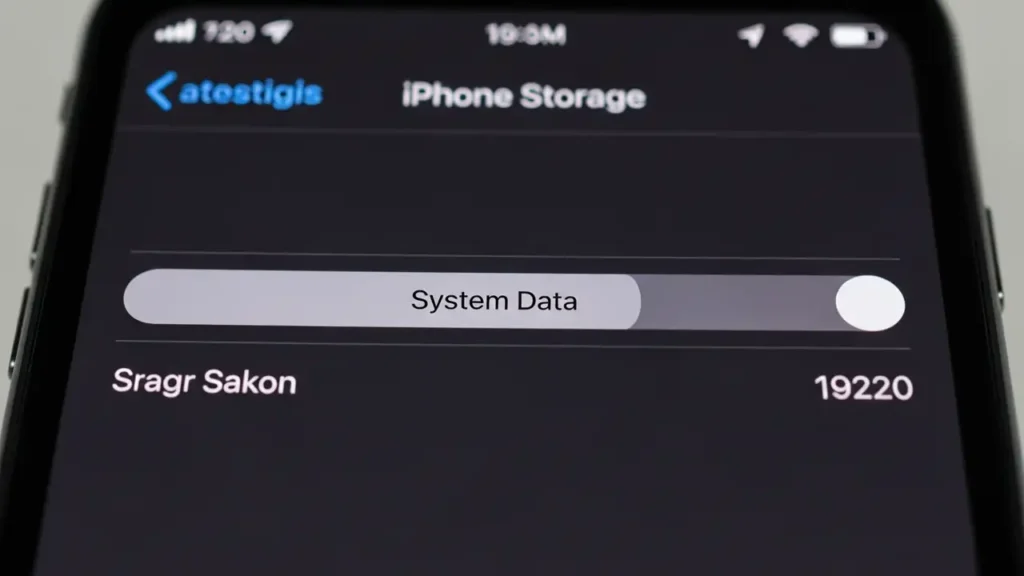
If your “System Data” category remains excessively large after the initial steps, a more targeted intervention is necessary. This specific sequence is designed to address the underlying causes of high system data, a common component of iOS 26.2.1 storage issues.
- Disable iCloud Photos: Go to your device’s settings, then find the Photos section. Deactivate iCloud Photos. When prompted, select “Remove from iPhone.” This specific action ensures local photo caches are cleared without impacting your images stored in iCloud.
- Restart and Allow Indexing: Turn off your device for a full ten minutes. After this period, power it on again. Allow your iPhone a significant amount of time, perhaps an hour or more, to re-index all its content, especially photos and other media. This re-indexing is crucial for an accurate storage recalculation.
- Reset Device Settings: Navigate to Settings, then General, and select “Transfer or Reset iPhone.” Choose the “Reset” option and then “Reset All Settings.” This procedure clears various corrupted indexing files and system caches, which are often contributors to inflated “System Data.” It does not erase your personal data or media.
- Re-enable iCloud Photos: Return to the Photos section in settings and reactivate iCloud Photos. When presented with options, select “Optimize iPhone Storage.” This setting ensures that full-resolution images are kept in iCloud while space-saving versions reside on your device, preventing future accumulation of excessive local photo data.
Detailed Reset for iOS 26.2.1 storage issues
When encountering stubborn iOS 26.2.1 storage issues, especially after attempting the steps above, a full system restore can be the definitive solution. This process ensures all potential indexing errors and corrupted system files are eradicated.
- Clear Individual App Caches: Certain applications, such as social media platforms like TikTok or Instagram, can accumulate substantial amounts of cached data over time. To clear these, delete the problematic app from your device and then reinstall it from the App Store. This refreshes the app’s local data storage.
- Manage Message Data: Examine your Messages application for large attachments. Over time, videos, photos, and extensive conversations can consume considerable space. Manually delete old messages, particularly those containing large media files, to reclaim significant storage.
- Perform a Full System Restore: For the most persistent iOS 26.2.1 storage issues, a complete system overhaul is advisable. First, create a comprehensive backup of your iPhone’s data using a computer (iTunes or Finder). Next, use the “Erase All Content and Settings” function on your device. After the erasure is complete, restore your iPhone from the backup you created via your computer. This method effectively corrects deep-seated indexing errors and corruptions within the operating system.

Comprehensive Device Cleanup
Maintaining optimal device performance and accurate storage reporting involves ongoing management. Regularly checking and clearing unnecessary data helps prevent the recurrence of storage problems.
Consider routinely reviewing applications for excessive data usage. If an app frequently consumes large amounts of local storage, evaluate whether its data can be offloaded or managed within the application itself. Periodically clearing out old documents and downloads that are no longer needed also contributes to a healthier storage profile.
For significant system-level issues that resist all troubleshooting steps, consulting a professional service may be necessary. Always ensure your device is backed up before attempting any major data removal or system reset procedure.
Frequently Asked Questions About iOS 26.2.1 storage issues
By following these targeted troubleshooting steps, you can effectively address iOS 26.2.1 storage issues, ensuring your iPhone accurately reflects its available capacity and operates more efficiently. Regular maintenance and awareness of app data usage are key to preventing these problems from recurring.