Fix iOS 26.2.1 Serious Problems on Your iPhone
Addressing unexpected glitches and smart home disruptions after your recent system update.
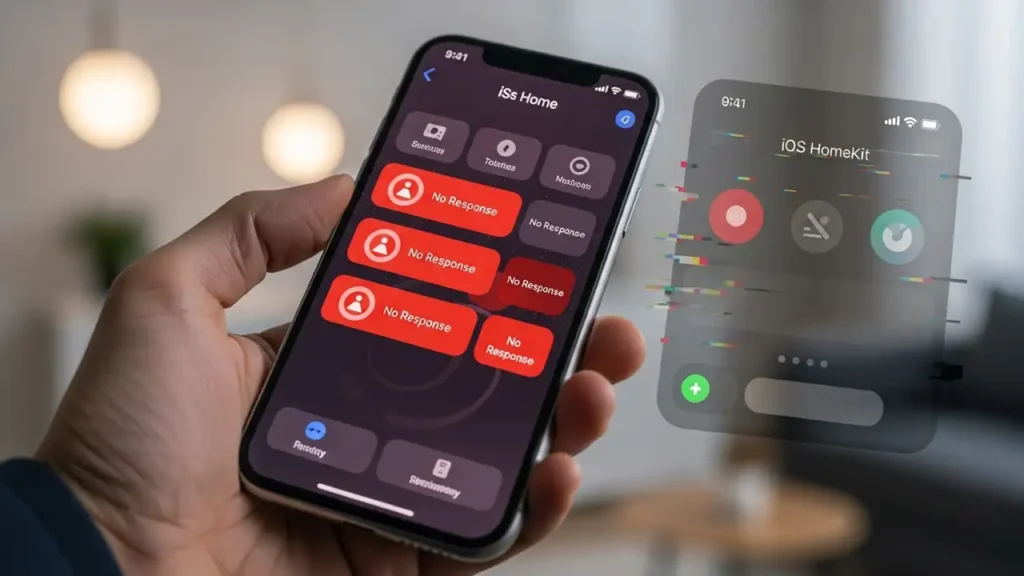
Many users encounter unexpected iOS 26.2.1 Serious Problems following a recent system update. These issues often manifest as unresponsive Control Center features or widespread HomeKit errors, including “No Response” messages within the Home application. These glitches can disrupt daily usage and smart home management, making it difficult to control devices or access quick settings.
The update to iOS 26.2.1 can sometimes introduce compatibility conflicts or temporary software inconsistencies. This guide provides immediate solutions to resolve common system and smart home issues that appear after the installation of iOS 26.2.1 Serious Problems. By following these structured approaches, you can systematically diagnose and correct the underlying causes affecting your device’s performance and smart home ecosystem, restoring proper functionality.
Addressing iOS 26.2.1 Serious Problems on Your Device
Initial steps focus on common system refreshes that often resolve minor software conflicts introduced by updates. These actions do not erase your personal data but can clear temporary caches and reset faulty processes. Start with these quick methods to alleviate general system instability.
- Perform a Forced Restart:
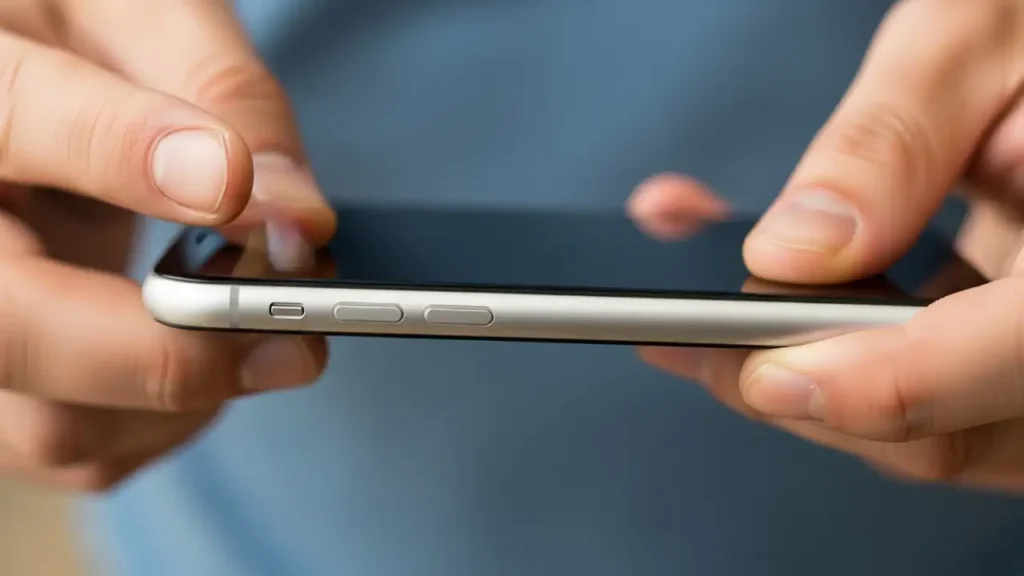
A forced restart can clear out temporary system issues without impacting your data. Quickly press and release the Volume Up button, then immediately press and release the Volume Down button. Finally, press and hold the side button on your device until the Apple logo appears on the screen. This action reboots the operating system, often resolving minor software glitches affecting your device’s performance. - Reset All Settings:
If a forced restart doesn’t resolve the iOS 26.2.1 Serious Problems, resetting all settings might help. Navigate to Settings, then select General. Scroll down to Transfer or Reset iPhone, choose Reset, and then select Reset All Settings. This action will restore all system settings to their default values but will not delete your personal data, photos, or applications. You may need to reconfigure Wi-Fi passwords and display preferences afterward. - Reconfiguring Control Center Elements:
Unresponsive controls in your Control Center can be frustrating. To address this, go to your device’s Settings, then tap on Control Center. Locate the control that is not functioning correctly and remove it from the included controls list. Wait a few moments, then add the control back to re-establish its connection and functionality. This process often resolves display or interaction issues with individual controls.
Restoring HomeKit Functionality After iOS 26.2.1 Serious Problems
Many users report “No Response” errors for smart devices within the Home application after the latest update. These issues often stem from communication breakdowns between your iPhone and your home network or smart hubs. This section focuses on resolving HomeKit specific iOS 26.2.1 Serious Problems.
- Toggling Home Data Sync:
HomeKit relies on iCloud synchronization for device and automation settings. To refresh this connection, open Settings, tap on your Apple ID (Your Name) at the top, and then select iCloud. Locate the “Home” option and disable it. Wait for approximately one minute to allow the system to fully disconnect. Afterward, re-enable the “Home” option to force a fresh synchronization of your smart home data. -
Troubleshooting “No Response” with iOS 26.2.1 Serious Problems
“No Response” messages in the Home app frequently indicate a communication issue with your central Home Hub. It is crucial to ensure your network hubs are functioning correctly and are reachable by your smart devices. This step specifically targets the common iOS 26.2.1 Serious Problems related to HomeKit device availability.
- Restarting Home Hubs: Your Apple TV or HomePod often acts as the primary Home Hub for your network. If you are experiencing persistent “No Response” messages, disconnect the power from your active Home Hub. Wait for at least 30 seconds to allow for a full power discharge. Then, reconnect the power cable to restart the device. This action can re-establish network connections and resolve communication errors.
- Verifying Third-Party Integrations: Some smart devices operate through their native applications before integrating with Apple Home. If a device works within its manufacturer’s app (e.g., Hue, Aqara) but fails to respond in the Home app, examine the third-party application’s settings. Look for an option to toggle or re-establish its HomeKit integration. Disabling and re-enabling this setting can often refresh the connection.
- Utilizing Alternative Home Apps: For persistent issues with automations or device states, a third-party HomeKit management application can provide additional diagnostic and repair capabilities. Apps like Eve can help identify and manage “stalled” or “orphaned” automations that are not properly updating or functioning within the official Home app. These tools may reveal underlying issues not visible in the default interface.
- Updating Related Applications: Ensure all smart home-related applications on your device are up to date. Open the App Store, navigate to your profile, and check for any pending updates for your smart device brands. Outdated applications can sometimes introduce compatibility problems or communication errors with the latest iOS version, exacerbating iOS 26.2.1 Serious Problems.
Safety and Device Care
When troubleshooting any electronic device, always prioritize safety. Before restarting any network hubs, ensure they are securely connected to their power source and handle them with care. Avoid forcibly restarting devices multiple times in rapid succession, as this can potentially lead to further system instability. If you are unsure about any troubleshooting step or if issues persist, consider consulting official support channels or a qualified technician. Do not attempt to open your device or perform any repairs that might void your warranty.
Prevention and Best Practices
To minimize future occurrences of iOS 26.2.1 Serious Problems or similar post-update glitches, establish a routine of regular maintenance. Always ensure your smart home apps are updated before or immediately after an iOS update to maintain compatibility. Periodically restart your Home Hubs, even without apparent issues, to refresh network connections. While the issues described are post-update, maintaining a stable network environment for your smart devices is always a good practice.
Frequently Asked Questions
Experiencing iOS 26.2.1 Serious Problems can be disruptive, but many of these issues are addressable with systematic troubleshooting. By performing forced restarts, reconfiguring settings, and meticulously checking your HomeKit setup, you can effectively resolve most common glitches. Always prioritize a stable network and updated applications to ensure your device and smart home ecosystem run smoothly.