
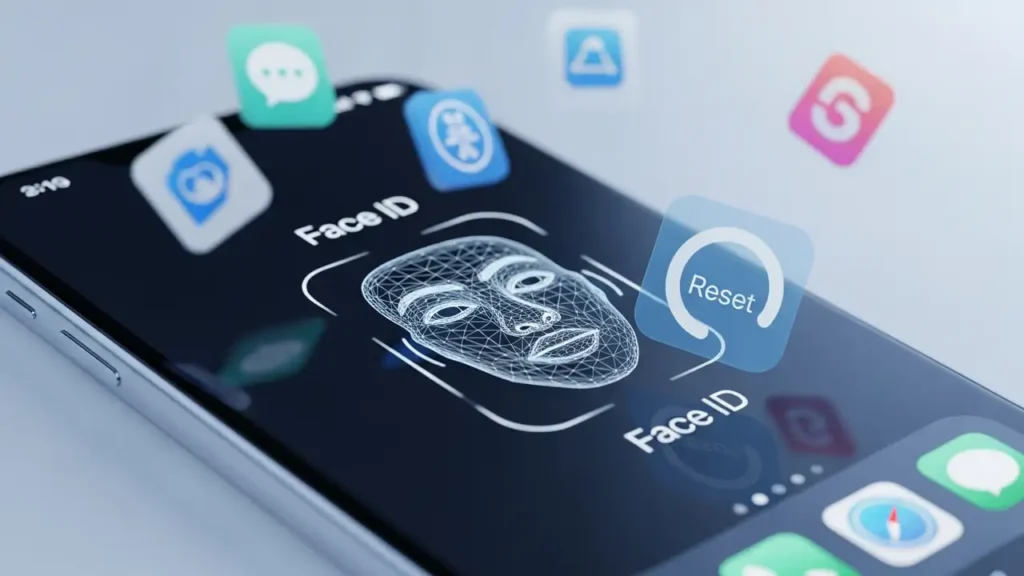
How to Reset Face ID on iOS 26.2.1 for Third-Party Apps
Restore secure biometric access to your applications by troubleshooting common issues and knowing when to Reset Face ID.
If your device is running iOS 26.2.1 and Face ID is encountering difficulties specifically within third-party applications, you are not alone. Komodoty indicates that many biometric authentication problems, especially those appearing after a system update, stem from minor software glitches that can often be resolved with straightforward troubleshooting steps. While some issues might be temporary, persistent failures may necessitate a complete Reset Face ID to restore functionality.
The key to resolving these Face ID failing scenarios is a methodical approach, starting with basic checks and progressing to more comprehensive system adjustments. A simple restart can often clear temporary conflicts, but sometimes the issue requires more direct intervention, such as updating specific applications or reconfiguring biometric settings. Understanding the sequence of these fixes can save time and quickly re-enable your secure access.
Initial Checks for Face ID Failing
Before attempting advanced solutions, begin with simple steps that frequently resolve common software conflicts on your device. These quick actions can address temporary issues without requiring a full system overhaul or a complete Reset Face ID. They are designed to refresh your device’s state and application data, often fixing minor post-update glitches that affect biometric performance.
Restart Your iPhone
Many temporary software hiccups that cause Face ID failing can be resolved by simply restarting your device. This process clears the system’s active memory and reloads all services, including biometric authentication, from a fresh state. Perform a standard restart by powering off your iPhone and then turning it back on after a few moments. This is the quickest and least intrusive first step.
Update Affected Applications
Outdated applications can sometimes be incompatible with newer iOS versions, leading to features like Face ID malfunctioning within them. Developers frequently release updates to ensure their apps work correctly with the latest operating system features. Navigate to the App Store, check for pending updates, and install any available for the applications where Face ID is experiencing issues. This ensures you have the most compatible version.
Toggle Face ID off and On for Specific Apps
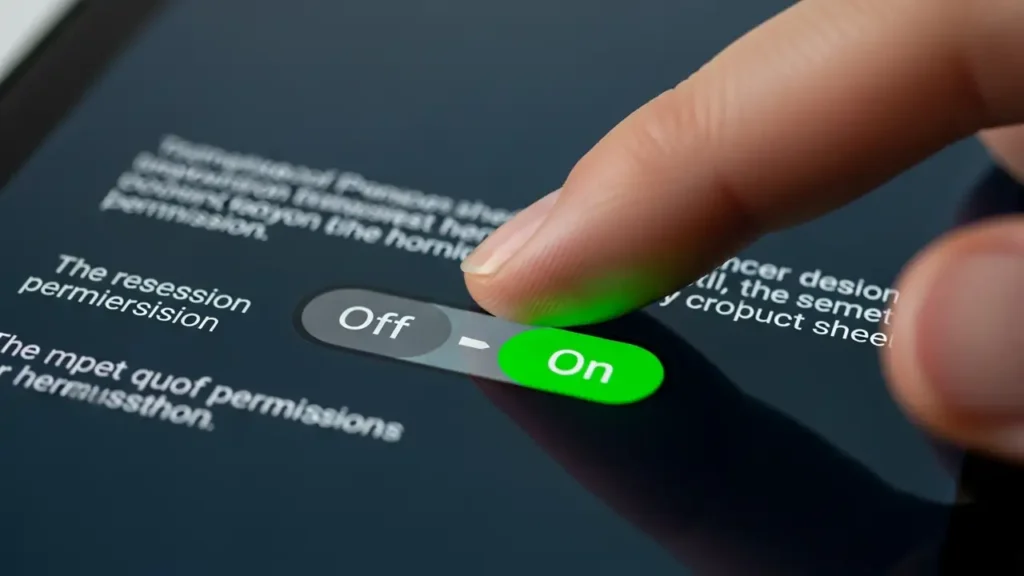
Individual applications might encounter a temporary configuration error with biometric access. You can often resolve this by resetting the permission for Face ID within that specific app’s settings. Access your device’s main settings, navigate to the Face ID & Passcode section, and locate the list of apps using Face ID. Find the particular application that is problematic and toggle its Face ID access switch to the off position, then immediately back to on. This action refreshes the app’s biometric authorization.
Hardware and System Refreshes
If initial software checks do not resolve the problem, the next set of solutions involves more comprehensive system resets or physical inspections. These steps address deeper software conflicts or potential physical obstructions that might be preventing Face ID from functioning correctly. It’s important to ensure both software and hardware are optimally configured for reliable biometric recognition.
Perform a Force Restart
A force restart is a more aggressive system refresh than a standard restart and can resolve deeper software freezes or unresponsive processes. For most modern iPhones, this involves a specific button sequence: quickly press and release the Volume Up button, then quickly press and release the Volume Down button, and finally, press and hold the Side button until the Apple logo appears on the screen. This action reboots the operating system without affecting your data.
Clean the TrueDepth Camera Area
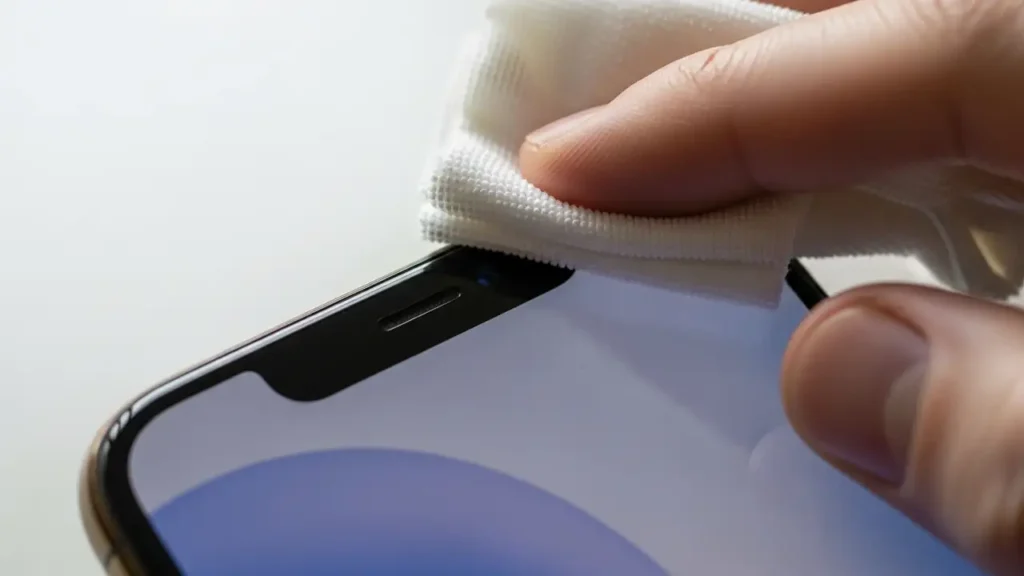
Physical obstructions or smudges on the TrueDepth camera system can impair Face ID‘s ability to accurately scan your face. The TrueDepth camera is located in the notch or Dynamic Island area at the top of your iPhone screen. Gently wipe this area with a soft, clean, lint-free cloth to remove any debris, dirt, or smudges that might be interfering with the sensors. Ensure the camera and sensors are clear and unobstructed.
Remove Screen Protector or Case
Sometimes, a poorly fitted, damaged, or dirty screen protector or phone case can physically block or interfere with the TrueDepth camera sensors. If you have recently installed a new screen protector or case, or if your current one appears damaged or misaligned around the camera area, try temporarily removing it. Test Face ID without the accessory to determine if it was the cause of the recognition issues.
Advanced Troubleshooting Steps: When to Reset Face ID
If all previous troubleshooting steps fail to restore functionality, it indicates a more fundamental issue with the biometric system’s configuration. In such cases, performing a full Reset Face ID and re-enrolling your face is often the most effective solution. These advanced steps target deeper software configurations and system settings that might be corrupted or misconfigured.
Reset Face ID Entirely
When all other attempts to fix Face ID failing have been exhausted, a complete reset is the next logical step. This action deletes all existing facial data stored on your device and allows you to re-enroll your face from scratch. To do this, go to Settings, then Face ID & Passcode, and tap the “Reset Face ID” option. Following the reset, proceed to set up Face ID again, ensuring you follow the on-screen prompts carefully for optimal enrollment. This often resolves persistent issues by creating a new, uncorrupted biometric profile.
Reset All Settings
If resetting Face ID alone doesn’t resolve the problem, a broader system reset might be necessary. The “Reset All Settings” option restores all system settings to their factory defaults without erasing any personal data, apps, or media. This can fix underlying configuration issues that might be affecting Face ID. To perform this, navigate to Settings, then General, tap Transfer or Reset iPhone, then Reset, and finally select “Reset All Settings.” You will need to reconfigure Wi-Fi passwords, notification preferences, and other custom settings afterward.
Check for Further iOS Updates
Persistent biometric issues, especially after a major iOS update like 26.2.1, can sometimes be indicative of an underlying bug in the operating system itself. Apple regularly releases minor updates to address such bugs and improve system stability. Keep an eye out for any further iOS 26.2.1+ updates by checking Settings > General > Software Update. Installing available updates can often provide a patch for known system flaws affecting features like Face ID.
Safety and Prevention
When performing troubleshooting steps, always handle your device with care. If you are unsure about any physical cleaning or removal of accessories, consult a professional to avoid potential damage. For prevention, regularly update your applications and iOS to maintain compatibility and security. While Face ID is designed for robustness, being proactive with software hygiene can prevent many common issues. If problems persist after all these steps, seeking professional assistance from the device manufacturer may be required.
Frequently Asked Questions
If your Face ID continues to fail in third-party applications on iOS 26.2.1 despite all troubleshooting, a complete Reset Face ID remains the most effective solution for re-establishing reliable biometric authentication. Remember to restart your device and ensure all applications are up-to-date before resorting to this comprehensive reset.
