
How to Fix Your Mouse and Keyboard Not Working in Advanced Startup
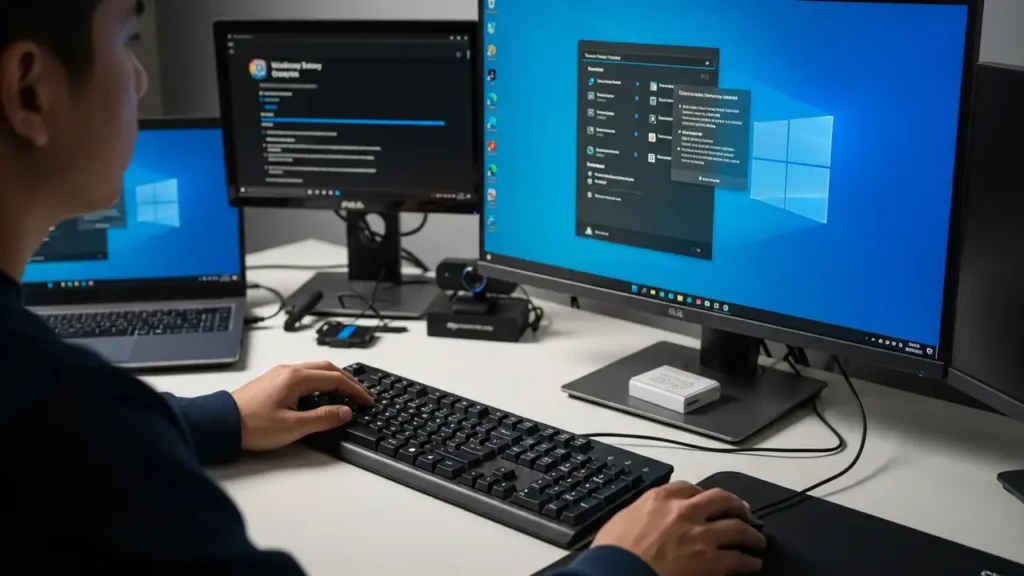
Experiencing unresponsive input devices during critical system troubleshooting can be highly frustrating. This guide offers practical solutions when your USB mouse and keyboard not working in Windows Recovery Environment (WinRE) or advanced startup options on Windows 11, especially if they function correctly within your computer’s BIOS.
This issue often prevents users from navigating essential recovery menus or running diagnostic tools. It can stem from various causes, including insufficient driver support in the limited recovery environment, specific system settings, or even recent software updates. By following these steps, you can regain control of your peripherals and effectively resolve underlying system problems.
Immediate Checks When Mouse and Keyboard Not Working
When your input devices become unresponsive in advanced startup environments, begin with these fundamental checks to rule out common connectivity issues. These quick actions can often restore basic functionality.
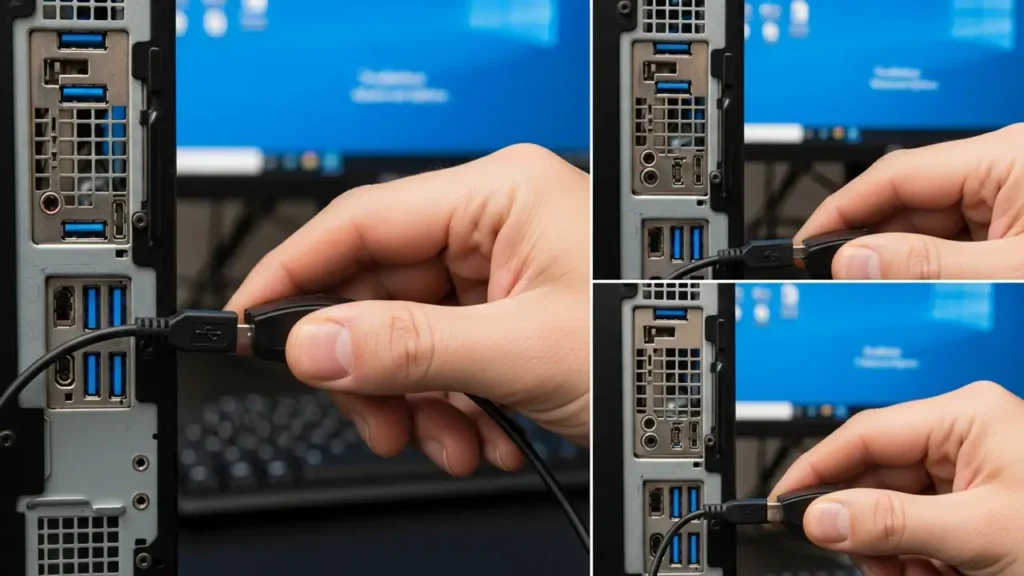
- Switch USB Ports: If your mouse and keyboard not working in Windows 11 advanced startup, your initial step should be to change their physical connection. Plug your wired keyboard and mouse into USB 2.0 ports, which are typically identifiable by their black interior. Many modern computers feature USB 3.0 ports (often colored blue), but these may not be fully initialized or adequately supported by the minimal drivers available in the recovery environment. Opting for the more universally compatible USB 2.0 ports can frequently resolve immediate recognition problems within the WinRE.
- Use Wired Peripherals: Wireless input devices, including those that connect via a small USB dongle, frequently encounter compatibility challenges within the Windows Recovery Environment. The specialized drivers necessary for their operation are often not loaded in this rudimentary pre-boot state. To ensure maximum compatibility and eliminate potential wireless signal interference, it is crucial to utilize a standard, physically connected USB keyboard and mouse when undertaking recovery or advanced startup procedures. This strategy minimizes potential points of failure and enhances the likelihood of device recognition when your mouse and keyboard not working.
- Perform a Power Cycle: A complete power cycle can often reset the USB controller and resolve transient glitches that hinder device detection. Start by disconnecting all non-essential USB devices from your computer, such as external hard drives or webcams. Subsequently, perform a full restart of your system. This action compels the computer to re-enumerate and reinitialize its USB ports upon reboot, which can effectively resolve unresponsive peripheral issues in the WinRE.
Adjusting BIOS/UEFI Settings for Peripheral Recognition
System firmware settings play a crucial role in how peripherals are recognized during the boot process. Accessing and modifying these settings can often resolve issues where your devices fail to respond in low-level environments.
- Access BIOS/UEFI Firmware: To modify critical system settings that influence hardware recognition, you must first enter your computer’s BIOS or UEFI setup utility. Power on your system and immediately begin pressing the designated key to access this interface. Common keys for entry include F2, F12, or the Delete key, though this can vary by manufacturer. You might need to press the key repeatedly or hold it down during the initial boot sequence.
- Enable Legacy USB Support: Once inside the BIOS/UEFI settings, navigate through the menus to find options related to USB configuration. Locate and ensure that “Legacy USB Support” is enabled. This setting is vital as it provides broader compatibility for USB devices in environments where full operating system drivers are not yet loaded, such as the Windows Recovery Environment. Additionally, verify that the general USB mode setting is configured to “Auto” or “Enabled.” After making these adjustments, remember to save the changes before exiting the BIOS/UEFI utility to ensure they take effect. These settings are crucial when your mouse and keyboard not working in these low-level environments.
Addressing Known Software Conflicts
Sometimes, the inability of your peripherals to function in recovery mode stems from software-related issues, including operating system features or specific updates.
Resolving Mouse and Keyboard Not Working After October 2025 Update
A specific problem emerged after the October 14, 2025, security update, identified as KB5066835, which rendered USB input devices unresponsive in WinRE. If your mouse and keyboard not working started after this particular update, the solution involves installing a subsequent out-of-band update, KB5070773, which directly addresses this bug.
If you are completely locked out of Windows and cannot install KB5070773, you can still revert the problematic update. Create a bootable USB drive with Windows installation media. Boot from this media, access the Command Prompt, and then execute the command wusa /uninstall /kb:5066835. This action will remove the faulty security update, allowing your input devices to function again in the recovery environment.
- Disable Fast Startup Feature: Fast Startup is a power-saving feature in Windows designed to accelerate boot times. However, it can sometimes prevent peripherals from initializing correctly during a system restart or when entering advanced startup options, leading to the mouse and keyboard not working issue. If you can still log into your Windows 11 desktop, open the Control Panel. Navigate to Power Options, then choose “Choose what the power buttons do,” and finally “Change settings that are currently unavailable.” Uncheck the box next to “Turn on fast startup (recommended)” and save the changes. This ensures a full shutdown and re-initialization of hardware components on subsequent boots.
- Repair or Replace WinRE Files: The Windows Recovery Environment relies on specific system files, particularly
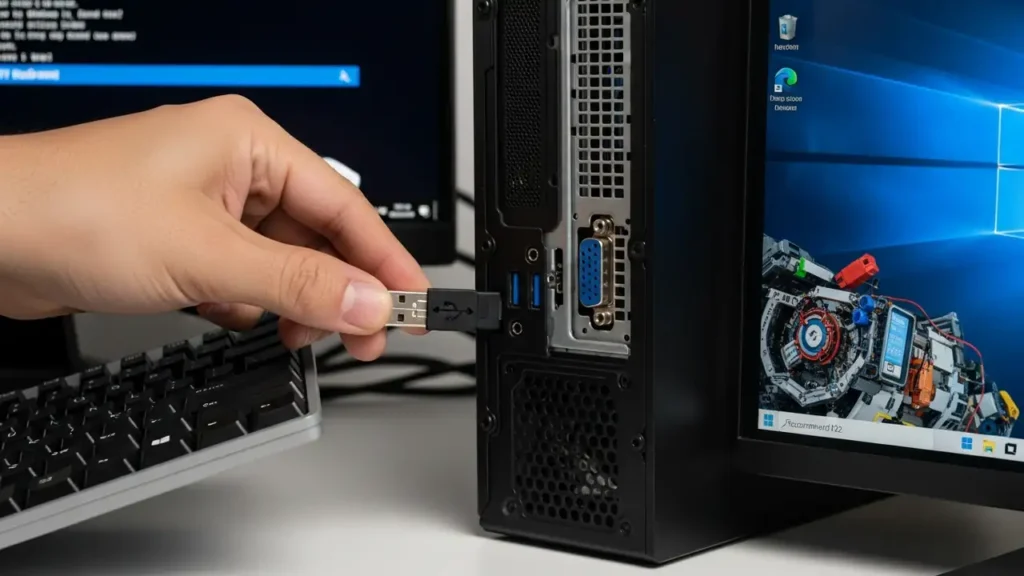
Winre.wim. If this file becomes corrupted, it can lead to various issues, including the failure of input devices to respond within WinRE. To address a corruptedWinre.wimfile, you will need access to official Windows installation media, such as a bootable USB drive or DVD. Boot from this media and follow the prompts to repair your system or replace the corrupted recovery environment files. This ensures the integrity of the WinRE components necessary for proper hardware initialization. - Use a PS/2 Peripheral: For computers equipped with legacy PS/2 ports, this can be a highly reliable alternative when USB devices are problematic. PS/2 ports (typically green for mouse, purple for keyboard) operate using a different hardware interface than USB, often relying on more basic, universally supported drivers that are less prone to issues in minimal environments like WinRE. If your system has these ports and your USB mouse and keyboard not working, connecting a PS/2 keyboard or mouse can provide immediate input control, allowing you to proceed with troubleshooting or system recovery.
Safety and Next Steps
When performing troubleshooting steps, always power off your computer and unplug it from the power source before making any physical changes, such as connecting or disconnecting devices. Avoid touching internal components unless you are familiar with the process. If you are uncertain about any step, especially those involving BIOS settings or system files, consider seeking professional assistance to prevent further complications.
Frequently Asked Questions
By systematically applying these solutions, you can resolve the frustrating situation of your mouse and keyboard not working within the advanced startup or recovery environment of Windows 11. Start with the simpler checks and proceed to more advanced fixes to restore full control over your system.
Focus Keyword: mouse and keyboard not working
Meta Title: Mouse and keyboard not working: Fix Windows 11 startup issues
Meta Description: Mouse and keyboard not working in Windows 11 advanced startup? Troubleshoot with USB 2.0, BIOS settings, and specific update fixes. Regain control.
Permalink: mouse-and-keyboard-not-working-windows-11-advanced-startup
Category: Windows > USB & Devices
Tags: mouse, keyboard, not working, windows 11, recovery mode, advanced startup
