Resolving Blue Screen Errors with the Intel Smart Sound Technology Driver
Experiencing unexpected system crashes, often manifested as a blue screen error, on your Windows 11 PC can be frustrating. This specific issue frequently arises from an incompatibility concerning the Intel Smart Sound Technology Driver and the operating system. It particularly impacts systems equipped with 11th generation Intel processors.
The blue screen problem is a known conflict. It occurs when certain versions of the Intel Smart Sound Technology Driver are installed on Windows 11. Identifying and updating this component is crucial for system stability and preventing further disruptions.
Understanding the Intel Smart Sound Technology Driver Issue
The core of this problem lies with specific iterations of the Intel Smart Sound Technology Driver. Versions such as 10.29.0.5152, 10.30.0.5152, and any earlier releases are identified as unstable with Windows 11. These older driver packages can trigger system failures leading to a blue screen.
To resolve this instability, an upgrade to a more recent driver version is necessary. Systems should run version 10.30.00.5714 (or any subsequent release) or 10.29.00.5714 (or newer). These updated versions address the known incompatibility and restore proper system function.
Updating Your Intel Smart Sound Technology Driver via Windows Update
The most straightforward and recommended approach to fix this driver conflict is through Windows Update. This method ensures you receive validated and compatible driver versions directly from Microsoft.
- Open the Settings application on your Windows 11 computer.
- Navigate to the “Windows Update” section.
- Click the “Check for updates” button to scan for available updates.
- Carefully review the list of updates presented, including any optional driver updates.
- Install all detected updates, paying close attention to any related to audio or system devices. This process should deliver the corrected Intel Smart Sound Technology Driver.
Manually Installing a Generic Audio Driver
If, for any reason, Windows Update does not provide the necessary fix or an updated Intel Smart Sound Technology Driver, you can implement a workaround. This involves replacing the specific Intel driver with a generic Windows audio driver, which can temporarily stabilize the system.
- Access the Device Manager. You can typically find this by right-clicking the Start button and selecting “Device Manager.”
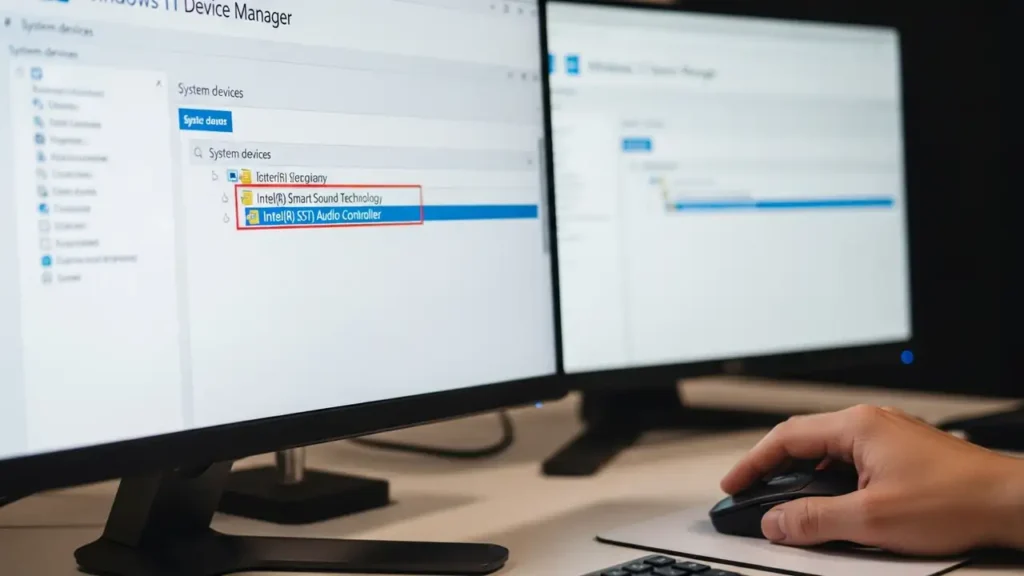
- In the Device Manager window, expand the “System devices” category.
- Locate the entry labeled “Intel(R) Smart Sound Technology (Intel(R) SST) Audio Controller.” This is the device associated with the problematic driver.
Locating the Intel Smart Sound Technology Driver in Device Manager
Once you’ve found the relevant entry in Device Manager, proceed with the driver replacement.
- Right-click on “Intel(R) Smart Sound Technology (Intel(R) SST) Audio Controller.”
- Select “Update driver” from the context menu.
- Choose the option “Browse my computer for drivers.”
- Then, select “Let me pick from a list of available drivers on my computer.”
- From the displayed list, choose “High Definition Audio Controller.” This is a generic driver that Windows provides.
- Proceed with the installation of this generic driver. This will replace the specific Intel Smart Sound Technology Driver and should prevent the blue screen errors.
Checking Your PC Manufacturer’s Website
Should neither Windows Update nor the generic driver workaround resolve the issue, consult your computer’s manufacturer directly. Companies like Dell, HP, or Lenovo often host the latest, officially validated drivers for their specific models.
- Identify your PC’s exact model number. This is typically found on a label on the device itself or within the system information settings in Windows.
- Visit the official support website for your computer manufacturer.
- Navigate to the support or downloads section.
- Enter your PC’s model number to find drivers specific to your device.
- Look for the most recent audio or chipset driver package available for Windows 11. This package should contain an updated Intel Smart Sound Technology Driver.
- Download and install this driver. If you require assistance finding your PC model or the correct download link, further help can be provided.
Safety and Warranty Considerations
Before attempting any driver installation or system modification, ensure your computer is powered off and unplugged if you need to access internal components (though not typically required for driver updates). Avoid touching sensitive internal parts unless you are confident in doing so. Incorrect driver installations can sometimes lead to new issues. If you are uncertain about any step, it is always best to contact professional technical support or refer to your device’s warranty terms. Unauthorized modifications or incorrect procedures might void your warranty.
Preventing Future Driver Conflicts
To minimize the chances of encountering future issues with your Intel Smart Sound Technology Driver or other system components, maintain a routine of checking for system and driver updates. Windows Update is generally reliable for delivering crucial fixes and performance enhancements. Regularly visiting your PC manufacturer’s support site for specific driver updates for your model can also proactively prevent incompatibilities. Always ensure your operating system remains current to benefit from the latest stability improvements and security patches, which often include updated driver components.
Frequently Asked Questions About the Intel Smart Sound Technology Driver
Maintaining an updated Intel Smart Sound Technology Driver is essential for a stable Windows 11 experience, particularly on 11th generation Intel systems. By following these steps, you can resolve blue screen errors and ensure your PC runs smoothly.