
Fix High CPU Usage in Windows 11
Address Performance Issues and Spikes
Encountering high cpu usage on Windows 11 can significantly hinder system performance, leading to slowdowns, unresponsiveness, or even crashes. This issue often manifests as unexpected spikes when launching applications, during gaming sessions, or an alarming display of 100% cpu usage but nothing in task manager clearly visible. Identifying and resolving the underlying causes is crucial for restoring your system’s speed and stability. This guide outlines actionable steps to diagnose and mitigate CPU overutilization.
The problem might arise from various sources, including background processes consuming excessive power, outdated drivers, or even malicious software operating discreetly. Addressing these issues systematically can help pinpoint the exact culprit and implement an effective solution, ensuring your computing experience remains smooth.
Identifying Sources of High CPU Usage
When your system exhibits abnormal CPU activity, the first step involves a quick check of active processes. Pinpointing what’s consuming resources is essential for immediate relief.
Addressing Persistent High CPU Usage
If immediate process termination does not resolve the issue, or if Task Manager itself appears to be a consistent resource hog, a more in-depth approach is necessary.
- Terminate Resource-Intensive Processes:
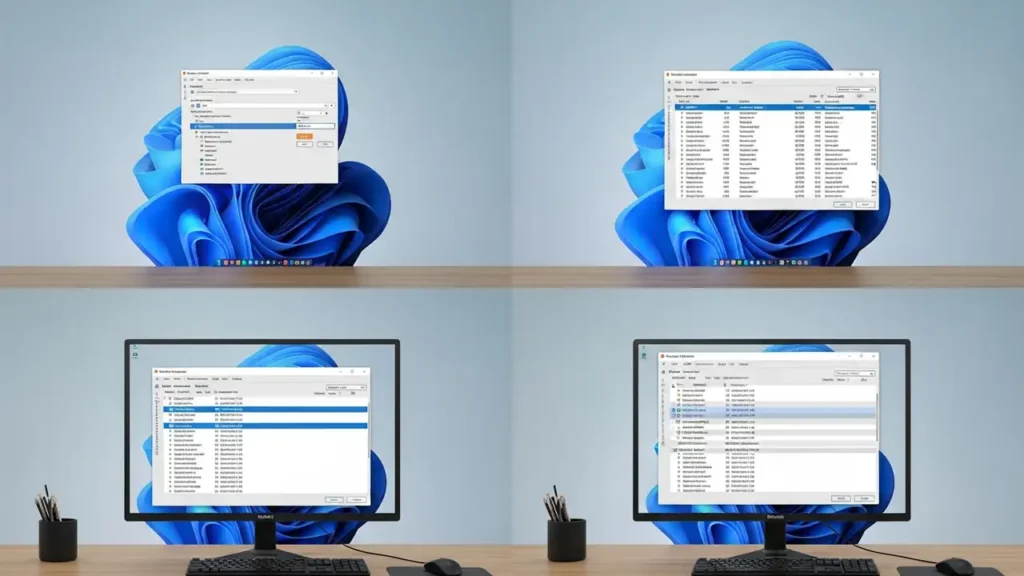
Access Task Manager by pressing Ctrl + Shift + Esc simultaneously. In the Processes tab, click the “CPU” column header to sort applications and background processes by their current consumption. Identify any non-system applications consuming a disproportionate amount of processing power. Right-click on these specific entries and select “End task” to halt their operation. This can provide immediate relief from high cpu usage spikes. - Monitor Task Manager’s Own Activity:
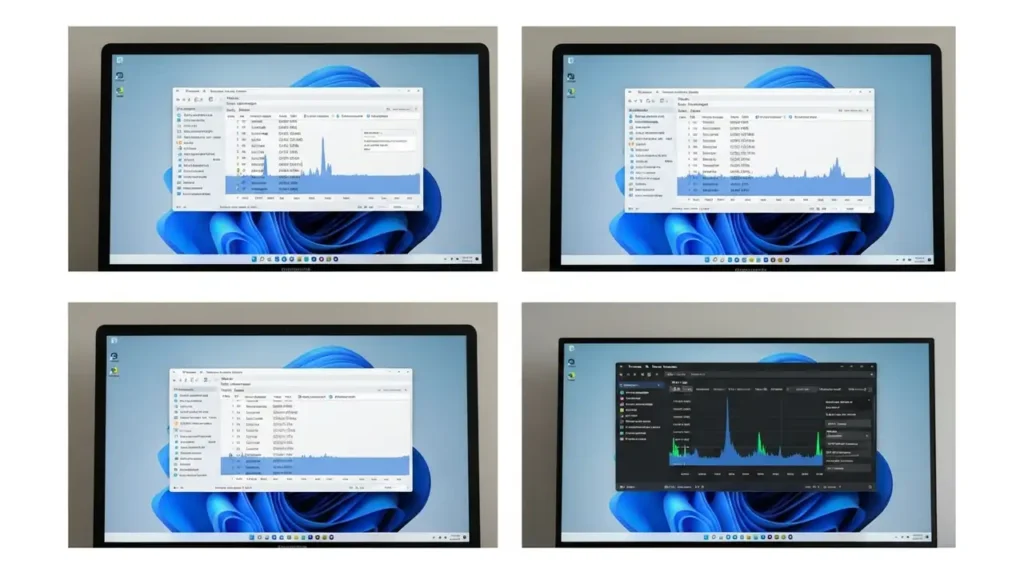
Occasionally, Task Manager can contribute to the very problem it’s designed to monitor. If you observe that Task Manager itself shows persistent, elevated CPU utilization in the background, this suggests a deeper system-level issue. Note this behavior as it guides subsequent troubleshooting steps, potentially involving system repairs or updates.
Managing Startup Applications and System Updates
Preventing unnecessary software from launching at boot and ensuring your operating system is current are vital steps in maintaining optimal CPU performance. These measures reduce initial system load and fix known bugs.
- Disable Unnecessary Startup Programs:
Open Windows Settings, navigate to “Apps,” then select “Startup.” Review the list of applications configured to launch automatically when you boot your computer. Toggle off any non-essential programs or utilities that do not require immediate activation. Reducing the number of applications loading at startup can significantly lower initial CPU demand, preventingcpu usage spikes when opening programsdirectly after login. - Update Windows OS:
A simple system restart can often resolve temporary glitches or stuck processes contributing to high cpu usage. Additionally, ensure your Windows 11 installation is fully updated. Go to Settings, then “Windows Update,” and check for any pending software patches. Operating system updates frequently include performance enhancements and bug fixes that can mitigate excessive CPU consumption. - Update Device Drivers:
Outdated or corrupted drivers can lead to inefficiencies and increased CPU load. Regularly update all essential hardware drivers, especially for your graphics card, chipset, and network adapters. Visit your device manufacturer’s website or use the Device Manager to check for and install the latest compatible drivers. Current drivers ensure your hardware communicates efficiently with the operating system, helping to preventcpu usage spikes while gamingor using demanding applications.
System Integrity and Malware Scans
Sometimes, unseen forces like malicious software or corrupted system files can be the culprits behind unexplained high cpu usage. Verifying system health is a critical diagnostic step.
- Scan for Malware:
Malicious software can run hidden processes that consume significant CPU resources without appearing prominently in Task Manager. Perform a comprehensive scan of your system using Windows Defender, the built-in security tool, or a reputable third-party anti-malware application such as Malwarebytes. A full scan helps identify and remove any threats that could be causing unacknowledged high cpu usage. - Repair System Files:
Corrupted system files can lead to erratic system behavior, including unwarranted CPU utilization. Open Command Prompt as an administrator and execute the commandsfc /scannow. This utility scans for and attempts to repair corrupted Windows system files. A successful repair can often resolve underlying issues contributing to persistent high cpu usage. - Consider Registry Fixes:
If Task Manager itself continues to display abnormally high CPU usage, even after other steps, more advanced system maintenance may be needed. In specific scenarios where Task Manager remains active in the background despite attempts to close it, exploring registry adjustments might be necessary. However, exercise caution when modifying registry entries, as incorrect changes can affect system stability.
Safety and Maintenance
Always ensure your system is properly shut down before performing any physical maintenance or component checks. If you are uncertain about performing any of these advanced troubleshooting steps, consider consulting a professional technician. Attempting repairs beyond your comfort level could inadvertently cause further issues.
Prevention Tips
To minimize the chances of future high cpu usage problems, adopt proactive maintenance habits. Regularly review your startup applications, ensuring only essential programs launch automatically. Keep your operating system and all device drivers consistently updated to benefit from the latest performance improvements and security patches. Furthermore, conduct periodic full system scans for malware to keep your environment clean and secure. These practices contribute significantly to a healthy and responsive Windows 11 experience.
Frequently Asked Questions About High CPU Usage
Resolving high cpu usage issues in Windows 11 involves a systematic approach, from identifying and ending resource-hungry processes to maintaining system integrity through updates and malware scans. By following these steps, you can effectively diagnose and address the causes of performance bottlenecks, ensuring your system runs smoothly.