
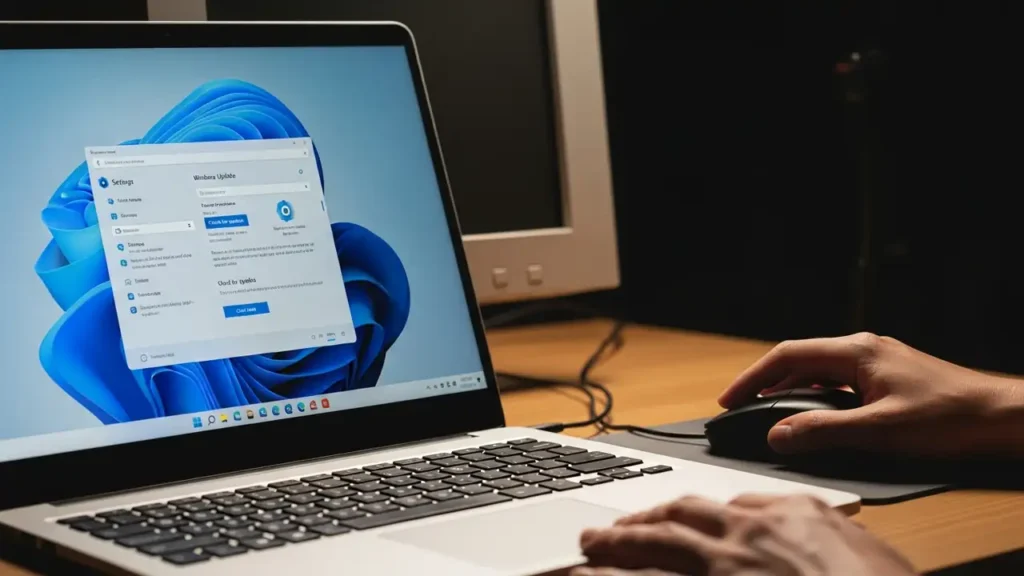
Resolve 24h2 Freezing After Windows 11 Update
Encountering application freezes when attempting to use your camera or microphone can be a frustrating experience, particularly following the Windows 11 24H2 update. This issue often stems from a deadlock involving the Capability Access Manager Service (camsvc), causing applications—including the Settings app—to become unresponsive. Addressing this problem involves a series of targeted solutions, ranging from essential system updates to advanced registry modifications and driver management.
If your system is experiencing 24h2 freezing whenever an app tries to access your audio or video input devices, these steps can help restore stability. The camsvc deadlock specifically prevents these functions from operating correctly, leading to sudden halts in application responsiveness. It’s crucial to systematically apply these fixes to resolve the underlying conflict.
Understanding the Root of 24h2 Freezing
The core of the problem lies with how the Windows 11 24H2 update interacts with specific system services and drivers responsible for managing hardware access. A deadlock within the Capability Access Manager Service prevents applications from successfully initializing camera or microphone usage, resulting in a system or application freeze. This can manifest as an immediate halt in functionality or a partial freezing effect, disrupting your workflow. Various approaches can alleviate the 24h2 freezing, targeting system updates, registry settings, and device drivers.
Address 24h2 Freezing with System Updates
The primary solution for resolving 24h2 freezing involves ensuring your operating system is fully up to date. Microsoft has released official patches to rectify camera and Windows Hello instabilities directly linked to this issue. Applying these fixes is often the most straightforward way to eliminate the problem.
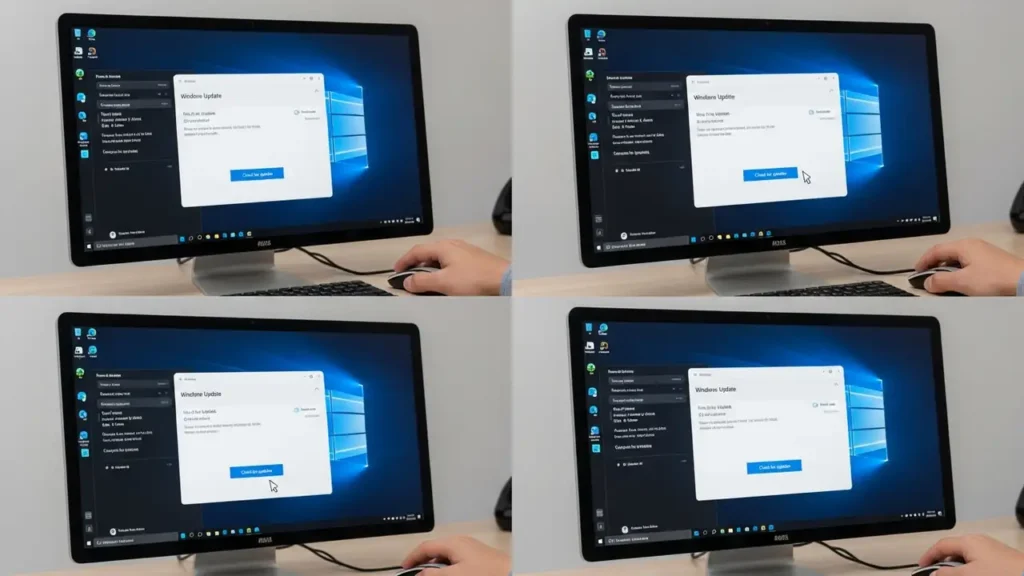
- Install Latest Cumulative Updates: Navigate to your system’s update settings. Go to Settings, then select Windows Update. Click on “Check for updates” to scan for any available packages. Make sure to download and install all detected cumulative updates. Specifically, look for updates like KB5066835 or any subsequent cumulative releases designed to address these known bugs and stabilize the 24h2 freezing phenomenon. Restart your computer after installation to apply changes fully.
Advanced Registry Adjustments for 24h2 Freezing
If routine updates do not resolve the issue, modifying specific registry keys can bypass the conflict causing application freezes. This method requires careful execution, as incorrect changes to the registry can impact system stability.
- Modify Capability Access Manager Key: Open the Registry Editor by pressing Win + R, typing
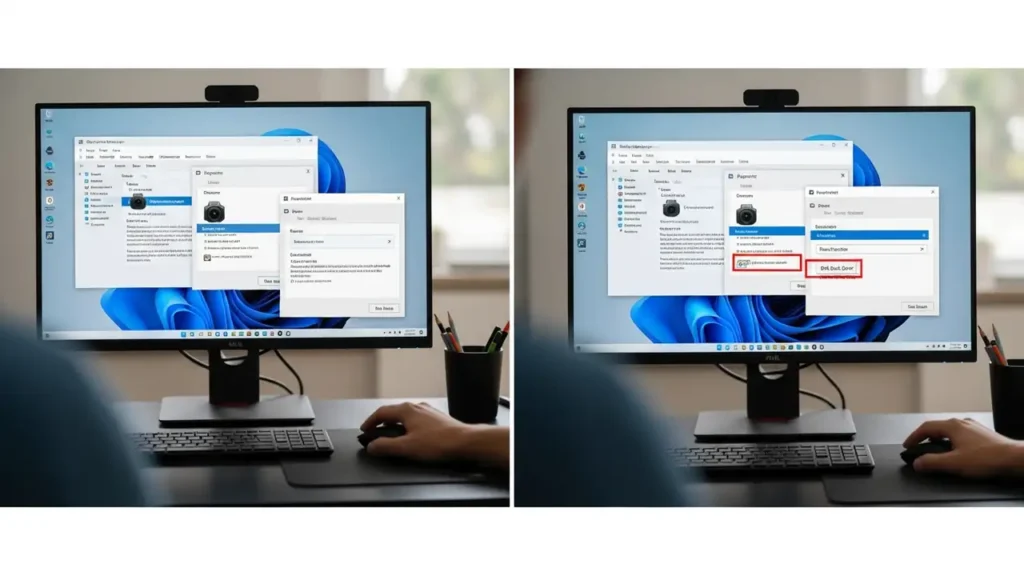
regedit, and pressing Enter. Navigate to the following path:HKEY_CURRENT_USER\Software\Microsoft\Windows\CurrentVersion\CapabilityAccessManager\ConsentStore\location. Within thislocationkey, examine its contents. If a value namedShowGlobalPromptsexists, consider deleting it. Alternatively, verify that its configuration is not causing an access conflict for your camera and microphone. - Add Frame Server Mode Value: Another common solution for camera-related freezes involves introducing a specific DWORD value. In the Registry Editor, go to:
HKEY_LOCAL_MACHINE\SOFTWARE\Microsoft\Windows Media Foundation\Platform. Right-click in the right pane, select New, then DWORD (32-bit) Value. Name itEnableFrameServerMode. Double-click the newly created value and set its Data to0. This adjustment can help resolve conflicts with certain camera sensors or drivers that trigger 24h2 freezing.
Manage Camera Drivers to Prevent Freezes
Incompatible or outdated camera drivers frequently contribute to issues after a major system update. The default drivers installed with Windows 11 version 24H2 might not be fully compatible with all integrated or infrared sensors, leading to performance problems.
- Roll Back or Reinstall Camera Drivers: Access the Device Manager by right-clicking the Start button and selecting “Device Manager.” Expand the “Cameras” category, then right-click on your specific camera device and choose “Properties.”
- Navigate to the “Driver” tab. If the “Roll Back Driver” option is available, click it to revert to a previously stable driver version.
- If rolling back is not an option, or if it doesn’t resolve the issue, select “Uninstall device” and confirm. Restart your PC immediately after uninstalling. Windows will automatically attempt to reinstall a compatible driver upon reboot, potentially resolving the 24h2 freezing by installing a more stable version.
Test Compatibility by Disabling Memory Integrity
Kernel Isolation is a security feature that can, in some instances, block older or less compatible drivers, leading to unexpected behavior. Temporarily disabling Memory Integrity can help determine if this security feature is contributing to your camera or microphone freezing issues.
- Disable Memory Integrity: Open Windows Security, then navigate to “Device Security.” Under “Core isolation,” click on “Kernel Isolation Details.” Locate the “Memory integrity” setting and temporarily disable it. Restart your computer to apply this change. Observe if disabling this feature resolves the 24h2 freezing when using camera or microphone applications. If it does, you may need to update your camera drivers to a version fully compatible with Memory Integrity. Remember to re-enable Memory Integrity once you have resolved the driver compatibility to maintain optimal system security.
Frequently Asked Questions About 24h2 Freezing
The 24h2 freezing issue, particularly when involving camera or microphone access after the Windows 11 update, can disrupt your digital experience. By methodically applying these solutions—starting with system updates, moving to registry adjustments, managing drivers, and testing security feature compatibility—you can effectively troubleshoot and resolve the underlying problems. Ensuring your system is stable and responsive is key to a smooth computing experience.
