
How to Fix iOS 26.2.1 Problems
Experiencing instability after installing the latest update? Many users report significant iOS 26.2.1 Problems, from unexpected crashes and forced restarts to severe battery drain and persistent network issues. Since Apple has stopped signing iOS 26.2, reverting to the previous stable version is unfortunately no longer an option.
This guide provides targeted solutions to help stabilize your device and resolve common issues following the update. Each step offers a practical check or action to restore your iPhone’s performance and connectivity. It is crucial to address these problems systematically to ensure your device functions optimally again.
Addressing Frequent iOS 26.2.1 Problems and Restarts
Frequent crashes and unexpected restarts are among the most frustrating iOS 26.2.1 Problems. These issues often stem from corrupted storage management, memory saturation, or third-party applications not fully optimized for the new iOS build. Resolving these requires clearing temporary data and ensuring app compatibility.
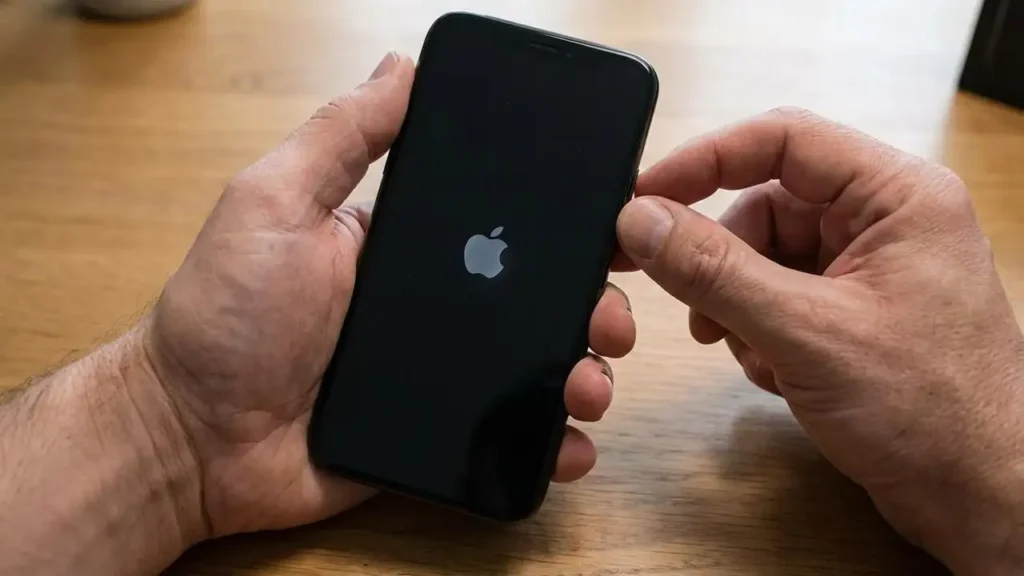
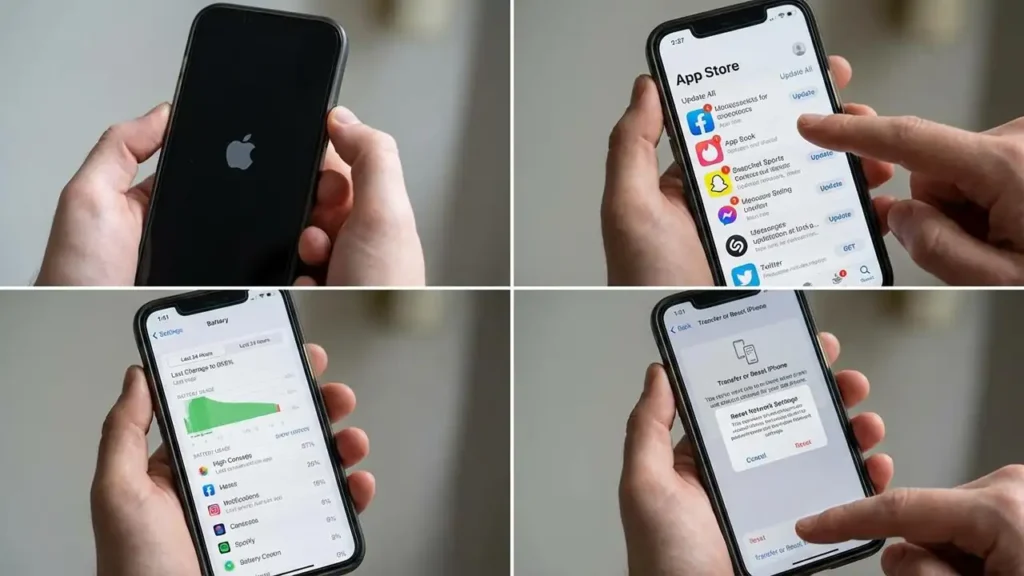
- Perform a Force Restart: This simple action can clear temporary glitches in the operating system. Briefly press the Volume Up button, then briefly press the Volume Down button. Finally, press and hold the Side button until the Apple logo appears on your screen.
- Clear “System Data”: An overloaded cache or excessive “System Data” can consume significant memory and storage, leading to instability. While there’s no direct “clear system data” button, you can free up space. Temporarily disable Automatic Updates by navigating to Settings > General > Software Update and toggling off “Automatic Updates.” This can help manage system resources.
- Update Your Applications: Many crashes are directly caused by third-party apps that have not been optimized for the latest iOS build. Open the App Store, tap your profile icon in the top right corner, and then scroll down to tap “Update All.” Regularly checking for and installing app updates is essential for compatibility and stability.
Optimizing Your Device to Prevent iOS 26.2.1 Problems
Beyond immediate fixes, proactive optimization can prevent future instability. Regularly reviewing app permissions and background activities contributes to a healthier iOS environment, reducing the likelihood of encountering new iOS 26.2.1 Problems.
- Review App Permissions: Certain apps might be requesting permissions they don’t genuinely need, potentially consuming background resources. Go through Settings > Privacy & Security and review permissions for Location Services, Photos, Camera, and Microphone for each app. Disable permissions for apps where they are not critical for functionality.
- Delete Seldom-Used Apps: Apps you rarely use still take up storage and could potentially run background processes. Identifying and uninstalling these applications can free up valuable resources. Long-press an app icon on the Home Screen, then tap “Remove App” > “Delete App.”
- Monitor App Activity: Keep an eye on which apps are consuming the most battery, as this can indicate excessive background activity or compatibility issues. Navigate to Settings > Battery and scroll down to “Battery Usage By App” for insights. If a specific app consistently shows high usage despite infrequent interaction, it might be contributing to performance issues or iOS 26.2.1 Problems.
Resolving Abnormal Battery Drain After iOS 26.2.1 Problems
One of the most reported iOS 26.2.1 Problems is significantly reduced battery life. This can be due to background processes initiated by the update or power-intensive settings. Addressing battery drain involves allowing system processes to complete and disabling non-essential power consumers.
- Allow System Indexing to Finish: After any major iOS update, your iPhone performs background tasks like reindexing Spotlight search and photos in the Photos app. This process can be power-intensive and typically takes 24 to 48 hours to complete. Give your device this time before concluding that battery drain is abnormal.
- Disable Power-Intensive Services: Certain services, while useful, can significantly impact battery life.
- Background App Refresh: Turn off Background App Refresh for non-essential applications. Go to Settings > General > Background App Refresh. You can disable it entirely or selectively for individual apps.
- Sending System Scans: Sending system diagnostic data can consume background power. To disable this, navigate to Settings > Privacy & Security > Analytics & Improvements. Toggle off “Share iPhone Analytics” and other related options.
- Reset All Settings: If persistent overheating or rapid battery depletion continues, resetting all settings can resolve underlying configuration conflicts without erasing your data. Go to Settings > General > Transfer or Reset iPhone > Reset > Reset All Settings. This action will reset Wi-Fi passwords, Home screen layout, privacy settings, and other system preferences, but your apps and data will remain intact. You will need to reconfigure some personal settings.
Tackling Network and Connectivity Issues
Network and connectivity problems, including unreliable Wi-Fi or cellular data, are other common iOS 26.2.1 Problems. These issues can interfere with daily communication and online activities. Solutions often involve refreshing network configurations or addressing software conflicts.
- Update Your Carrier Settings: Network providers occasionally release updates that improve connectivity and performance. To check for a carrier settings update, go to Settings > General > About. If an update is available, a pop-up window will appear immediately, prompting you to install it. Ensure your iPhone is connected to Wi-Fi for this check.
- Reset Network Settings: This step is crucial for resolving persistent 5G, Wi-Fi, or Bluetooth outages. Resetting network settings deletes all current network configurations. Navigate to Settings > General > Transfer or Reset iPhone > Reset > Reset Network Settings. After the reset, you will need to re-enter Wi-Fi passwords and reconnect Bluetooth devices.
- Disable VPNs: Some Virtual Private Network (VPN) services can conflict with new network management protocols introduced in iOS updates, leading to connectivity issues. Temporarily uninstall any VPN profiles or disable your VPN client to test if it resolves the network instability. If connectivity improves, consider updating your VPN app or finding an alternative.

When All Else Fails: Full Restore
If your device remains unusable or experiences severe iOS 26.2.1 Problems despite trying the above solutions, a full restore might be the most effective, albeit drastic, solution. This process cleanly reinstalls the iOS file system, often resolving deep-seated software glitches that cannot be fixed by simpler troubleshooting steps.
- Perform an iCloud Backup: Before initiating a full restore, ensure all your critical data is safely backed up. Go to Settings > [Your Name] > iCloud > iCloud Backup and tap “Back Up Now.” Confirm that the backup completes successfully and note the last successful backup time. This step is vital to prevent data loss.
- Perform a Full Restore via Computer: Connect your iPhone to a computer (Mac with Finder or Windows PC with iTunes). Place your iPhone in recovery mode. Then, select the “Restore” option when prompted. This will erase your device and install a fresh copy of the latest iOS. Once restored, you can choose to restore your data from your iCloud backup. This process essentially gives your iPhone a fresh start, often eliminating persistent iOS 26.2.1 Problems.
Frequently Asked Questions About iOS 26.2.1 Problems
Dealing with iOS 26.2.1 Problems can be disruptive, but by systematically applying these solutions, you can often restore your device to stable operation. Always remember to back up your device before attempting any major troubleshooting steps like a full restore. If issues persist, professional assistance may be required to diagnose potential hardware faults.
