
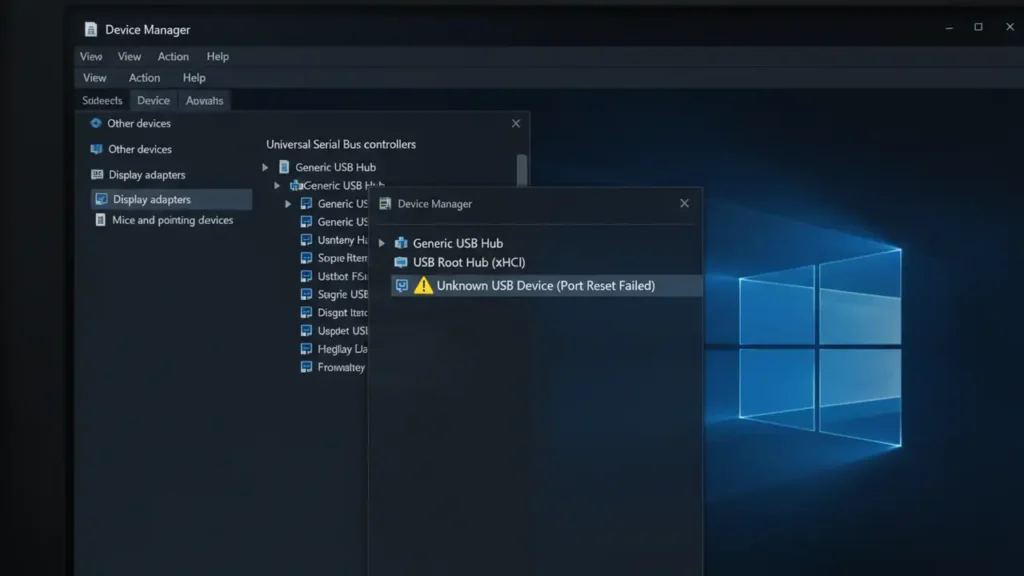
How to Fix USB Device Not Recognized on Windows 11/10
Resolve persistent USB errors and get your devices working again.
Experiencing a “USB device not recognized” error on Windows 11 or Windows 10 can be a frustrating problem, often leaving your essential peripherals unusable. This common issue typically manifests as a pop-up message stating that “The last USB device you connected to this computer malfunctioned and Windows does not recognize it.” The causes range from simple software glitches to more complex driver or power management conflicts, often leading users to search for solutions on forums like Reddit when their USB device not recognized keeps popping up.
The root of this problem often lies with outdated or corrupted drivers, misconfigured power-saving options, or minor hardware communication issues. Windows sometimes struggles to properly initialize a connected device, resulting in a USB device not recognized malfunction. Understanding these common causes is the first step towards effectively troubleshooting and resolving the error, especially when a USB device not recognized port reset failed message appears.
This guide provides a series of proven solutions, starting with the simplest checks and progressing to more advanced driver and system adjustments. By following these steps, you can systematically identify and fix the underlying cause of your USB device not recognized issue, whether you’re dealing with Windows 11 or Windows 10.
Initial Checks for USB Device Not Recognized
Before diving into complex solutions, perform some basic checks that can often resolve the “USB device not recognized” error quickly. These initial steps help rule out simple connectivity issues or temporary system glitches.
- Try a Different USB Port and Device: Unplug the problematic USB device and try plugging it into a different USB port on your computer. If possible, test the device on another computer to determine if the issue is with the device itself or your PC. Conversely, try connecting a different, known-working USB device to your PC to see if other peripherals are recognized.
- Perform a Full System Restart (Power Cycle): A complete power cycle can often clear transient electrical charges or software states that might be causing the USB device not recognized error. Completely shut down your PC, then disconnect it from the power source. For laptops, remove the battery if feasible. Wait at least 30 seconds to allow residual power to drain from the motherboard’s capacitors, then reconnect everything and restart your computer.
Updating Drivers to Resolve USB Device Not Recognized
Corrupted, outdated, or incompatible USB drivers are a primary reason a USB device not recognized error occurs. Ensuring your drivers are current and stable is crucial for proper device functionality on both Windows 11 and Windows 10.
- Update Drivers via Device Manager:
- Right-click the Start button and select “Device Manager” from the context menu.
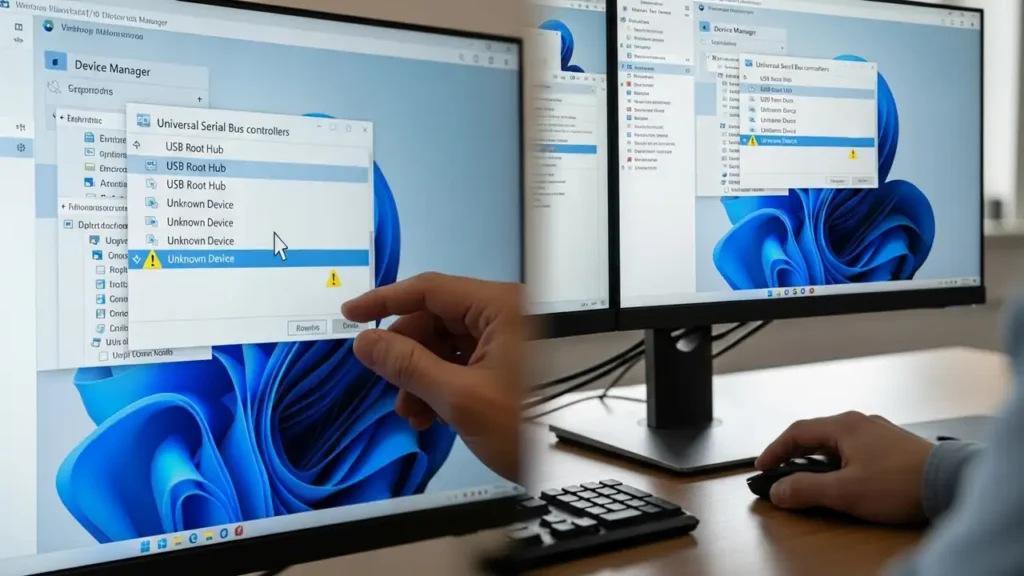
- In Device Manager, expand the “Universal Serial Bus controllers” section.
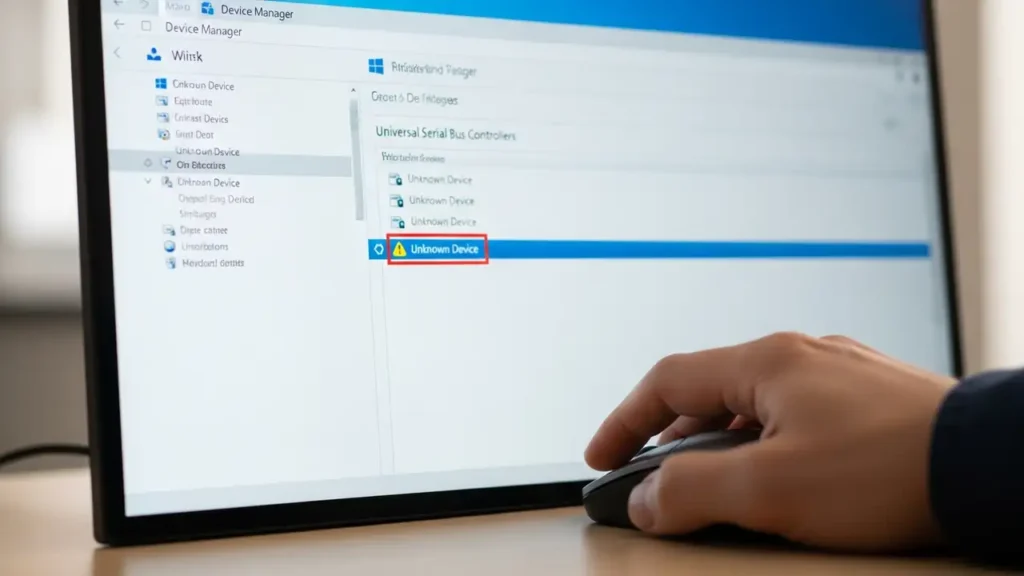
- Look for any entries with a yellow exclamation mark or “Unknown Device.” These often indicate a USB device not recognized issue or a driver problem.
- Right-click on each “USB Root Hub” and any problematic “Unknown Device” entries. Select “Update driver” and then choose “Search automatically for drivers.” Windows will attempt to find and install the best available driver.
- Repeat this process for all generic USB entries and any listed “Unknown Devices.”
- Consider a Specific Driver Download: If Windows cannot find an updated driver automatically, you may need to visit the website of your PC’s manufacturer (e.g., Dell, HP, Lenovo) or the USB device manufacturer. Search for your specific computer model or device model and look for the latest USB chipset drivers or device-specific drivers for Windows 11 or Windows 10. Download and install these drivers manually.
Advanced Driver Steps for USB Device Not Recognized
If simply updating drivers doesn’t work, more advanced driver management might be necessary to fix the “USB device not recognized” problem. This involves completely removing the problematic driver and letting Windows reinstall it.
- Uninstall and Reinstall USB Drivers:
- In Device Manager, expand “Universal Serial Bus controllers.”
- Right-click on any “USB Root Hub,” “Unknown Device,” or other suspicious USB-related entry, and select “Uninstall device.” Confirm the uninstallation if prompted.
- Do this for all generic USB entries and any “Unknown Device” that appears when the problematic device is connected.
- After uninstalling, restart your computer. Windows will typically detect the hardware upon boot-up and automatically reinstall generic USB drivers. Reconnect your USB device after the reboot to see if it is now recognized.
Adjusting Power Settings
Windows sometimes enables power-saving features that can inadvertently cut power to USB ports, leading to a USB device not recognized error or a USB device not recognized port reset failed message. Disabling these settings can restore stable power delivery.
- Disable USB Selective Suspend:
- Search for “Control Panel” in the Windows search bar and open it.
- Navigate to “Hardware and Sound” then “Power Options.”
- Click “Change plan settings” next to your active power plan, then “Change advanced power settings.”
- In the “Power Options” dialog box, expand “USB settings” and then “USB selective suspend setting.”
- Change the setting to “Disabled” for both “On battery” and “Plugged in.” Click “Apply” and then “OK.”
- Manage Power for USB Root Hubs:
- Open Device Manager (Right-click Start > Device Manager).
- Expand “Universal Serial Bus controllers.”
- Right-click on each “USB Root Hub” entry and select “Properties.”
- Go to the “Power Management” tab.
- Uncheck the box that says “Allow the computer to turn off this device to save power.”
- Click “OK” and repeat this for all “USB Root Hub” entries. This prevents Windows from unexpectedly powering down your USB ports.
Utilizing Troubleshooting Tools
Windows includes built-in troubleshooting tools that can automatically detect and potentially fix common hardware issues. Additionally, many PC manufacturers offer their own diagnostic utilities.
- Run the Windows Troubleshooter:
- On Windows 11, go to Settings > System > Troubleshoot > Other troubleshooters. Look for a “Hardware and Devices” or “USB” troubleshooter if available, or run the general “Playing Audio” or “Printer” troubleshooters which sometimes touch upon USB connectivity.
- On Windows 10, search for “Troubleshoot settings” and click “Additional troubleshooters.” Find and run the “Hardware and Devices” troubleshooter. Follow the on-screen prompts.
- Use Manufacturer-Specific Diagnostic Tools: If you own a Dell PC, the Dell Support Diagnostic Tool can often pinpoint hardware issues. Other manufacturers provide similar tools (e.g., HP Support Assistant, Lenovo Vantage). Running these diagnostics can sometimes detect underlying hardware failures contributing to the USB device not recognized problem.
Preventing Future USB Device Not Recognized Errors
Adopting a few best practices can help minimize the occurrence of the “USB device not recognized” error in the future, maintaining stable USB connectivity for your devices.
- Keep Windows Up-to-Date: Regularly install Windows updates. These updates often include crucial bug fixes, security patches, and updated drivers that can resolve compatibility issues and prevent new ones from arising.
- Use Quality Cables and Hubs: Poor quality or excessively long USB cables and unpowered USB hubs can degrade signal integrity, leading to recognition failures. Use manufacturer-recommended cables and, if using a hub, consider a powered one for high-demand devices.
- Properly Eject USB Devices: Always use the “Safely Remove Hardware and Eject Media” option in the notification area before physically disconnecting a USB device. This ensures all write operations are complete and prevents data corruption or driver instability.
Frequently Asked Questions
If you have tried all the above solutions and your USB device not recognized error persists, the issue might be hardware-related. This could include a faulty USB port on your computer, a damaged internal USB controller, or a defect in the USB device itself. In such cases, it’s advisable to seek professional assistance from a qualified technician or contact your computer’s manufacturer for further diagnostics and repair. Always ensure your computer is powered off and unplugged when physically inspecting ports or making any internal adjustments, and consult your device’s warranty terms before attempting complex repairs.
