
How to Fix kb5074109 Issues on Windows 11
Resolve system freezes, black screens, and boot loops caused by the Windows 11 January 2026 update.
The installation of update KB5074109 (January 2026) has unfortunately led to significant malfunctions on some Windows 11 systems. Users are reporting disruptive kb5074109 issues such as complete system freezes during shutdown or restart, alongside troubling black screens and persistent boot loops. These problems can severely impact system usability and stability.
Addressing these critical power management and boot-related issues is essential to restore your Windows 11 device to a functional state. This guide outlines practical steps to resolve the disruptions caused by the problematic update, prioritizing the most effective solutions first. Following these instructions carefully can help you regain control over your operating system.
Understanding the Impact of Windows 11 KB5074109
The core kb5074109 issues stem from how the update interacts with the system’s power management and fundamental operating system components. Often, new update files can conflict with previously hibernated sessions or corrupt essential system data. This leads to the symptoms observed, from frustrating freezes to critical boot failures.
Microsoft has acknowledged major regressions associated with this update, which is a common occurrence when a patch introduces unforeseen conflicts. Recognizing these underlying causes helps in understanding why specific troubleshooting steps are effective in resolving the kb5074109 issues. The provided solutions aim to either remove the conflicting update or repair any damage it might have caused.
Resolving kb5074109 Issues Through Uninstallation
The most direct and frequently recommended solution for these severe system problems is to remove the offending update. Microsoft often advises uninstallation in critical cases where an update introduces widespread instability or prevents normal system operation. This action effectively reverts your system to its state before the problematic patch was applied.
1. Uninstall Update KB5074109 (Recommended Solution)
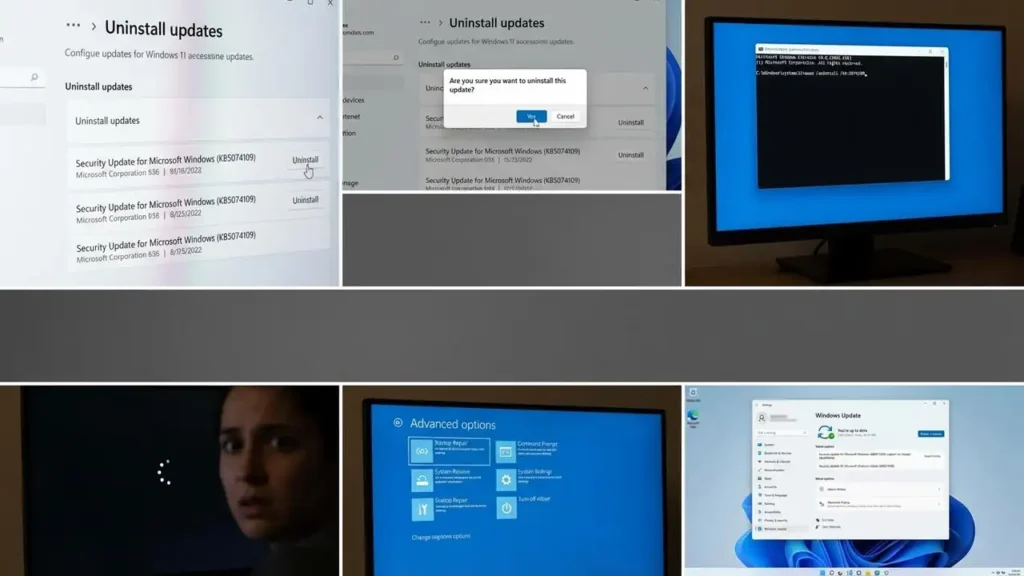
If your Windows 11 system is still accessible, uninstalling KB5074109 is the primary step. This process helps eliminate the source of freezing, black screens, and boot loops. Ensure you have adequate time for the system to process the uninstallation and restart.
To uninstall via Settings:
- Go to Settings > Windows Update > Update history.
- Scroll down and click Uninstall updates at the bottom of the page.
- Locate KB5074109 in the list of installed updates.
- Click Uninstall next to the entry for KB5074109 and follow the on-screen prompts. Your system will likely need to restart.
Command Line Solution for Persistent KB5074109 Issues
If your Windows refuses to load properly, perhaps stuck in a boot loop or displaying a black screen, you’ll need to use Windows Recovery Environment. This environment allows access to advanced options, including the Command Prompt, even if Windows cannot start normally. This method is crucial for overcoming critical kb5074109 issues.
To access Recovery Options and use Command Prompt:
- Force your PC to shut down three times in a row by holding the power button until it turns off. On the fourth boot, it should enter the Windows Recovery Environment.
- Navigate to Troubleshoot > Advanced options > Command Prompt.
- Once the Command Prompt window appears, type the following command and press Enter:
wusa /uninstall /kb:5074109. - Confirm the uninstallation if prompted. Your system will then attempt to remove the update and may require a restart to complete the process.
Mitigating Freezes by Adjusting Power Settings
Sometimes, software conflicts are exacerbated by specific system features designed for speed. Fast Startup, while generally beneficial, can prevent a complete kernel shutdown. This can lead to issues if new update files conflict with a hibernated session, causing freezes or improper restarts. Disabling it can resolve some persistent kb5074109 issues.
2. Disable Fast Startup
Disabling Fast Startup ensures a complete shutdown and fresh boot cycle each time, which can prevent update-related conflicts. This step might improve system stability if you’re experiencing freezes during power cycles.
To disable Fast Startup:
- Open Control Panel. You can find it by searching for “Control Panel” in the Windows search bar.
- Navigate to Power Options.
- On the left pane, click on “Choose what the power buttons do.”
- Click “Change settings that are currently unavailable.” This requires administrator privileges.
- Under “Shutdown settings,” uncheck the box next to “Turn on fast startup (recommended).”
- Click “Save changes” and then restart your computer.
Repairing System Files for Stability
Corrupted system files are a common consequence of problematic updates or unexpected shutdowns. If KB5074109 caused deeper damage beyond simple file conflicts, system file repair tools can restore stability. The Deployment Image Servicing and Management (DISM) tool and System File Checker (SFC) are designed for this purpose.
3. Repair system files and component storage
Running DISM and SFC helps to identify and repair any corruptions in your Windows system image and critical operating system files. This can resolve underlying stability problems that might persist even after uninstalling the update.
To run these repair commands:
- Open a Windows Terminal (Admin). You can do this by right-clicking the Start button and selecting “Windows Terminal (Admin).”
- First, run the DISM command to repair the Windows component store:
dism /online /cleanup-image /restorehealth. Allow this command to complete, which may take several minutes. - After DISM finishes, run the SFC command to scan and repair corrupted system files:
sfc /scannow. Wait for the verification process to reach 100% completion. - Restart your computer after both commands have finished.

Applying Official Patches and Preventing Recurrence
Microsoft actively monitors update issues and often releases automatic workarounds or subsequent patches. These Known Issue Rollbacks (KIRs) or out-of-band updates are designed to fix specific bugs introduced by previous updates, including kb5074109 issues. Ensuring your system receives these fixes is crucial for long-term stability.
4. Apply the Official Patch (KIR) or Out-of-Border Update
Microsoft provides automatic workarounds, known as Known Issue Rollbacks (KIRs), for some bugs introduced by updates. These are particularly relevant for enterprise and Azure Virtual Desktop environments but can also benefit general users. These patches are often downloaded silently in the background.
- Ensure your PC is connected to the internet consistently. This allows your system to automatically download and apply any available KIRs or other stability patches.
- Manually check for new updates: Go to Settings > Windows Update and click “Check for updates.” Look for a new patch update, such as KB5078127, which might be available to specifically address cloud-related application freezing bugs or other kb5074109 issues.
Pause Updates to Prevent Future kb5074109 Issues
After successfully resolving the kb5074109 issues by uninstalling the problematic update, it’s wise to temporarily pause updates. This prevents the system from automatically reinstalling the same update before Microsoft releases a stable, final patch.
To pause updates:
- Go to Settings > Windows Update.
- Under “Pause updates,” select a duration for pausing updates, typically 7 days. You can extend this period if needed.
- Monitor official Microsoft channels or tech news for announcements regarding a stable replacement for KB5074109. Once a fixed version is confirmed, you can resume updates.
Frequently Asked Questions About KB5074109 Issues
Addressing kb5074109 issues is crucial for maintaining a stable and usable Windows 11 system. By following these steps—starting with uninstalling the problematic update, adjusting power settings, repairing system files, and ensuring your system receives official patches—you can effectively resolve the freezing, black screen, and boot loop problems. Remember to pause updates temporarily to prevent reinstallation until a confirmed stable fix is available, ensuring long-term system health and preventing a recurrence of kb5074109 issues.
