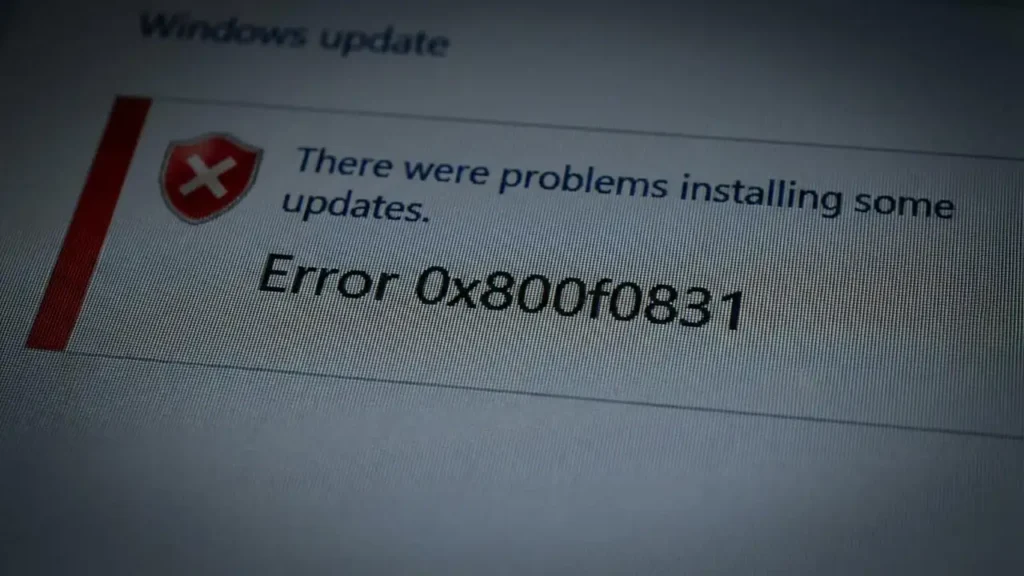
How to Fix 0x800f0831 Windows 10 Update Errors
Encountering a persistent update error like 0x800f0831 Windows 10 can be frustrating, especially when trying to keep your system secure and up-to-date. This error, often accompanied by 0x800f0989, typically indicates that essential component store (CBS) files are either missing or corrupted, preventing cumulative updates from installing correctly on Windows 10 or even leading to an erreur d'installation 0x800f0831 windows 11. Resolving this issue is crucial for system stability and security.
These update failures can manifest after a failed update attempt, during a major version upgrade, or even with regular monthly patches for 0x800f0831 windows 10 22h2. The underlying cause usually relates to the integrity of your Windows system files, which are necessary for the update process to complete successfully. Addressing the core corruption or missing files is key to restoring normal update functionality.
This guide provides a comprehensive set of steps, including Microsoft-recommended solutions, to help you troubleshoot and resolve the 0x800f0831 Windows 10 error. We will start with built-in repair tools and progress to more advanced solutions like manual installations and in-place upgrades. Following these methods systematically will help you overcome update blockers.
Understanding Update Errors: 0x800f0831 Windows 10
The error 0x800f0831 (- 2146498511) primarily points to issues within the Windows Component Store. This store holds all the necessary files and manifests for Windows components and features, including those required for updates. When these files become damaged or inaccessible, the Windows Update service cannot verify or integrate new updates, leading to installation failures.
This specific error code often suggests that a required component or a prerequisite update is missing or corrupted, preventing the current update package from installing. It’s not just a transient network glitch but usually a deeper system integrity problem. Properly diagnosing and repairing these underlying issues is essential for a lasting fix.
Step-by-Step Solutions to Resolve 0x800f0831
Addressing the 0x800f0831 Windows 10 update error requires a methodical approach, starting with the least intrusive solutions. Before beginning, ensure your PC has a stable internet connection and sufficient battery life if you’re on a laptop. Temporarily disabling any third-party antivirus or VPN software can also prevent conflicts during the update process.
1. Run System Repair Tools (SFC & DISM)
Corrupted system files are a common culprit behind update errors. Windows includes powerful command-line tools designed to scan for and repair these issues. Running these tools sequentially can often fix the root cause of the 0x800f0831 Windows 10 problem.
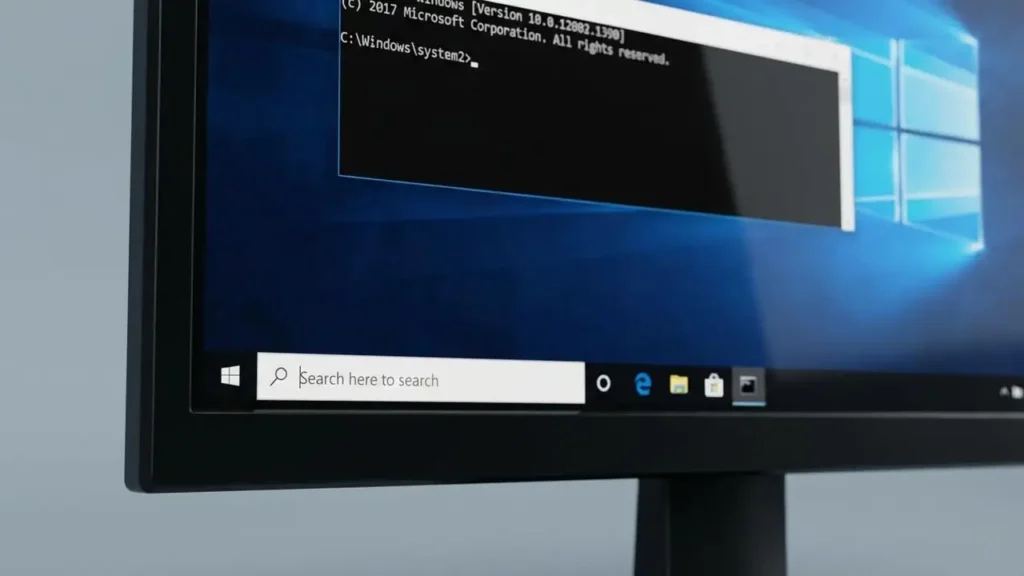
- Open Command Prompt as an administrator: Search for “cmd” in the Start menu, right-click “Command Prompt,” and select “Run as administrator.”
- Type the following command and press Enter:
DISM /Online /Cleanup-Image /RestoreHealth- This command uses Windows Update to provide files needed to fix corruptions. It can take some time to complete.
- Once the DISM command finishes, type the next command and press Enter:
sfc /scannow- This command scans for and replaces corrupted Windows system files.
- After both commands complete, restart your PC.
- Attempt the Windows Update again to see if the 0x800f0831 Windows 10 error is resolved.
2. Reset Windows Update Components
Sometimes, the downloaded update files themselves become corrupted, or the Windows Update service gets stuck. Clearing the update cache and resetting the components can give the update process a fresh start, which can effectively how to restore windows update.
- Use the Windows Update Troubleshooter:
- Go to Settings > System > Recovery (or Update & Security > Troubleshoot > Additional troubleshooters in older Windows 10 versions).
- Select “Troubleshoot” > “Other troubleshooters” and run the “Windows Update” troubleshooter.
- Follow the on-screen prompts and let it attempt to fix any issues.
- Manually Reset Windows Update Components (Expert):
- This method ensures a complete reset of the update services and cache.
- Open Command Prompt as an administrator.
### Manual Cache Reset for 0x800f0831 Windows 10
To manually reset the update components, you need to stop specific services, rename the cache folder, and then restart the services. This provides a clean slate for the Windows Update service, often resolving the erreur d'installation 0x800f0831 windows 11 or 0x800f0831 Windows 10 issue.
- Type the following commands, pressing Enter after each one, to stop the update services:
net stop wuauservnet stop bitsnet stop cryptsvcnet stop msiserver
- Rename the SoftwareDistribution and Catroot2 folders to clear the update cache:
ren C:WindowsSoftwareDistribution SoftwareDistribution.oldren C:WindowsSystem32catroot2 Catroot2.old
- Restart the services by typing the following commands, pressing Enter after each:
net start wuauservnet start bitsnet start cryptsvcnet start msiserver
- Close Command Prompt, restart your PC, and try to run Windows Update again.
3. Manual Installation via the Microsoft Update Catalog
The 0x800f0831 Windows 10 error sometimes means a specific update package couldn’t download or install automatically. Manually downloading and installing the problematic update can bypass the Windows Update mechanism’s failures.
- Identify the KB number of the failed update. You can find this in Settings > Windows Update > Update history.
- Go to the Microsoft Update Catalog website (catalog.update.microsoft.com).
- In the search bar, enter the KB number (e.g., “KB5031356”) and press Enter.
- Locate the update package corresponding to your version of Windows 10 (e.g., “Windows 10 Version 22H2 for x64-based Systems”).
- Click “Download” next to the correct entry.
- Click the download link in the pop-up window and save the
.msufile. - Once downloaded, double-click the
.msufile to install the update manually. - Follow the on-screen instructions, restart your PC if prompted, and check if the 0x800f0831 Windows 10 error is resolved.
4. Perform an In-Place Repair Upgrade (Ultimate Solution)
If all previous steps fail, an “in-place” repair upgrade can fix deep-seated system corruption without deleting your files or applications. This process essentially reinstalls Windows while keeping your personal data and installed programs intact. It is a powerful way to how to restore windows update functionality completely.
- Download the Media Creation Tool from the official Microsoft website (search for “Windows 10 Media Creation Tool” or “Windows 11 Media Creation Tool”).
- Run the downloaded tool.
- Accept the license terms.
- Select “Upgrade this PC now” and click “Next.”
- The tool will download Windows 10/11. This may take some time depending on your internet speed.
- Once the download is complete, follow the prompts. On the “Ready to install” screen, ensure that “Keep personal files and apps” is selected. If not, click “Change what to keep” and choose the correct option.
- Click “Install” to begin the repair process. Your PC will restart multiple times.
- After the upgrade, log in to your account. Your files and applications should be intact, and the 0x800f0831 Windows 10 error should be resolved.
Additional Troubleshooting Tips
Even after attempting the main solutions, a few other factors might contribute to the 0x800f0831 Windows 10 error. Always ensure your system meets basic requirements for updates.
- Disable Third-Party Antivirus/VPN: Temporarily disable any non-Microsoft antivirus software or VPN connection before attempting updates, as they can sometimes interfere with the download and installation process by blocking connections to Microsoft’s update servers.
- Check Disk Space: Ensure you have enough free disk space (at least 20-30 GB) on your system drive for the update to download and install. Insufficient space can cause updates to fail with various errors.
- Check Date and Time Settings: Incorrect date and time settings can interfere with Windows Update connecting to servers. Verify that your system’s date and time are set correctly and synchronized automatically.
Prevention and Maintenance
To prevent future occurrences of the 0x800f0831 Windows 10 error and maintain a healthy system, regular maintenance is key. Proactive steps can save you from complex troubleshooting down the line.
- Regular System File Checks: Periodically run
sfc /scannowas an administrator to catch and fix minor file corruptions before they escalate. - Keep Drivers Updated: Outdated drivers can sometimes conflict with system updates. Ensure your critical drivers (chipset, display, network) are up-to-date.
- Reliable Internet Connection: Ensure you have a stable and fast internet connection when performing updates to prevent incomplete downloads.
- Disk Cleanup: Regularly clean up temporary files and system files using Disk Cleanup (search for it in the Start menu) to free up space and remove potential conflicts.
Frequently Asked Questions about 0x800f0831 Windows 10
The 0x800f0831 Windows 10 error, while challenging, is typically resolvable using the methods outlined above. By systematically addressing potential issues with system files, update components, or the update installation process itself, you can successfully restore your Windows Update functionality. Regular system maintenance can help prevent such issues from recurring, ensuring your operating system remains secure and up-to-date.