
How to Fix Your Router Not Working
Experiencing a router not working issue can be frustrating, leaving you without internet access. Whether your Wi-Fi suddenly drops, lights are off, or you’re dealing with a router not working after power outage, this guide provides a systematic approach to diagnose and resolve common connectivity problems. Most issues can be fixed with simple troubleshooting steps, often without needing professional help.
The most common reasons for a router not working include temporary service outages from your internet service provider (ISP), loose or damaged cables, an overheated router, or incorrect settings. Sometimes, even after a reset, a device like an att router not working after reset requires specific attention to its configuration. By following these steps, you can identify the root cause and restore your internet connection efficiently.
Initial Checks for a Router Not Working
Before diving into complex solutions, start with the easiest and most common fixes. These initial checks can quickly resolve the majority of issues causing your router not working. They are designed to address temporary glitches and ensure basic connectivity.
1. Restart/Power Cycle Your Equipment
This is often the most effective first step for a router not working. It clears temporary errors and refreshes the connection.
- Unplug the power cable from both your modem and your router.
- Wait at least 30 to 60 seconds to allow the devices to fully power down and dissipate any residual charge.
- Plug the modem back in first. Wait for all its indicator lights to stabilize (this usually takes a minute or two).
- Next, plug your router back in. Wait another two to three minutes for its lights to settle. Check if the internet light is solid green or white, indicating a stable connection.
2. Check Physical Connections
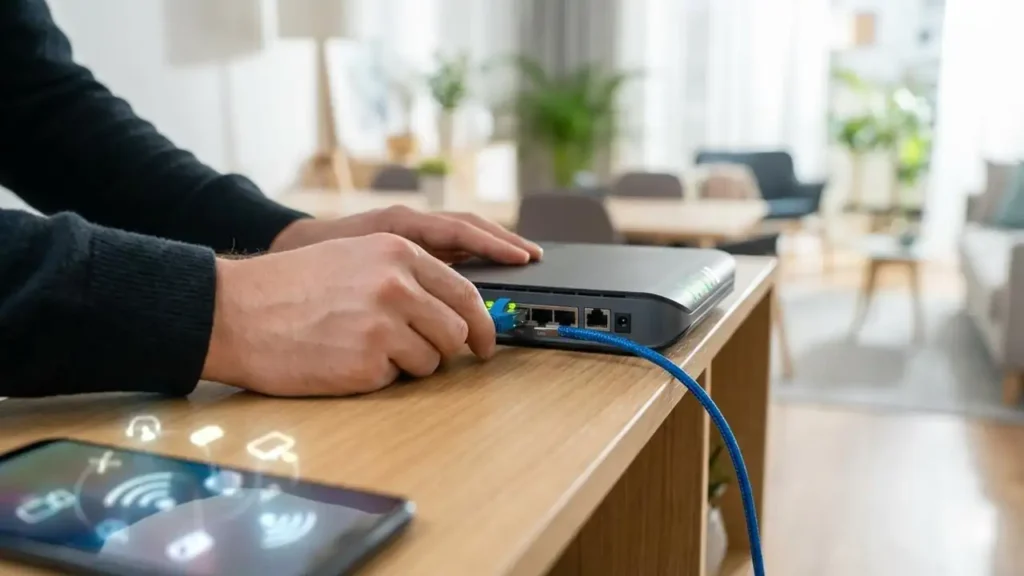
Loose or damaged cables are a frequent cause for a router not working. Ensure all connections are secure.
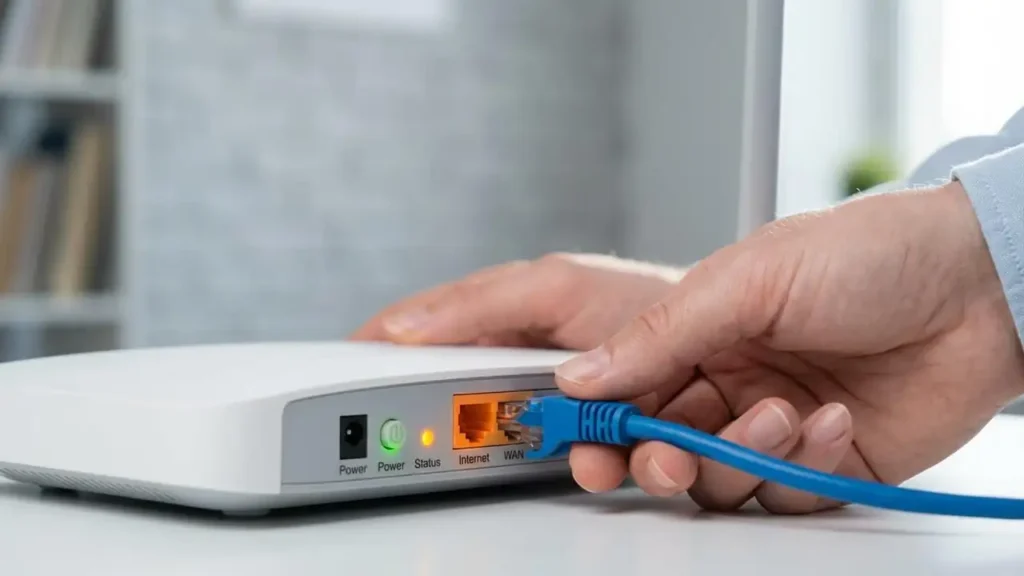
- Verify that all Ethernet cables are securely plugged into their respective ports on both the router and modem, and any connected devices.
- Check the coaxial cable (if applicable) for your modem, ensuring it’s tight at both the wall and the modem.
- Confirm that the power adapters for both the modem and router are firmly plugged into the wall outlet and the devices themselves. Test the outlet with another device to ensure it’s functioning.
Troubleshooting Physical Connections and Power
If a simple restart doesn’t resolve the router not working issue, focus on the physical state of your devices and their connections. This includes inspecting indicator lights and ensuring proper placement.
3. Examine Indicator Lights
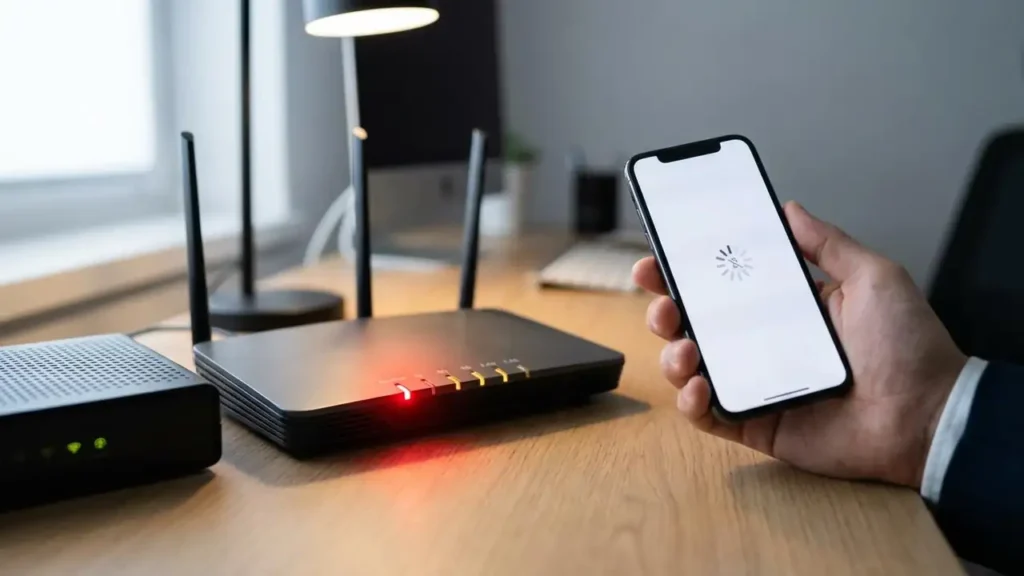
The lights on your router and modem provide crucial information about their status. A router stopped working no lights scenario typically indicates a power problem, while specific light patterns can signal connectivity issues.
- Power Light: Should be solid. If it’s off, flickering, or red, check the power cable and outlet.
- Internet/WAN Light: This is key. It should typically be solid green or white, indicating a stable connection from your ISP. If it’s red, orange, off, or blinking rapidly, it often means there’s no internet signal reaching your router. This could be due to a service outage or a modem issue.
- Wi-Fi Lights: Usually indicate whether your wireless networks (2.4GHz and 5GHz) are broadcasting. They should be on, possibly blinking to show activity.
4. Check for ISP Outages
Sometimes, the router not working isn’t your fault but your provider’s. Many issues, especially a spectrum router not working or a tp-link router not working, can stem from a broader service interruption.
- Use your mobile phone’s data or a neighbor’s Wi-Fi to visit your ISP’s website or social media pages.
- Look for any announcements regarding local service outages.
- You can also call your ISP’s customer support line directly to inquire about outages in your area.
5. Reposition the Router
Router placement significantly impacts Wi-Fi signal strength and reliability. Poor placement can make it seem like your router not working when it’s simply struggling to broadcast effectively.
- Place your router in a central, open location in your home, ideally off the floor and away from walls.
- Avoid placing it near obstructions like large metal objects, concrete walls, or appliances that emit electromagnetic interference (e.g., microwaves, cordless phones, baby monitors).
- Ensure proper ventilation to prevent overheating, which can cause performance issues or a router not working.
Advanced Fixes for a Persistent Router Not Working Issue
When basic troubleshooting doesn’t fix your router not working, you might need to consider more intensive steps like a factory reset or contacting your ISP for deeper diagnostics. These steps address software glitches or configuration problems.
Performing a Factory Reset for Your Router Not Working
A factory reset restores your router to its default settings, which can fix corrupted firmware or misconfigurations. Be aware that this will erase all custom settings (Wi-Fi name, password, port forwarding rules, etc.), so you’ll need to reconfigure them afterward.
- Locate the “Reset” button on the back or bottom of your router. It’s usually a small, recessed button that requires a paperclip or pen to press.
- With the router powered on, press and hold the reset button for 10 to 30 seconds. Release the button when the router’s lights flicker or restart.
- Allow the router to fully reboot, which may take several minutes.
- Once rebooted, your router will revert to its factory default settings. You’ll need to connect using the default Wi-Fi name (SSID) and password, typically found on a sticker on the router itself. You may then need to access the router’s web interface to set up your preferred Wi-Fi network and password.
6. Update Router Firmware
Outdated firmware can lead to performance issues and security vulnerabilities, sometimes causing a router not working. Check your router’s manual or manufacturer’s website (e.g., TP-Link support page for a tp-link router not working) for instructions on how to access its administration page and update the firmware. Always download firmware directly from the manufacturer’s official support site.
When to Contact Your ISP
If you’ve performed all the troubleshooting steps, including a factory reset, and your router not working problem persists, it’s time to contact your internet service provider. They can perform remote diagnostics on your modem and line to detect issues outside your home network.
- Be prepared to describe the steps you’ve already taken.
- They might confirm a network outage or determine if your modem or router is faulty and needs replacement.
- They can also help troubleshoot specific issues like an att router not working after reset or a spectrum router not working due to provider-specific configurations.
Preventing Future Router Issues
Maintaining your router properly can prevent many common problems. Proactive measures can keep your internet connection stable and reliable, minimizing instances of your router not working.
- Regular Power Cycles: Periodically power cycle your modem and router (once a month) to refresh their connections and clear memory.
- Firmware Updates: Keep your router’s firmware updated to ensure optimal performance and security.
- Proper Placement: Maintain optimal router placement away from interference and in a well-ventilated area.
- Cable Integrity: Periodically check your cables for any signs of wear or damage and replace them if necessary.
- Overheating Prevention: Ensure your router has adequate airflow. If it feels hot to the touch, consider moving it or cleaning any dust from its vents.
By understanding the common causes and systematically applying these troubleshooting steps, you can effectively resolve most instances of a router not working and get back online quickly.
