How to Fix an Android Boot Loop
When your Android device gets stuck in a continuous restart cycle, it’s experiencing an Android boot loop. This frustrating issue prevents your phone from fully loading its operating system, rendering it unusable. Understanding the common causes and systematic troubleshooting steps can help you resolve this problem effectively.
An Android boot loop often manifests after a software update, a new app installation, or an attempt to modify the device’s system. The phone repeatedly shows the manufacturer’s logo or a loading screen, restarts, and then repeats the process indefinitely. This guide provides a comprehensive approach to diagnosing and fixing a device caught in a persistent restart cycle.
Understanding the Android Boot Loop Problem
An Android boot loop typically signifies a critical software malfunction preventing the operating system from initializing correctly. This can stem from various sources, making systematic troubleshooting essential. Identifying the underlying cause is the first step towards a successful boot loop fix.
Common Causes of an Android Boot Loop
Several factors can lead to an Android boot loop.
- Software Corruption: Failed system updates, corrupted system files, or insufficient storage space can prevent the OS from loading.
- App Conflicts: Poorly coded or incompatible applications, especially those from non-official sources, can interfere with system startup processes.
- Modifications: Issues arising from rooting the phone, installing a custom ROM, or flashing improper firmware often destabilize the system, leading to a boot loop.
- Hardware Failures: While less common for software-related boot loops, malfunctioning components, such as a faulty power button, or water damage, can also trigger this issue.

Initial Troubleshooting Steps for an Android Boot Loop
Before resorting to more drastic measures, start with these simple yet effective steps to address a potential Android boot loop. These actions aim to resolve minor glitches or power-related issues that might be causing the problem.
- Force Restart Your Device: The first and simplest step is to force a restart. Press and hold the power button for 30 seconds or longer until the device completely shuts down. Release the button, then press it again to power it back on normally. This can clear temporary software glitches.
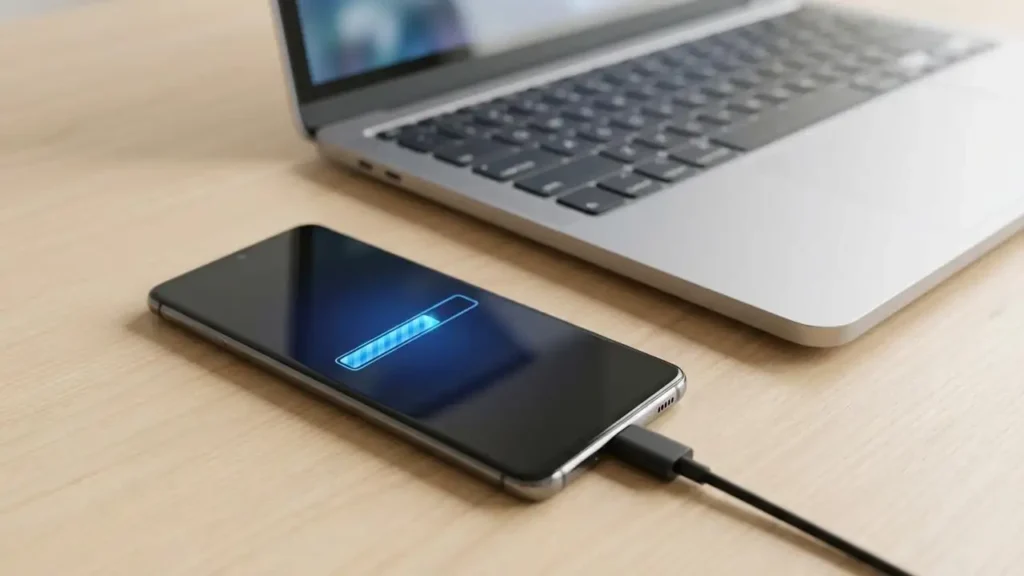
- Charge the Device: A critically low battery can sometimes cause a device to enter a boot loop, as it lacks sufficient power to complete the startup sequence. Plug your Android phone into its charger and let it charge for at least 30 minutes. Once charged, attempt to force restart it again.
- Remove External Storage (If Applicable): If your device uses an external microSD card, remove it. Corrupted data on the card or an incompatible card itself can sometimes interfere with the boot process. Try restarting the phone without the card.
Advanced Fixes for Android Boot Loop Issues
If initial troubleshooting does not resolve the Android boot loop, you will need to delve into more advanced solutions. These steps typically involve accessing the device’s recovery mode, which allows you to perform system maintenance without fully booting into the Android OS.
Entering Safe Mode to Resolve App Conflicts
Booting into Safe Mode can help identify if a third-party application is causing the Android boot loop. In Safe Mode, only essential system apps are loaded, disabling all user-installed applications.
- Enter Safe Mode: The method for entering Safe Mode varies by device.
- For many Android phones, hold the power button until the power off options appear. Then, press and hold “Power off” until a “Reboot to Safe Mode” option appears. Tap it.
- Alternatively, during startup, as the manufacturer logo appears, press and hold the Volume Down button until the phone fully boots. “Safe Mode” should appear at the bottom of the screen.
- Identify and Uninstall Faulty Apps: If the device boots successfully into Safe Mode, an installed application is likely the culprit. Navigate to Settings > Apps & notifications > See all apps. Uninstall recently installed or updated apps one by one, especially those from unofficial sources or those installed just before the boot loop began.
- Exit Safe Mode: After uninstalling potential problem apps, restart your phone normally. If the Android boot loop is resolved, the problematic app has been removed.
Utilizing Recovery Mode for Deeper Repairs
When Safe Mode doesn’t provide a boot loop fix, accessing recovery mode is the next critical step. This environment allows you to perform maintenance tasks directly on the device’s system partitions.
- Access Recovery Mode: To enter recovery mode, first, power off your device completely. Then, press and hold a specific combination of physical buttons, usually Power + Volume Down, or Power + Volume Up, or Power + Home + Volume Up, until the recovery menu appears. Release the buttons once you see the menu. Use volume buttons to navigate and the power button to select.
- Wipe Cache Partition: This option clears temporary system files that might be corrupted and causing the boot loop, without deleting your personal data. Navigate to “Wipe cache partition” and select it. Confirm if prompted. Once complete, select “Reboot system now.”
- Factory Reset: If wiping the cache doesn’t work, a factory reset is often the last software-based resort. Warning: This will erase all data on your phone, including photos, videos, apps, and settings. Ensure you have backups if possible. In recovery mode, select “Wipe data/factory reset.” Confirm your choice. After the reset, select “Reboot system now.” This reverts your phone to its original factory state, often resolving the Android boot loop.
Reinstalling Firmware and When to Seek Professional Help
If a factory reset fails to resolve the Android boot loop, the core operating system files may be severely corrupted. In such cases, manually reinstalling the firmware is necessary.
- Reinstall Firmware: This process, often called “flashing,” involves downloading your device’s official firmware and using specific tools to install it. For Samsung devices, tools like Odin are commonly used. This is an advanced procedure and incorrect flashing can brick your device. Research specific instructions for your phone model carefully and ensure you download the correct firmware version. This can be a reliable boot loop fix for deep software issues.
- Consider Professional Repair: If none of these steps work, or if you are uncomfortable with flashing firmware, your device might have a hardware problem. A faulty power button, damaged internal components, or water damage could be the cause. At this point, it is best to consult a professional repair service or contact your device manufacturer’s support. Attempting further repairs without expertise could cause more damage or void your warranty.

Prevention Tips for Avoiding an Android Boot Loop
To minimize the chances of encountering an Android boot loop in the future, adopt these best practices:
- Keep Software Updated: Regularly install official system updates. They often contain bug fixes and improvements that enhance stability.
- Install Apps from Trusted Sources: Download apps only from the Google Play Store or other reputable app stores. Avoid installing APKs from unknown sources.
- Monitor Storage Space: Ensure your device has sufficient free storage. Running critically low on space can lead to system instability and potential boot issues.
- Be Cautious with Modifications: If you choose to root your phone or install a custom ROM, proceed with extreme caution. Always use reputable guides and ensure the custom ROM or firmware is specifically designed for your device model. Back up your data before making any significant system modifications.
Resolving an Android boot loop can be challenging, but by following these systematic troubleshooting steps, you significantly increase your chances of reviving your device. Start with the easiest solutions and gradually move to more advanced fixes, ensuring data backup where possible.