How to Fix iPhone Storage Full Issues
Even with generous cloud storage options, many iPhone users frequently encounter the frustrating “iPhone Storage Full” message. This common issue, often leading to a “phone always storage full” feeling, prevents new photos, app updates, and smooth performance. Understanding how your iPhone manages data and how iCloud interacts with it is crucial to freeing up valuable space.
When your iPhone storage full, it impacts the device’s speed and functionality, making it essential to manage files effectively. This guide will walk you through practical steps to identify storage culprits and implement solutions, ensuring your device has the necessary room to operate efficiently. From optimizing media to clearing app caches, we’ll cover methods to alleviate the iPhone storage full problem.
Manage Photos and Videos Effectively to Combat iPhone Storage Full
Photos and videos are typically the largest consumers of storage on an iPhone, quickly leading to an iPhone storage full state. Implementing smart management strategies for your media library can significantly free up space. These steps focus on offloading high-resolution files while keeping them accessible.
- Optimize iPhone Storage with iCloud: Navigate to Settings > Photos. Enable “Optimize iPhone Storage” to store full-resolution photos and videos in iCloud, while keeping smaller, device-optimized versions on your iPhone. This feature is a primary defense against an iPhone storage full notification, especially if you have an active iCloud plan.
- Delete Duplicate Photos and Screenshots: The Photos app includes a “Duplicates” album under the Utilities section. Regularly check this album to merge or delete identical photos and videos. Additionally, make it a habit to review and delete unnecessary screenshots from your main photo library, as these accumulate quickly.
- Utilize Third-Party Cloud Services: While iCloud is deeply integrated, other services like Google Photos or Dropbox offer robust alternatives for backing up your media. Google Photos, for example, provides 15 GB of free storage shared across all Google services. Once backed up, you can safely delete the originals from your iPhone to clear space.
- Transfer to a Computer or External Drive: For a secure and private backup solution, manually transfer your photos and videos to a personal computer or a compatible external hard drive. This method offers a cost-effective way to clear significant space from your iPhone without relying solely on cloud services.
Optimizing for iPhone Storage Full Prevention
Proactive management of your photo and video library is key to preventing your iPhone storage full status. Regularly reviewing your media, especially after events or trips where many photos are taken, helps maintain sufficient free space. Consider transferring large video files immediately after recording.

Identify and Offload Apps to Resolve iPhone Storage Full
Apps and their accumulated data can consume substantial storage, contributing to an iPhone storage full situation. Identifying which apps are the biggest culprits and managing their data effectively is a crucial step in freeing up space.
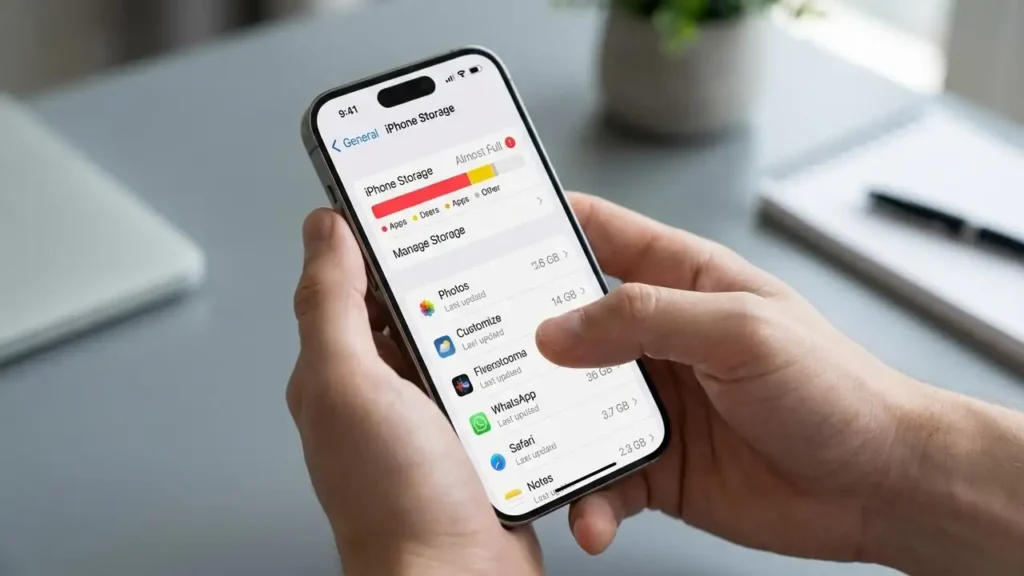
- Identify Space-Hogging Apps: Go to Settings > General > iPhone Storage. This section provides a detailed breakdown of your storage usage, listing all apps by the amount of space they occupy. Reviewing this list helps pinpoint which apps are consuming the most memory.
- “Offload” Unused Apps: For apps you don’t use frequently but want to keep the data for, use the “Offload App” feature. This option removes the app itself but preserves its documents and data, allowing you to reinstall it later without losing information. You can enable “Offload Unused Apps” automatically in Settings > App Store or manually for specific apps from the iPhone Storage list.
- Delete and Reinstall Apps: For apps that accumulate a large amount of cached data (especially social media, streaming, or gaming apps), completely deleting the app and then reinstalling it can clear significant space. This action performs an “iphone storage full clear cache” for that specific application, removing all temporary files. While effective, ensure any critical data within the app is backed up if it’s not cloud-synced.
Clear System Data and Browser Cache
Beyond photos and apps, your iPhone accumulates various temporary files and cached data from browsing and other system processes, often categorized as “System Data” or “Other.” These can significantly contribute to an iPhone storage full message.
- Clear Browsing Data: Regularly clearing your web browser’s cache can free up considerable space. For Safari, go to Settings > Safari and select “Clear History and Website Data.” This action removes browsing history, cookies, and other website data, effectively performing an “iphone storage full clear cache” for your browser.
- Manage Messages App Data: The Messages app can accumulate gigabytes of photos, videos, and large attachments over time. In Settings > General > iPhone Storage > Messages, you can review conversations and delete large attachments individually. You can also configure your iPhone to automatically delete old messages (after 30 days or one year) in Settings > Messages > Message History > Keep Messages.
- Restart Your iPhone: A simple restart can often help iOS clear temporary files and caches that make up part of the “System Data” category. While not a permanent solution, it can provide a quick, temporary reduction in storage usage and is a good first troubleshooting step when your iPhone storage full.
Proactive Steps to Prevent iPhone Storage Full
Regular maintenance and informed usage habits are the best defense against your iPhone storage full. By integrating these practices into your routine, you can keep your device running smoothly without constant storage worries.
- Regularly Review Storage: Make it a habit to check your iPhone Storage section (Settings > General > iPhone Storage) periodically. Understanding where your space is being used allows you to take timely action before your iPhone storage full. This dashboard is your best tool for identifying growth areas.
- Utilize iCloud and Understand its Role: If you frequently find your “phone always storage full,” invest in a larger iCloud storage plan if needed. While iCloud syncs your data, it doesn’t automatically remove files from your device unless “Optimize iPhone Storage” is enabled or you manually delete items after cloud backup. Remember that having more iCloud space doesn’t mean more device space; it just provides more room for cloud backups and optimizations.
- Manage Downloads: Be mindful of downloading large files, podcasts, or offline content from streaming apps. Many apps allow you to set limits on downloads or automatically delete content after a certain period. Adjust these settings to prevent unnecessary data accumulation.
Frequently Asked Questions
Addressing an iPhone storage full notification requires a multi-faceted approach. By consistently managing your media, optimizing app usage, and clearing accumulated caches and system data, you can maintain sufficient free space on your device. Regular checks and proactive measures are key to preventing your “phone always storage full” and ensuring smooth performance.