
Fix Your Laptop Not Booting: A Step-by-Step Guide
Troubleshoot common reasons why your laptop won’t start or load Windows.
Experiencing your laptop not booting can be a frustrating situation, whether you’re facing a black screen, a stuck logo, or an error message. This is a common problem with several potential causes, from simple power issues to more complex software or hardware faults. Don’t panic; this comprehensive guide will walk you through systematic troubleshooting steps to help you identify and resolve the issue. We’ll cover everything from basic checks to advanced diagnostics, applicable whether your laptop not booting is running Windows 10 or Windows 11.
The exact behavior of your device when it’s not booting can provide valuable clues. Does it show a total black screen with no lights or sounds, or do you hear fans spinning but see nothing? Does the logo appear, but then Windows fails to load? Understanding these initial symptoms will help direct your troubleshooting efforts effectively and get your machine back up and running.
The Essential “Hard Reset” for Your Laptop Not Booting
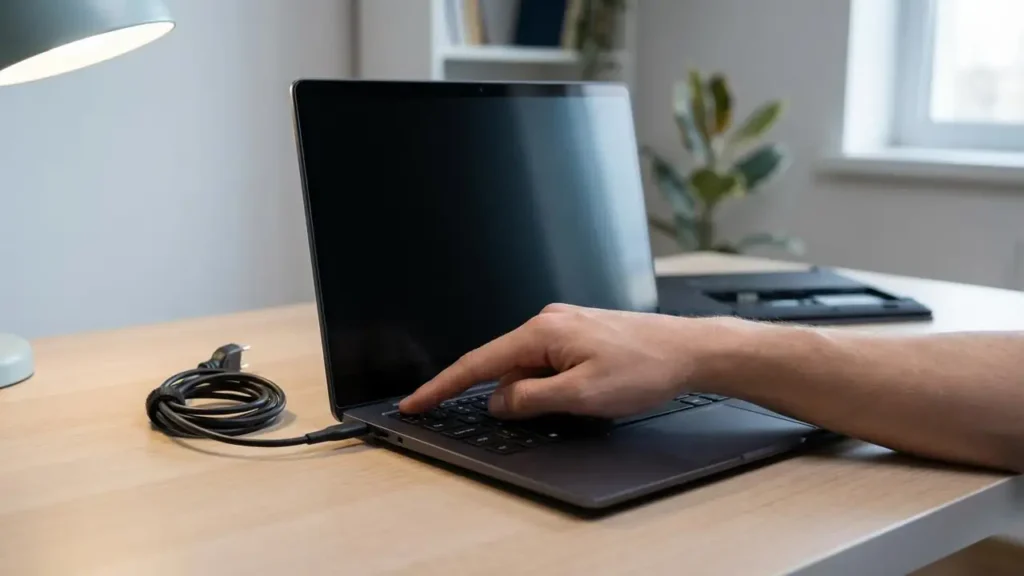
Often, static electricity build-up can prevent your laptop from starting correctly, leading to your laptop not booting problem. A hard reset, also known as a power drain, can discharge residual static power and often resolve such issues without needing further intervention. This is the first and safest step to try if your laptop not booting at all or shows unusual behavior.
- Disconnect Everything: Unplug the laptop charger from the wall and from the laptop itself. Remove all connected accessories, including USB drives, external mice, keyboards, and any external monitors or docking stations.
- Remove the Battery (If Possible): If your laptop has a removable battery, carefully remove it. Many modern laptops have internal batteries, so skip this step if yours is not easily accessible. Do not attempt to open your laptop to remove an internal battery.
- Perform the Power Drain: With the charger and battery (if removed) disconnected, press and hold the laptop’s power button for a full 30 seconds. This action drains any residual electrical charge from the system components.
- Reconnect Power Only: After holding the power button, reconnect only the AC power adapter to your laptop and plug it into a working wall outlet. Do not reinsert the battery yet if you removed it.
- Attempt Startup: Try to turn on your laptop as you normally would. If it boots successfully, shut it down, reinsert the battery (if applicable), and then restart to ensure it functions normally.
What if Your Laptop Not Booting After the Hard Reset?
If the hard reset doesn’t resolve the issue and your laptop not booting, it indicates that the problem is not related to static electricity. You will need to proceed to further diagnostic steps to pinpoint the cause. This could involve checking power components, display connections, or internal software issues that prevent Windows from loading. Ensure you observe any new symptoms after attempting the hard reset, as these can provide crucial information for the next steps in troubleshooting your laptop not booting.
Checking Power and Display Issues
If your laptop shows no signs of life after the hard reset, or if you hear sounds but see nothing, the problem might be with the power supply or the display itself. These external factors are relatively easy to check and can often be the reason why your laptop not booting.
- Inspect Power Indicators: Look for any lights on your laptop (e.g., power indicator, charging light). Are they on, off, or flashing? A completely dark laptop suggests a power delivery problem. A flashing light may indicate a specific error code, sometimes signaling issues like RAM problems (e.g., certain HP models use flash patterns). Refer to your laptop’s manual for specific flashing light meanings, if possible.
- Verify Power Outlet and Charger: Try plugging your laptop charger into a different wall outlet to rule out a faulty power source. If available, try using a different compatible charger to see if your current charger is the culprit. Ensure the charger’s wattage matches your laptop’s requirements.
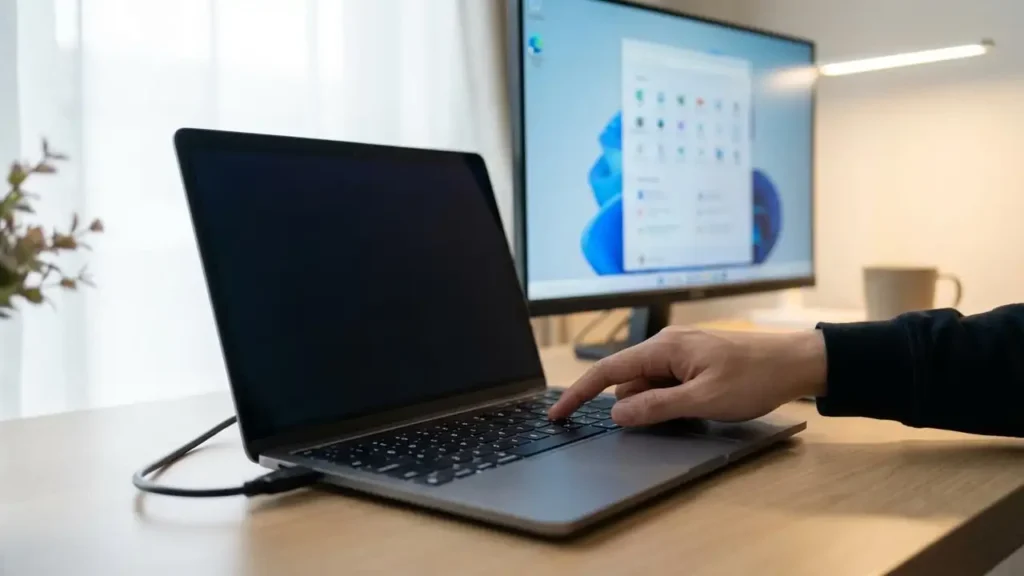
- Connect an External Display: If you hear the laptop’s fans spinning, hard drive activity, or see any indicator lights but the screen remains black, the issue might be with your laptop’s built-in display. Connect an external monitor or a TV to your laptop using an HDMI or DisplayPort cable.
- If an image appears on the external display, your laptop’s internal screen is likely faulty or disconnected. You can continue using the laptop with the external monitor or consider professional repair for the internal display.
- If no image appears on the external display, the problem is deeper, possibly related to the graphics card or motherboard, indicating your laptop not booting past the initial power-on sequence.
Is Your Laptop Not Booting to Windows?
If your laptop powers on, you see the manufacturer’s logo (like Dell, HP, Lenovo), but Windows fails to load, you’re likely dealing with a software-related startup issue. This scenario suggests the hardware is mostly functional, but the operating system is corrupted or unable to initiate properly. This is a common reason for a laptop not booting to the desktop.
- Force Automatic Repair Mode: Windows has a built-in “Automatic Repair” environment that can often fix startup problems. To access it:
- Turn on your PC. As soon as the manufacturer’s logo appears, press and hold the power button to force the PC to shut down.
- Repeat this process two more times (a total of three forced shutdowns).
- On the fourth startup, your PC should automatically enter the “Automatic Repair” screen.
- Utilize Startup Repair: Once in the “Automatic Repair” environment:
- Select “Advanced options.”
- Go to “Troubleshoot.”
- Choose “Startup Repair.”
- Follow the on-screen prompts. Windows will attempt to diagnose and fix common startup problems. This process can sometimes fix issues like corrupted boot files or problematic updates that cause your laptop not booting properly.
Diagnosing Disk and BIOS Problems
Sometimes, your laptop not booting is due to the system being unable to find the operating system or recognizing the storage drive. This is often indicated by specific error messages or a failure to access the BIOS. This section helps diagnose these deeper hardware-related boot issues, especially if your laptop not booting from USB or the primary drive.
- Check for “No Boot Device” Messages: If you see messages like “No Boot Device Found,” “Operating System Not Found,” or “Boot Device Not Found,” it means your laptop cannot locate the drive containing Windows.
- Access the BIOS/UEFI Settings: To check if your hard drive (HDD/SSD) is recognized, you need to access your laptop’s BIOS or UEFI settings.
- Turn on your laptop and immediately start repeatedly pressing the designated key. Common keys include F2, F12, F10, or Delete. The exact key often appears briefly on the screen during startup.
- If your laptop not booting to BIOS despite repeated key presses, the issue might be more severe, possibly a motherboard or keyboard malfunction.
- Verify Hard Drive/SSD Detection: Once inside the BIOS/UEFI:
- Navigate to the “Boot,” “Storage,” or “Main” tab.
- Look for a list of connected storage devices. Your hard drive or SSD (where Windows is installed) should be listed here.
- If your drive is not listed, it may be disconnected internally, faulty, or incorrectly configured. This is a significant reason for your laptop not booting.
- Check the boot order to ensure your primary hard drive is listed as the first boot option.
- Use Built-in Diagnostic Tools: Many manufacturers include diagnostic tools within the BIOS/UEFI. For example, Dell laptops often have “SupportAssist” built-in.
- Run these diagnostics to test your memory, hard drive, and other critical components. These tools can identify hardware failures that prevent your laptop not booting successfully.
Prevention Tips for a Healthy Laptop
Preventing future booting problems involves good maintenance habits. While unexpected issues can always arise, proactive steps can significantly reduce the chances of your laptop not booting again.
- Regular Software Updates: Keep your Windows operating system and drivers updated. Updates often include critical bug fixes and security patches that can prevent system instability.
- Safe Shutdowns: Always shut down your laptop properly through the Start Menu, rather than just closing the lid or forcing a power off, unless absolutely necessary. This ensures all processes close correctly and prevents file corruption.
- Antivirus and Malware Protection: Use reputable antivirus software and keep it updated to protect against malicious software that can corrupt system files and prevent proper booting.
- Avoid Overheating: Ensure your laptop has adequate ventilation. Clean dust from vents regularly to prevent overheating, which can damage components and lead to boot failures.
- Backup Important Data: Regularly back up your essential files to an external drive or cloud service. This ensures that even if your laptop not booting due to a severe hardware failure, your data remains safe.
When your laptop not booting, it’s crucial to approach troubleshooting systematically. By following these steps, you can often diagnose and resolve common issues yourself. If, after trying all these steps, your laptop still doesn’t boot or you’re unsure about any step, it’s best to consult a professional technician. Attempting repairs beyond your comfort level could cause further damage.
