How to Fix Your Laptop Overheating
Keep your device cool and prevent damage from excessive heat.
If your laptop is experiencing laptop overheating, it’s more than just an inconvenience; it can lead to reduced performance, system instability, and even permanent hardware damage. A laptop that runs too hot often slows down dramatically, or in severe cases, experiences a sudden laptop overheating and shutting down incident to protect its internal components. Understanding the underlying causes and implementing effective solutions is crucial for maintaining your device’s health and longevity.
Addressing laptop overheating involves a combination of environmental adjustments, physical maintenance, and software optimization. These steps are designed to improve heat dissipation, ensure efficient cooling, and manage the workload on your processor and graphics card. By taking proactive measures, you can significantly reduce internal temperatures and restore your laptop’s optimal functioning.
Addressing Laptop Overheating Through Airflow
One of the most immediate and effective ways to combat laptop overheating is to ensure proper airflow. Laptops generate a significant amount of heat, and if this heat cannot escape, it builds up rapidly, leading to performance issues and potential shutdowns. The design of many laptops relies on air intake from the bottom and exhaust from the sides or back.
Always place your laptop on a flat, hard surface. Soft surfaces like beds, carpets, or even your lap can completely block the crucial air intakes located on the bottom of your device. This restriction starves the internal fans of fresh air, trapping hot air inside the chassis. A simple change in placement can often yield immediate temperature drops.
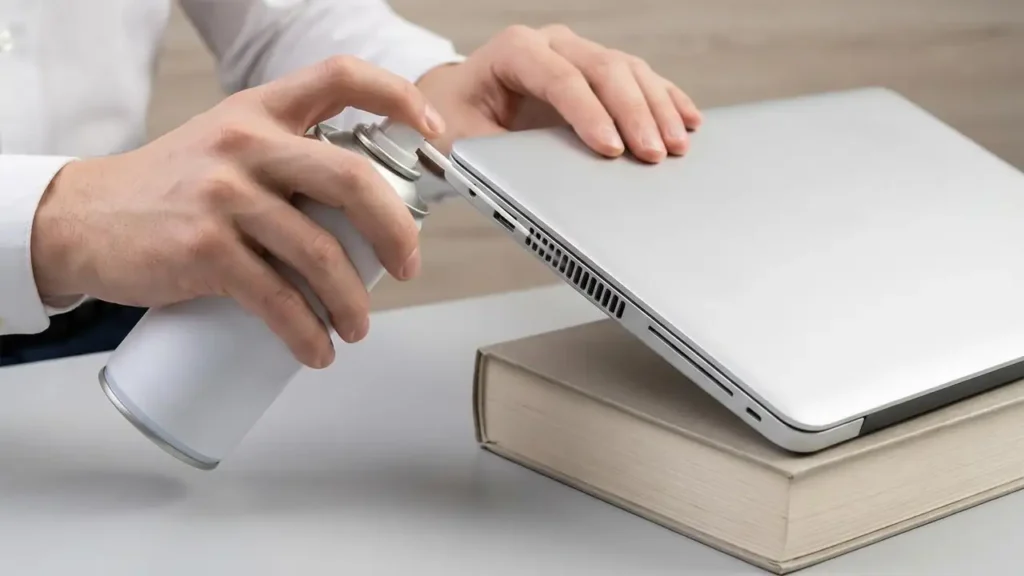
To further enhance circulation, consider elevating the back of your laptop. A dedicated laptop stand is ideal, but even a small book or object placed under the rear can create a gap, allowing more air to flow underneath. This simple elevation can dramatically improve the efficiency of your laptop’s cooling system. For an even greater cooling boost, an external cooling pad with built-in fans can actively push cool air towards your laptop’s underside, lowering internal temperatures by several degrees, which is a great how to fix an overheated laptop solution.
Physical Cleaning for Cooler Operation
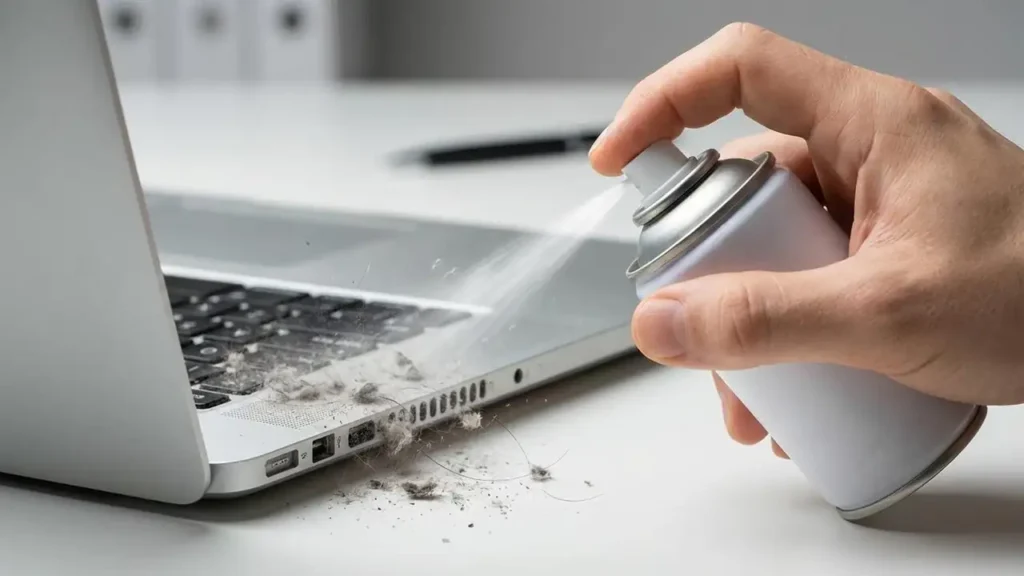
Over time, dust, lint, and pet hair inevitably accumulate within your laptop’s cooling system. This buildup acts as an insulating layer, trapping heat and preventing the fans and heatsinks from doing their job effectively. A clogged cooling system is a primary culprit behind many laptop overheating problems.
The simplest and safest method for cleaning is to use a can of compressed air. Before you begin, always turn off your laptop and unplug it from the power source. Locate the air vents, typically found on the sides, back, and sometimes the bottom of the device. Use short bursts of compressed air to blow dust out of these vents. Be sure to hold the can upright to prevent propellant from spraying onto components. This step can often resolve minor to moderate overheating issues by clearing obstructions.
For advanced users or those with older laptops, replacing the thermal paste can be a highly effective solution. Thermal paste is a compound applied between the processor (CPU) and graphics processing unit (GPU) and their respective heatsinks. Its purpose is to facilitate efficient heat transfer. After 2-3 years, this paste can dry out and lose its effectiveness. Replacing it requires carefully opening the laptop, removing the old paste, and applying new thermal paste. This process should only be attempted if you are comfortable with disassembling computer hardware, as improper application can worsen heat transfer or damage components.
Is your fan making an unusual noise, such as a rubbing or clicking sound, or is it completely silent despite your laptop being hot? Unusual fan noises can indicate a failing fan that needs replacement, while a silent fan in a hot laptop suggests it’s not working at all. In either case, professional inspection might be necessary.
Software Fixes for Laptop Overheating
While hardware is often the primary cause, software settings and resource management play a significant role in preventing and resolving laptop overheating. Optimizing your operating system and application usage can reduce the workload on your CPU and GPU, thereby lowering heat generation. This is particularly relevant for a laptop overheating fix windows 11 environment.
In Windows settings, adjusting your power mode can have a substantial impact. Switching from “Best performance” to “Balanced” or “Power Saving” mode limits the processor’s raw power consumption. While this might slightly reduce peak performance, it also reduces heat output, making it a valuable strategy for mitigating laptop overheating. This setting can be found under System > Power & battery in Windows 11.
Manufacturers like HP, Dell, and Lenovo often release BIOS (Basic Input/Output System) updates that specifically optimize fan management. These updates can include new fan curves, allowing your laptop’s fans to spin up more effectively under load, or improve power efficiency, indirectly reducing heat. Check your laptop manufacturer’s support website for any available BIOS updates for your specific model. Follow the instructions carefully, as an interrupted BIOS update can brick your device.
Effective process management is another key software strategy. Resource-intensive applications and excessive browser tabs can push your processor and memory to their limits, generating more heat. Open Task Manager (Ctrl+Shift+Esc in Windows) and identify applications or processes consuming a high percentage of your CPU or memory. Close unnecessary browser tabs and quit any applications you are not actively using. This simple habit can significantly reduce the load on your system, contributing to a cooler operating temperature. For a comprehensive laptop overheating fix software approach, consider background app limitations in Windows settings as well.
Preventing Future Laptop Overheating
Maintaining your laptop in optimal condition is key to preventing future episodes of laptop overheating. Regular maintenance and mindful usage habits can significantly extend the life of your device and ensure it runs efficiently. Consistent airflow, regular cleaning, and intelligent software management form the cornerstone of this preventative strategy.
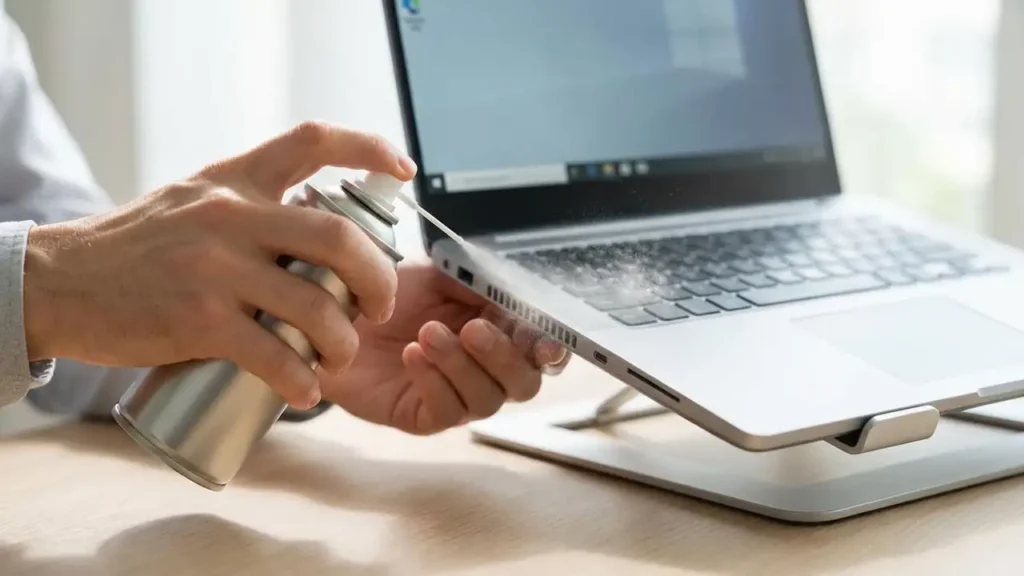
Ensure that your laptop always operates on a hard, flat surface. This fundamental practice guarantees that the air intakes are never obstructed, allowing your cooling system to function as designed. Investing in a good quality laptop stand or cooling pad can be a worthwhile long-term solution, especially if you frequently use your laptop for demanding tasks or for extended periods. These accessories not only improve airflow but can also enhance ergonomics.
Make it a habit to regularly clean your laptop’s vents. Using compressed air every few months, or more frequently if you live in a dusty environment or have pets, will prevent significant dust buildup. This simple routine is crucial for maintaining the efficiency of your cooling fans and heatsinks. A clean cooling system is an efficient cooling system.
Periodically review your background applications and startup programs. Many applications launch automatically when you turn on your laptop, consuming resources even if you don’t use them immediately. Disabling unnecessary startup programs and closing unused browser tabs and applications frees up CPU and RAM, reducing the overall workload and thus the heat generated. Keeping your operating system and drivers updated can also include performance optimizations that lead to less heat.
Frequently Asked Questions
By implementing these strategies, from ensuring proper airflow and thorough physical cleaning to optimizing software settings, you can effectively combat laptop overheating and extend its lifespan. Consistent maintenance and mindful usage are your best defense against heat-related performance issues and hardware damage.