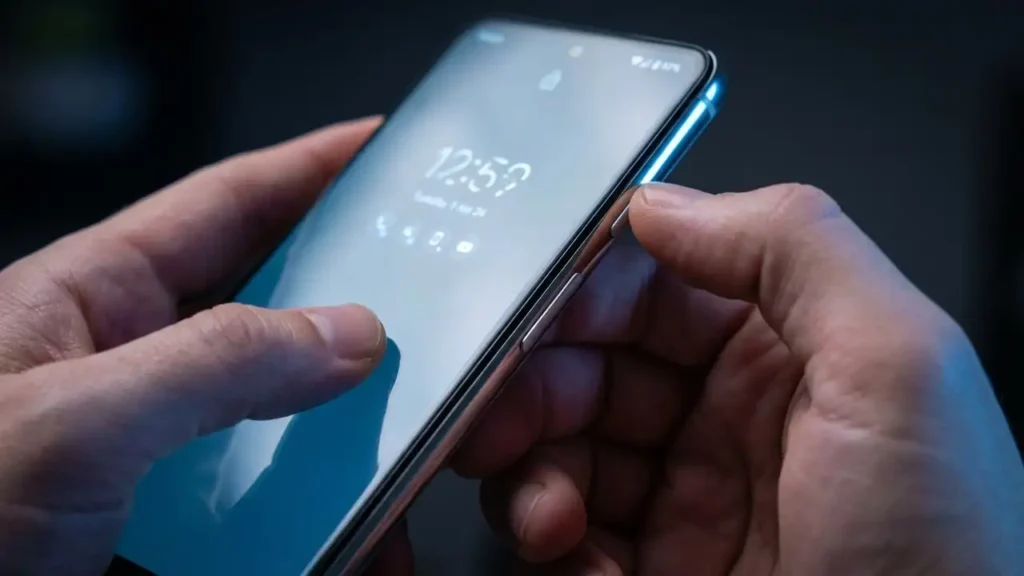
Addressing the Pixel lock screen freezing After the Latest Update
Solutions for display unresponsiveness and visual glitches on the standby screen.
The deployment of the March 2026 update has introduced a critical stability error that hinders device accessibility for many owners. When the standby interface fails to transition to the primary user environment, the device undergoes a Pixel lock screen freezing event. This behavior disrupts the standard workflow and forces a reliance on manual recovery methods to bypass the unresponsive state. Owners typically notice the problem when they attempt to check notifications or unlock their handsets, only to find the panel completely ignoring touch or biometric inputs.
This issue is closely tied to the rollout of the latest operating system version. While software updates are intended to provide enhancements, the recent release has caused friction between the system UI and the power management layers. The resulting Pixel lock screen freezing is not a hardware defect but a software-based regression that requires a specific set of troubleshooting steps to manage effectively until a formal patch is released by the developer.
Managing these disruptions involves identifying whether the issue stems from the visual interface or the background system processes. The presence of an always-on display bug suggests that the standby power management and the UI rendering engine are out of sync. This conflict results in a locked interface that ignores user commands and stays stuck on a static image. Understanding the scope of these symptoms is the first step toward restoring a reliable user experience.
Troubleshooting Pixel lock screen freezing Symptoms
The primary indicator of this software flaw is a complete lack of response during the unlock process. If the touch sensor or physical buttons do not wake the device, verify if the standby graphics are visible. A static or flickering image on the standby screen confirms the presence of an always-on display bug associated with the recent system change. This specific Pixel lock screen freezing scenario is tied directly to the code changes implemented in the latest software package from March.
When the device is in this state, biometrics often fail to register. If the fingerprint scanner or face unlock does not trigger a response, the system UI has likely crashed in the background. Observation shows that the screen might remain black even when the backlight is clearly active in a dark room. This visual discrepancy is a hallmark of the Android 16 issue that appeared immediately after the most recent update cycle.
If the phone allows for incoming calls but does not permit the user to answer them due to an unresponsive overlay, the lock screen process has hung. This is a severe form of Pixel lock screen freezing because it prevents the core functionality of the phone. Users should check if the notification shade can be pulled down; if the shade is stuck, the entire system interface is compromised and necessitates a hard reset to clear the stuck cache.
Strategic Fixes for Pixel lock screen freezing
The most immediate way to regain control of an unresponsive handset is to trigger a hardware-level restart. If the screen is frozen and will not respond to standard taps, hold the power and volume up buttons simultaneously for at least fifteen seconds. This action terminates the stuck process and reinitializes the Android 16 environment from a cold boot. This is a temporary measure, but it clears the immediate Pixel lock screen freezing symptoms.
- Perform a forced restart to break the software loop.
- Disable the always-on display in the system settings to prevent the glitch from recurring.
- Check the system update menu daily for a secondary stability patch from the manufacturer.
- Clear the storage for the system UI app if the settings menu is accessible after a reboot.
Adjusting the display settings is a highly effective workaround for this specific problem. Since the always-on display bug is a primary trigger, turning off the “Always show time and info” feature can stop the freezes. Navigate to the lock screen settings and toggle this feature to the off position. While this removes the convenience of the glanceable clock, it significantly reduces the frequency of Pixel lock screen freezing by preventing the phone from entering the problematic low-power state.
Identifying the Pixel lock screen freezing Trigger
The core of this problem lies within the interaction between the lock interface and the standby power settings. If the device functions normally until it enters a low-power state, the always-on display is the likely culprit. Disabling this feature in the display settings prevents the glitch from recurring during daily use. This diagnostic check confirms that the Pixel lock screen freezing is triggered by the transition between power states.
The March 2026 update changed how the display driver communicates with the operating system kernel. When this communication fails, the display becomes a “zombie” screen—visible but non-interactive. This Android 16 issue is prevalent across various models that received the update, suggesting a universal flaw in the build. Monitoring the device for fragments of old notifications or a misplaced clock widget can help identify an imminent Pixel lock screen freezing event before the screen becomes totally stuck.
Safety and Future Software Outlook
Always ensure the device is connected to a stable power source during recovery attempts to avoid data corruption. Do not attempt to dismantle the hardware or remove internal components to fix a software-based Pixel lock screen freezing issue, as this will void your warranty. If the device remains unresponsive even after multiple force restarts or if it becomes excessively hot, power it off and contact professional support immediately.
Google typically addresses widespread software bugs via subsequent monthly security patches or mid-cycle stability fixes. Since the March 2026 update is the source of the conflict, a fix is likely to arrive in the following update window or a special “point” release. Until then, the temporary workarounds like disabling the standby display remain the only way to maintain device usability. Keeping your device updated to the latest available minor version is the best prevention strategy for these types of software regressions.
FAQ: Resolving Device Interface Issues
The current wave of Pixel lock screen freezing highlights the challenges of major operating system transitions. By following the recommended restart procedures and adjusting power settings, you can maintain a functional device while waiting for the official resolution. Always back up your data regularly to ensure that system-level bugs do not lead to information loss during recovery.