How to Fix Windows Update Stuck on Downloading or Installing
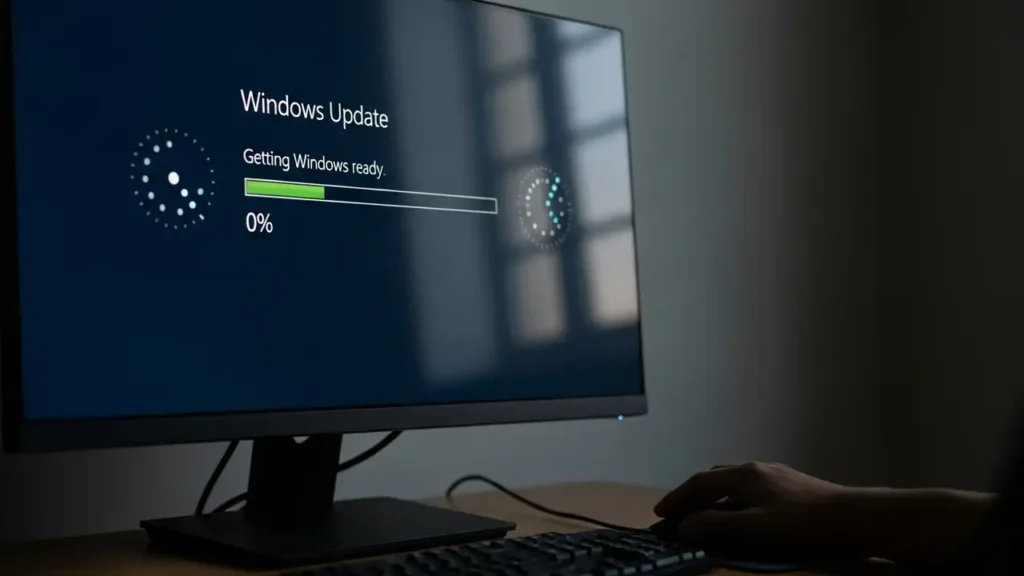
Encountering a Windows Update stuck loop can be a frustrating experience, whether updates are at 0%, 100%, or simply failing to progress. This guide provides comprehensive steps to resolve common issues preventing your Windows 10 or Windows 11 system from properly updating.
When your system is experiencing a Windows Update stuck problem, it often means the process has halted, not downloading or installing critical updates. This can lead to your computer becoming unresponsive or caught in a pending install state. Resolving this typically involves a series of diagnostic and repair actions, from simple reboots to more involved system utility usage.
Initial Steps to Resolve Windows Update Stuck
Before diving into complex troubleshooting, begin with these fundamental checks. Often, a minor system glitch or resource constraint is the cause of a Windows Update stuck scenario, and these simple actions can quickly restore functionality.
Restart Your Computer
A straightforward restart can clear temporary system conflicts or background processes that might be interfering with the update. If your Windows Update stuck state is new, powering down and rebooting your PC should always be your first attempt. This can often resolve minor software hang-ups.
Run the Windows Update Troubleshooter
Windows includes a built-in diagnostic tool specifically designed to address update-related problems.
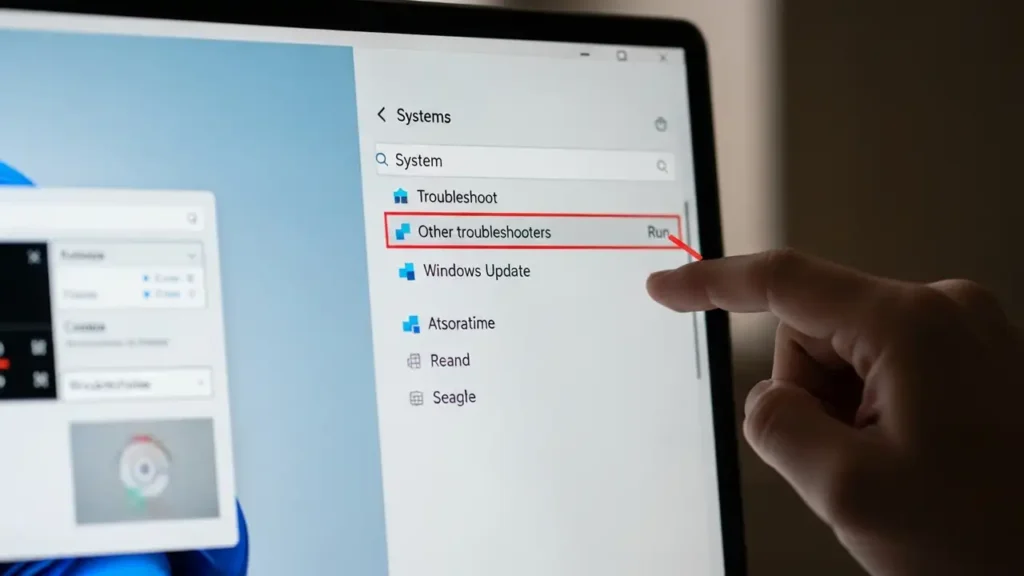
- Navigate to your system’s settings.
- Go to ‘System’, then select ‘Troubleshoot’.
- Choose ‘Other troubleshooters’.
- Locate and run the “Windows Update” troubleshooter.
This utility will automatically scan for and attempt to fix common issues causing an update to become stuck.
Verify Internet Connection and System Time
A stable internet connection is essential for downloading updates. Confirm that your device has uninterrupted network access. Additionally, check that your system’s date and time settings are accurate. Incorrect time settings can sometimes disrupt communication with Microsoft’s update servers, causing your Windows Update stuck error.
Free Up Disk Space
Major updates, especially those for Windows 10 and Windows 11, require significant storage. If your Windows Update stuck error persists, ensure your system drive has ample free space. It is recommended to have at least 16 to 20 gigabytes available to allow the download, unpacking, and installation of updates without interruption. Delete any unnecessary files or applications to clear space.
Advanced Solutions for a Windows Update Stuck State
If the basic fixes do not resolve your update dilemma, more in-depth steps are required. These advanced methods target underlying system components that might be corrupted or misconfigured, leading to a persistent Windows Update stuck condition.
Clear the Windows Update Cache
The update cache can become corrupted, leading to issues with new downloads. Clearing this cache forces Windows to fetch update components anew.
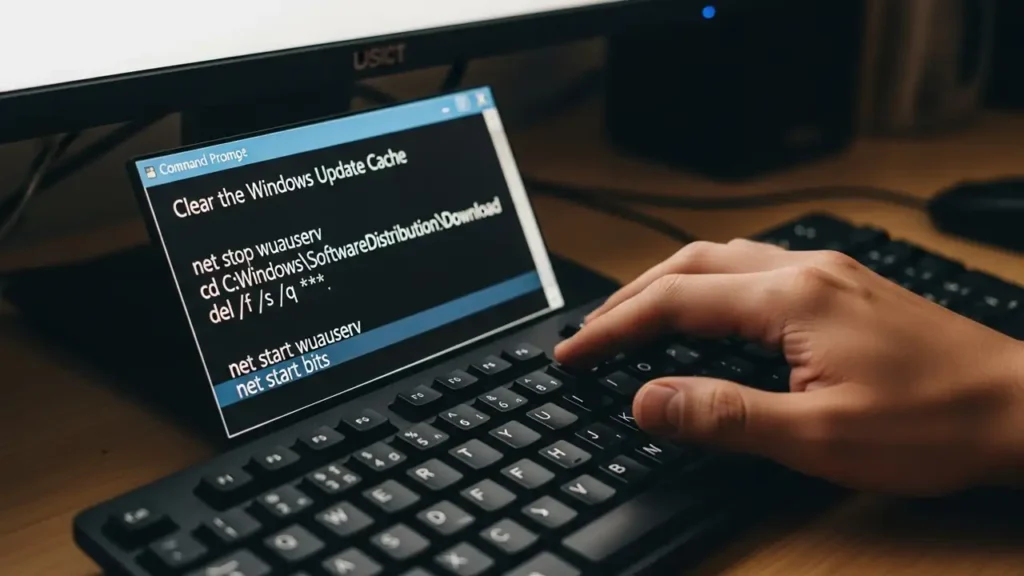
- Open Command Prompt with administrative privileges.
- Stop the necessary services by typing
net stop wuauservand pressing Enter. - Type
net stop bitsand press Enter. - Navigate to the
C:\Windows\SoftwareDistribution\Downloaddirectory. - Delete all content within this ‘Download’ folder.
- Restart the services by typing
net start wuauservand pressing Enter. - Type
net start bitsand press Enter.
Afterward, attempt to check for updates again.
Resetting the Windows Update Stuck Cache
Deleting the contents of the SoftwareDistribution folder is a key step when facing a Windows Update stuck problem. This action effectively clears any partially downloaded or corrupted update files, allowing the system to initiate fresh downloads. This process ensures that old, problematic data is not interfering with the new update attempts.
Utilize SFC and DISM Commands
Corrupted system files can prevent updates from installing correctly. The System File Checker (SFC) and Deployment Image Servicing and Management (DISM) tools can repair these issues.
- Open Command Prompt as an administrator.
- Run
sfc /scannowand allow it to complete. This command scans for and repairs corrupted system files. - After SFC finishes, execute
dism /online /cleanup-image /restorehealth. This command repairs the Windows image, which SFC uses for its repairs.
These commands are crucial for maintaining system integrity and can help resolve a Windows Update stuck issue by fixing underlying corruption.
Perform a Power Button Restart
If your computer is completely frozen due to a Windows Update stuck error, and unresponsive to regular shutdown commands, a forced shutdown might be necessary. Hold down your PC’s power button for approximately 10 seconds until the device powers off completely. Wait a moment, then restart your computer. This action can sometimes trigger a rollback of a problematic update or allow the system to resume the installation process more smoothly.
Temporarily Disable Third-Party Antivirus
Security software, including firewalls and antivirus applications from third-party vendors, can sometimes block network connections or file access required for updates. Temporarily disable any third-party antivirus or firewall software you have installed. After disabling, try checking for updates again. Remember to re-enable your security software once the update process is complete to ensure your system remains protected.
Last Resort Strategies for Stubborn Update Problems
When all other troubleshooting efforts have failed, and your Windows Update stuck issue persists, consider these direct approaches to install the necessary updates. These methods bypass the standard update mechanism, offering a way to manually push updates through.
Manual Update Download
For specific updates identified by a KB number, you can bypass the automatic download process.
- Visit the Microsoft Update Catalog website.
- Search for the specific update using its KB number.
- Download the standalone installer package for your operating system version.
- Run the downloaded file to install the update manually.
This method is effective when the main update service is unable to retrieve files, helping to resolve a Windows Update stuck problem by direct installation.
Use Installation Assistant
For major Windows version updates, such as transitioning between major releases of Windows 10 or upgrading to Windows 11, the official Installation Assistant tool can be invaluable. This utility is designed to handle large feature updates more robustly than the standard Windows Update service. Downloading and running the Windows 11 Installation Assistant, for example, can directly initiate a major version upgrade, bypassing the conditions causing a Windows Update stuck situation within the regular update interface.
Encountering a Windows Update stuck situation can be a significant inconvenience, but with a systematic approach, most update-related hang-ups can be resolved. By following these steps, from basic reboots and troubleshooting to advanced cache clearing and system repairs, you can restore your Windows operating system to proper functioning and ensure your device remains up-to-date. Regular maintenance and ensuring adequate disk space can also help prevent future update problems.