How to Fix a Windows Activation Error
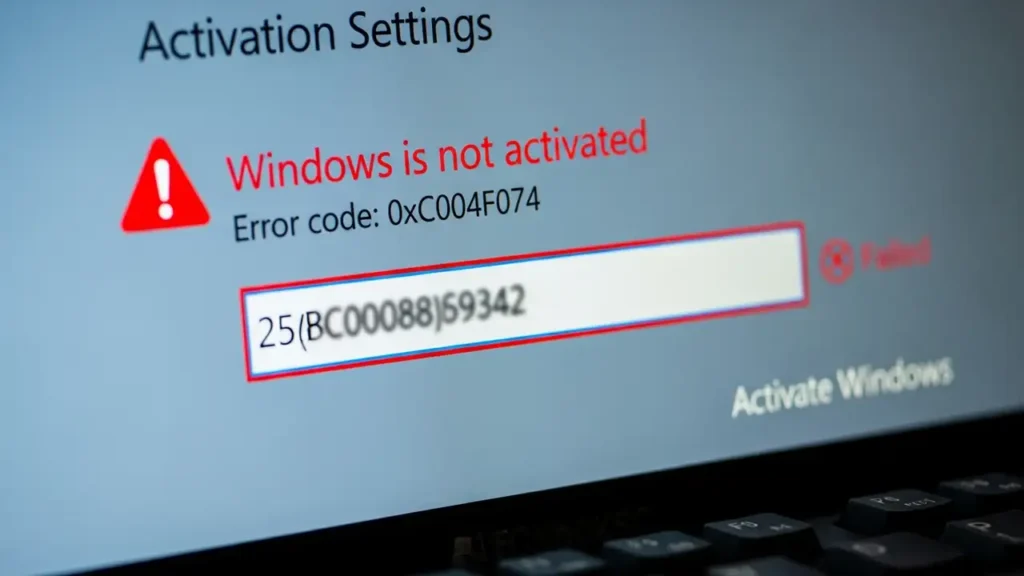
Encountering a Windows activation error can be frustrating, preventing you from fully utilizing your operating system. Whether you are running Windows 10 or attempting to activate Windows 11, issues like a “product key not working” message or “Windows not genuine” warnings often indicate a problem with the license. This guide provides comprehensive steps to resolve common activation problems, including when an “activation server unavailable” message appears or a specific error code like 0xC004F074 is displayed.
The core of most activation difficulties lies in how the system verifies your digital license Windows or product key with Microsoft’s servers. A number of factors, from simple typos to complex server communication issues, can trigger these alerts. Fortunately, Windows includes several built-in tools and command-line options designed to troubleshoot and correct these common problems efficiently.
Initial Checks for Windows Activation Error
Before delving into more advanced solutions, it’s crucial to perform some basic checks that can often resolve a Windows activation error quickly. These initial steps ensure that fundamental requirements for proper system validation are met, preventing unnecessary complications. Confirming these basic conditions can save time and effort.
Verify Internet Connection Status
Windows needs to communicate with Microsoft’s servers to validate your license. If your device cannot connect to the internet, it won’t be able to complete this verification process.
- Action: Check your network connection. Ensure your computer is actively connected to a stable internet source. Open a web browser and try visiting a website to confirm connectivity.
Ensure Edition Matching
Your product key is specifically designed for a certain edition of Windows. For example, a key for Windows Home will not activate a Windows Pro installation, leading to a “product key not working” message.
- Action: Verify that the product key you are trying to use matches the exact Windows edition currently installed on your computer. You cannot activate a professional edition with a home edition license.
Correct Key Entry
A simple mistake when typing your 25-character product key can lead to an activation failure. Each character must be entered precisely as it appears on your license.
- Action: Carefully re-enter your product key. Double-check each character for accuracy, paying close attention to similar-looking letters and numbers (e.g., ‘O’ vs. ‘0’, ‘I’ vs. ‘1’, ‘B’ vs. ‘8’).
Using the Activation Troubleshooter
Windows includes a built-in diagnostic tool specifically designed to address activation issues. This troubleshooter can automatically detect and resolve many common causes of a Windows activation error, making it an essential first step when conventional methods fail. It’s particularly useful for minor discrepancies or temporary server communication problems.
- Run the Troubleshooter: Navigate to your system’s settings. Locate the Activation section within the System menu. There, you will find an option labeled “Troubleshoot.” Select this to initiate the automated diagnostic process. The system will attempt to identify and fix any detected activation problems.
- Address Hardware Changes: If you recently replaced significant hardware components on your device, such as the motherboard, your digital license Windows might no longer recognize your system. In such cases, after running the troubleshooter, look for and select the option that states, “I changed hardware on this device recently.” Follow the on-screen prompts to link your digital license to your new hardware configuration.
Advanced Fixes for Windows Activation Error
When standard troubleshooting and re-entering your key do not resolve the issue, more direct methods are available through the command line. These steps allow you to manage your product key more explicitly, which can be critical for resolving persistent problems like a Windows activation error resulting from a corrupt or improperly registered key.
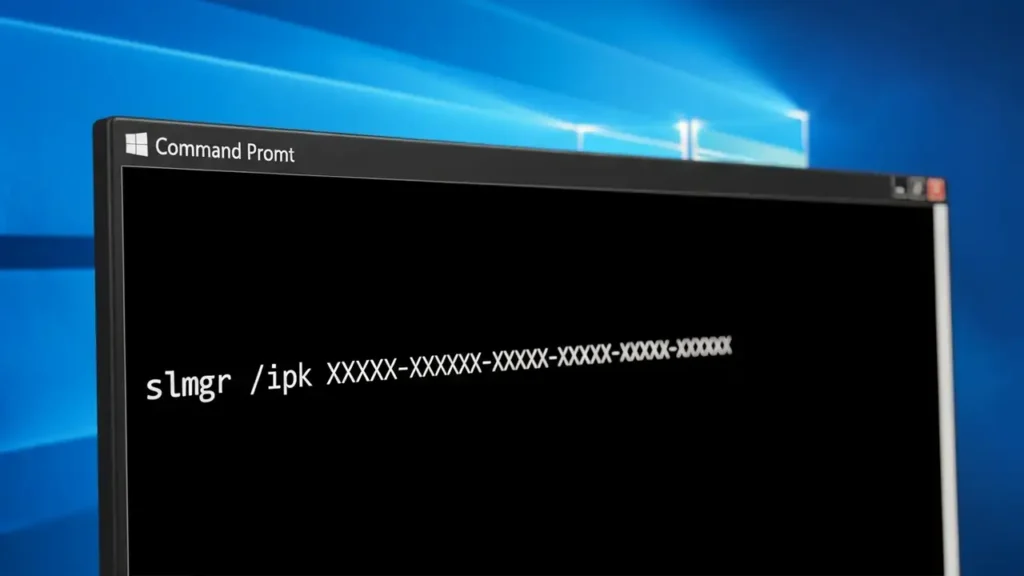
- Force Re-activation via Command Prompt: This method involves uninstalling the existing product key from your system and then re-entering a valid one.
- Open the Command Prompt application as an administrator. You can typically do this by searching for “cmd” in the Start menu, right-clicking on “Command Prompt,” and selecting “Run as administrator.”
- In the administrative Command Prompt window, type
slmgr /upkand press Enter. This command removes the currently installed product key from your system. - Restart your computer. This step ensures that the previous key is fully cleared from the system’s memory.
- After restarting, open Command Prompt as an administrator again.
- Type
slmgr /ipk YOUR-KEY-HERE(replace “YOUR-KEY-HERE” with your actual 25-character product key) and press Enter. This command installs your product key back into the system. - Your system should now attempt to activate with the newly entered key.
Understanding Common Activation Messages
Specific error codes often accompany a Windows activation error, providing clues about the underlying problem. Recognizing these codes can help you understand the nature of the issue and guide your troubleshooting efforts. These messages indicate different scenarios preventing successful activation.
Interpreting Error Codes 0xC004C003 and 0xC004F074
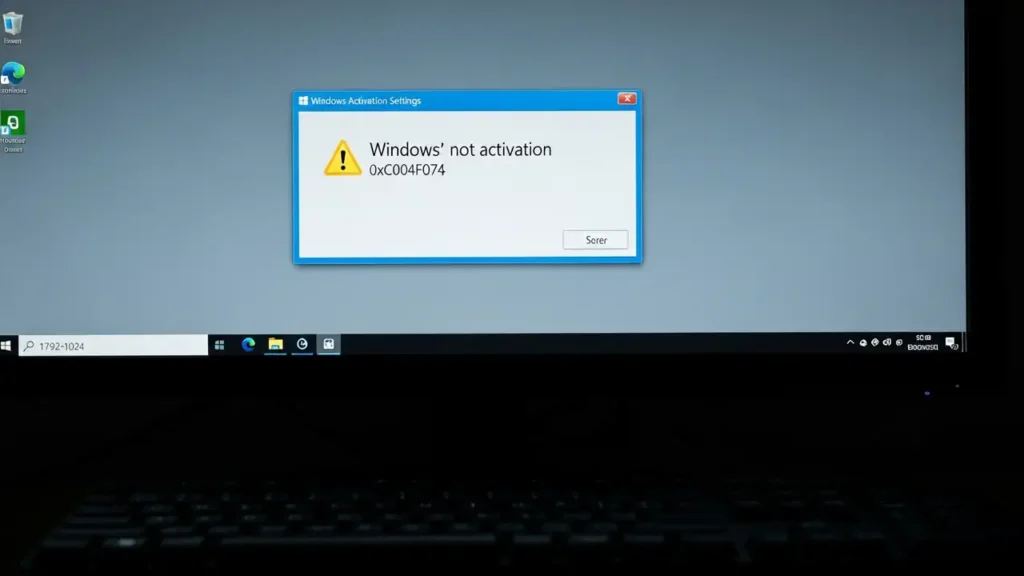
If you encounter error code 0xC004C003 or 0xC004F074, it typically points to issues with your product key or connectivity. These codes can mean that your key is blocked by the activation server, deemed invalid for your system, or that your computer is unable to establish a connection with the activation server to complete the verification process. This might happen if your product key is incorrect, has been retired, or if there’s a temporary issue with Microsoft’s servers.
Understanding Error Code 0xC004F200
The error code 0xC004F200 suggests a different type of licensing problem: your product key has been used on an excessive number of devices. Most retail product keys are intended for use on a single computer or a limited number of devices. If you’ve previously installed Windows using this key on multiple systems beyond its allowed limit, you will encounter this error when trying to activate another device. This issue often requires purchasing a new license or deactivating the key from older systems if possible.
Resolving Your Windows Activation Error
When facing these specific error codes, ensure your product key is legitimate and has not been overused. For connectivity issues, double-check your internet connection and any firewall settings that might block communication with activation servers. If the problem persists, consider contacting Microsoft support with your product key and error code for further assistance.
Safety and General Prevention
Always ensure your system is properly updated to avoid conflicts that could lead to an activation error. Use valid product keys obtained from reputable sources to prevent future issues. If you are unsure about any troubleshooting step, especially those involving command-line interfaces, it is always safer to consult with a qualified professional. Ensure your power supply is stable during any system changes or updates to prevent data corruption.
Frequently Asked Questions
Resolving a Windows activation error can involve simple checks or more advanced steps. By systematically working through the provided solutions, from verifying your internet connection to using command-line tools for key management, you can effectively address most activation challenges. Remember to use the built-in Troubleshooter and ensure your product key is correct and valid for your installed edition of Windows.