Fix Windows 11 January 2026 Update Issues & Boot Failures
Resolving “UNMOUNTABLE BOOT VOLUME” and black screen problems after recent updates.
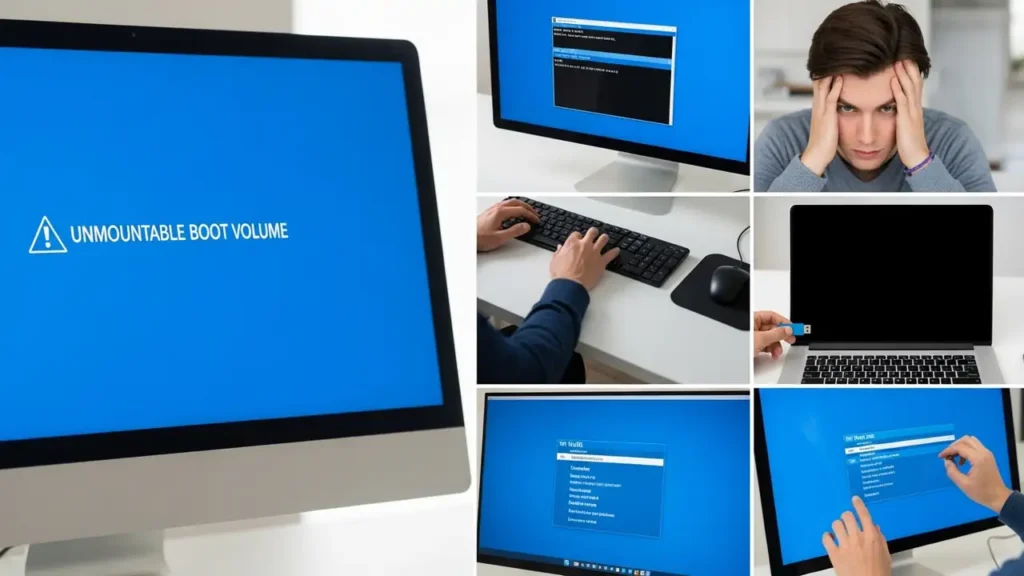
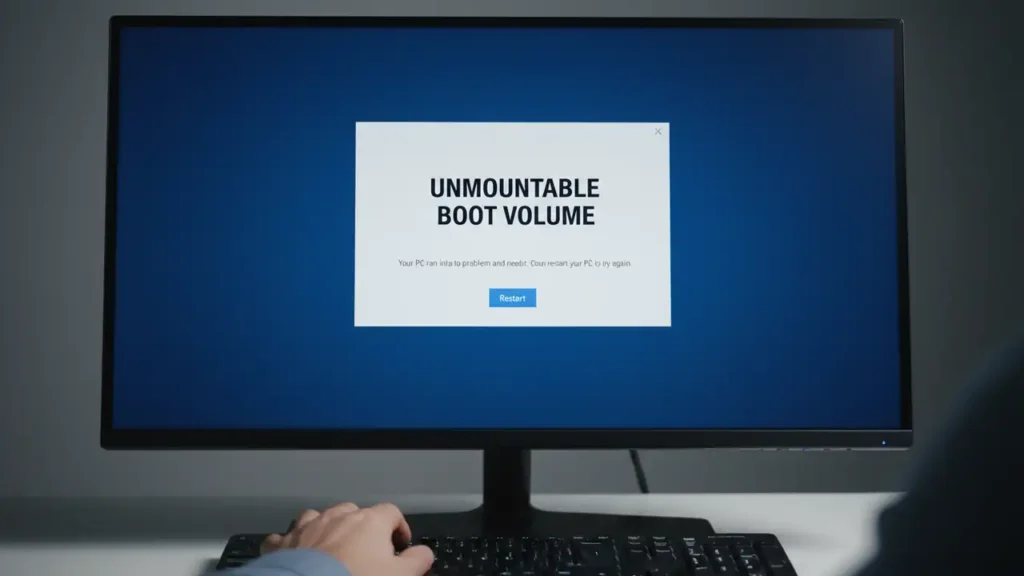
Many Windows 11 users have reported critical Windows 11 January 2026 Update Issues, specifically encountering an “UNMOUNTABLE BOOT VOLUME” error accompanied by a black screen. This issue often occurs immediately after installing the January 2026 security update (KB5074109) and later updates, preventing PCs from booting correctly. Microsoft has acknowledged these boot failures, making a kb5074109 fix a priority for affected users. This guide provides comprehensive steps to recover your system and address these persistent windows update kb5078127 or similar update-related problems.
The primary symptom is your PC failing to start, displaying the “UNMOUNTABLE BOOT VOLUME” error message or simply a black screen. This indicates a critical problem with your hard drive’s file system or boot configuration, often triggered by unexpected conflicts introduced by the update. While frustrating, these reports of boot failures with the january 2026 security update and later updates are generally resolvable through built-in Windows recovery tools.
Before proceeding, ensure your computer is powered off and disconnected from the internet to prevent further updates from installing automatically. These steps require accessing the Windows Recovery Environment (WinRE), which provides powerful diagnostic and repair tools. Follow these instructions carefully to restore your system’s functionality.
Accessing Windows Recovery Environment (WinRE)
Since Windows won’t boot, accessing the Recovery Environment requires a specific sequence of actions. WinRE provides the necessary tools to diagnose and resolve Windows 11 January 2026 Update Issues. This environment is crucial for performing file system checks, repairing boot records, or uninstalling problematic updates.
To force your PC into WinRE, perform the following:
- Turn on your PC. As soon as the Windows logo appears, press and hold the power button to force a shutdown.
- Repeat this process two more times.
- On the third restart, your PC should automatically enter the “Preparing Automatic Repair” screen, followed by “Recovery.” This may take a few moments.
If these steps fail to bring you to WinRE, you will need to create a Windows 11 installation media on a USB drive using another functional computer. Boot from this USB drive and select “Repair your computer” to access the recovery options. This ensures you have a consistent way to address boot failures regardless of your PC’s current state.
Resolving Boot Failures with File System Repair
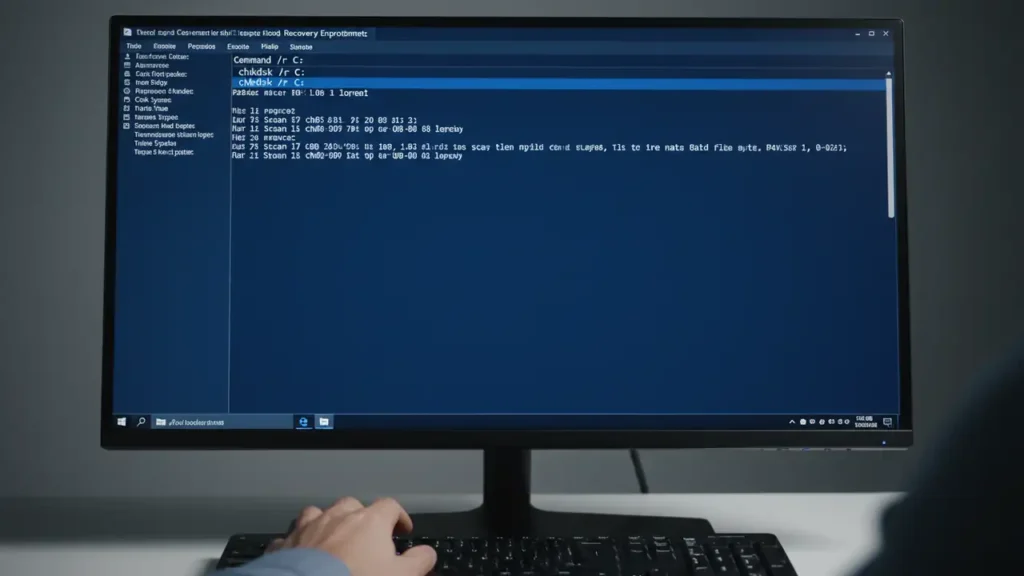
A corrupted file system is a common cause of the “UNMOUNTABLE BOOT VOLUME” error, often exacerbated by update processes. The chkdsk command is the most effective way to identify and repair such inconsistencies. Running this command can often provide a direct kb5074109 fix by ensuring the disk structure is sound.
Once you are in the blue WinRE menu, navigate to “Troubleshoot” > “Advanced options” > “Command Prompt.”
Type the following command into the Command Prompt window and press Enter:
chkdsk /r C:
Note: The C: drive letter assumes your Windows installation is on the C: drive. If your system is installed on a different drive, replace C: with the appropriate drive letter (e.g., D:).
The r parameter tells chkdsk to locate bad sectors and recover readable information, which is vital for resolving disk-related Windows 11 January 2026 Update Issues. This process can take a significant amount of time, depending on the size and health of your drive. Allow it to complete without interruption, then restart your computer to see if the issue is resolved.
Addressing Windows 11 January 2026 Update Issues via Bootloader Repair
If your disk is healthy after running chkdsk, but Windows still won’t start, the problem likely lies within the bootloader files. Corrupted or misconfigured boot files can lead to boot failures even if the operating system itself is intact. Repairing the bootloader is a critical step in these situations, often completing the kb5074109 fix.
Return to the Command Prompt within WinRE (Troubleshoot > Advanced options > Command Prompt).
Execute the following commands one after the other, pressing Enter after each:
bootrec /fixmbr
This command writes a Windows 11 compatible Master Boot Record to the system partition.bootrec /fixboot
This command writes a new boot sector to the system partition. If you receive an “Access Denied” error, you may need to first runbootsect /nt60 sysand then retrybootrec /fixboot.bootrec /rebuildbcd
This command scans for Windows installations and allows you to add them to the Boot Configuration Data (BCD) store, which is essential for booting.
After running these commands, close the Command Prompt and select “Continue” or “Restart” from the WinRE menu. Your computer should attempt to boot into Windows.
Uninstalling the Problematic January Update
If the previous steps do not resolve the “UNMOUNTABLE BOOT VOLUME” error or other boot failures, the January 2026 update (KB5074109) itself is likely the direct cause. Removing this specific update often provides an immediate uninstall kb5074109 solution, allowing your system to boot again. This is a common approach for reports of boot failures with the january 2026 security update and later updates when other fixes fail.
From the WinRE menu, navigate to “Troubleshoot” > “Advanced options” > “Uninstall updates.”
You will be given two options:
- “Uninstall the latest quality update”
- “Uninstall the latest feature update”
Choose “Uninstall the latest quality update.” This action specifically targets recent security patches and cumulative updates, which include KB5074109. Confirm your choice and allow the system to revert the changes. Once the uninstall process is complete, restart your computer. If the update was indeed the root cause, your system should now boot successfully.
Prevention Tips for Future Updates
To minimize the risk of experiencing similar Windows 11 January 2026 Update Issues or other update-related boot failures in the future, consider these preventative measures:
- Pause Updates: After a major update is released, wait a week or two before installing it. This allows Microsoft to identify and fix any critical bugs, such as those that led to
kb5074109 fixscenarios. You can pause updates via Settings > Windows Update. - Create System Restore Points: Before installing any significant
windows update kb5078127or other security update, create a system restore point. This provides a snapshot of your system’s working state, allowing you to roll back easily if an update causes problems. - Regular Data Backups: Always maintain regular backups of your important files to an external drive or cloud storage. Even if your operating system becomes unbootable, your data will be safe.
- Monitor Tech News: Stay informed about known issues with recent Windows updates. Tech news outlets and Microsoft’s official channels often report critical bugs like those causing the
reports of boot failures with the january 2026 security update and later updates.
Safety and Warranty Information
When troubleshooting severe system issues, always prioritize safety. Ensure your computer is completely powered off before attempting any physical interventions, though these steps are software-based and generally do not require opening your PC. If you are unsure about any step or uncomfortable with using the Command Prompt, it is recommended to seek assistance from a qualified technician. Attempting repairs beyond your comfort level could potentially cause further damage or void your device’s warranty.
Frequently Asked Questions about Windows 11 January 2026 Update Issues
By following these detailed steps, you should be able to resolve the “UNMOUNTABLE BOOT VOLUME” error and overcome the boot failures caused by the Windows 11 January 2026 Update Issues. These solutions provide a reliable kb5074109 fix, restoring your Windows 11 system to a functional state.