
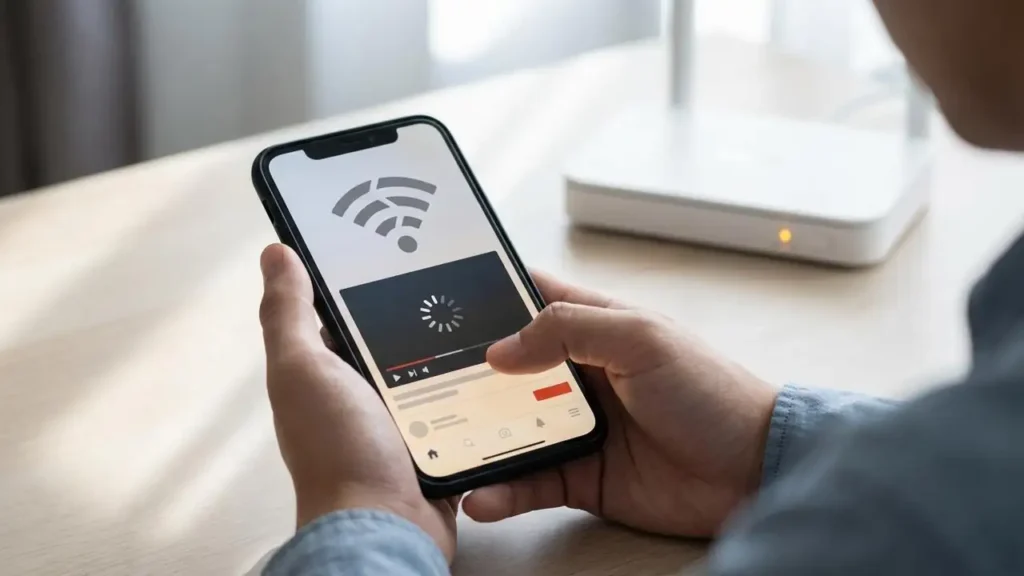
How to Fix When Your Wifi Keeps Disconnecting
Experiencing Wi-Fi drops can be incredibly frustrating, disrupting work, streaming, and online gaming. If your wifi keeps disconnecting, it’s usually due to a minor software glitch, environmental interference, or a setting that’s trying to be “too smart” for its own good. This guide will walk you through systematic steps to diagnose and resolve persistent Wi-Fi disconnections across your devices.
Whether your wifi keeps disconnecting on phone, your PC running wifi keeps disconnecting windows 11, or your wifi keeps dropping on macbook, the underlying causes often share common solutions. The key is to start with simple fixes and gradually move to more advanced troubleshooting. Pinpointing if the issue affects all devices or just one specific unit is crucial for an accurate diagnosis.
The 5-Minute “First Aid” for Wifi Keeps Disconnecting
Before diving into complex settings, try these quick and effective troubleshooting steps. These can often resolve temporary hiccups that cause your wifi keeps disconnecting.
- The Gold Standard Reboot: Unplug both your modem and router from their power outlets. Wait a full 30 seconds to allow all internal components to discharge. Plug the modem back in first and wait for its indicator lights to stabilize (this usually takes a minute or two). Then, plug in your router and wait for its lights to settle as well. This fresh start often clears network congestion and software bugs.
- Toggle Airplane Mode: For mobile devices, if your wifi keeps disconnecting on iphone or wifi keeps turning off android, toggling Airplane Mode can force a complete reset of the device’s wireless radios. Simply turn Airplane Mode on for about 10-15 seconds, then turn it off. This action prompts your device to re-establish a fresh connection and handshake with the router.
- Check for “Stealers”: Sometimes, other devices can unexpectedly hog bandwidth or create interference. Access your router’s companion app or log into its admin page (usually via a web browser using the router’s IP address like 192.168.1.1 or 192.168.0.1). Check the list of connected devices to ensure no unauthorized or forgotten smart gadgets are consuming excessive bandwidth, which could make your wifi keeps disconnecting.
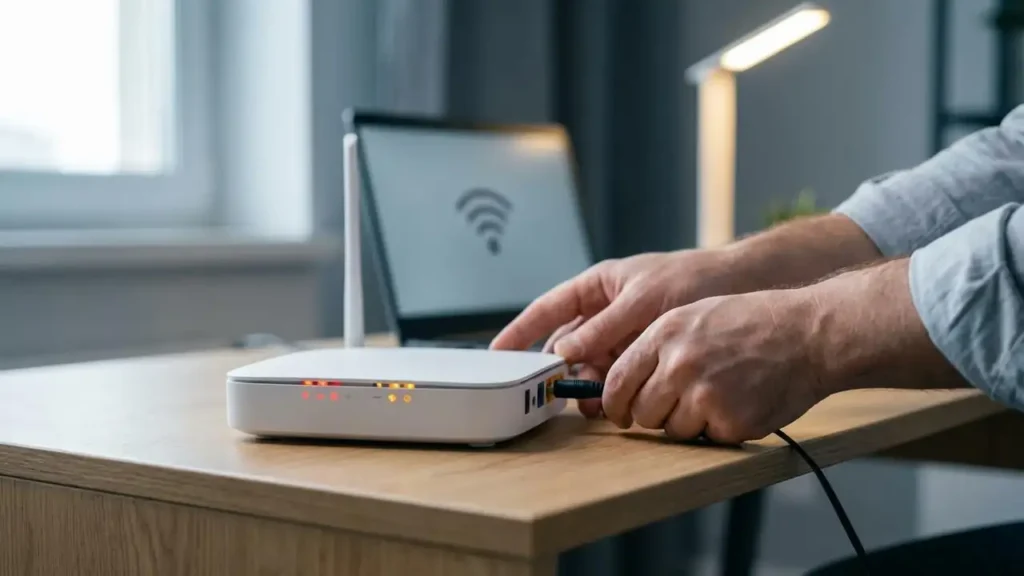
Stop the Signal Drops When Wifi Keeps Disconnecting
Environmental factors and signal interference are major contributors to an unstable Wi-Fi connection. Optimizing your physical setup can significantly reduce instances where your wifi keeps disconnecting.
- Move the Router: The physical placement of your router has a huge impact on signal strength and stability. Walls, large pieces of furniture (like bookshelves), and even large mirrors can absorb or reflect Wi-Fi signals, creating dead zones or weakening the connection. Relocate your router to a central, elevated spot in your home, away from other electronics such as cordless phones, microwaves, and Bluetooth devices, which can cause interference.
- Switch to 5GHz: Most modern routers broadcast on two frequency bands: 2.4GHz and 5GHz. The 2.4GHz band offers wider coverage but is more susceptible to interference from common household items like microwaves, baby monitors, and even neighbors’ Wi-Fi networks. If your device’s wifi keeps disconnecting, especially at closer ranges, try switching it to the 5GHz band. While 5GHz has a shorter range and struggles more with obstacles, it typically provides a faster and more stable connection with less interference.
- Change the Channel: In densely populated areas like apartments or condos, multiple Wi-Fi networks from neighbors can operate on the same channel, causing congestion and interference. Imagine multiple people trying to shout over each other in the same room. By default, routers auto-select a channel, but sometimes this isn’t the optimal choice. Access your router’s admin page and look for Wi-Fi settings to manually select a less crowded channel (e.g., 1, 6, or 11 for the 2.4GHz band). Free Wi-Fi analyzer apps can help you identify the least congested channels in your area.
Adjust “Hidden” Settings to Prevent Disconnects
Sometimes, operating system settings or outdated software can silently cause your Wi-Fi to drop. Checking and updating these can prevent your wifi keeps disconnecting.
- Disable Power Saving (PC): Windows operating systems, particularly on laptops, sometimes automatically turn off the Wi-Fi adapter to conserve battery life, leading to instances where your wifi keeps disconnecting windows 11. To prevent this, open Device Manager (search for it in the Start menu). Expand “Network adapters,” right-click on your Wi-Fi adapter, and select “Properties.” Navigate to the “Power Management” tab and uncheck the box that says “Allow the computer to turn off this device to save power.” Click OK to apply the changes.
- Update Firmware: Router firmware is the internal software that controls its operations. Outdated firmware can contain bugs or lack optimizations that improve connection stability. Regularly check your router manufacturer’s website or use their dedicated mobile app to see if there are any available firmware updates. Applying these updates can resolve known issues that cause the wifi keeps disconnecting problem. Follow the manufacturer’s instructions carefully when updating firmware to avoid bricking your device.
- Network Reset: As a more drastic measure, if your wifi keeps disconnecting consistently on a Windows PC and other solutions fail, a network reset can often fix deep-seated configuration errors. On Windows, go to Settings > Network & Internet > Advanced network settings > Network reset. Click “Reset now” and confirm. Be aware that this process will remove and reinstall all network adapters and reset all network components to their default settings, meaning you will lose all saved Wi-Fi passwords and other network configurations. You will need to re-enter your Wi-Fi password for all networks.
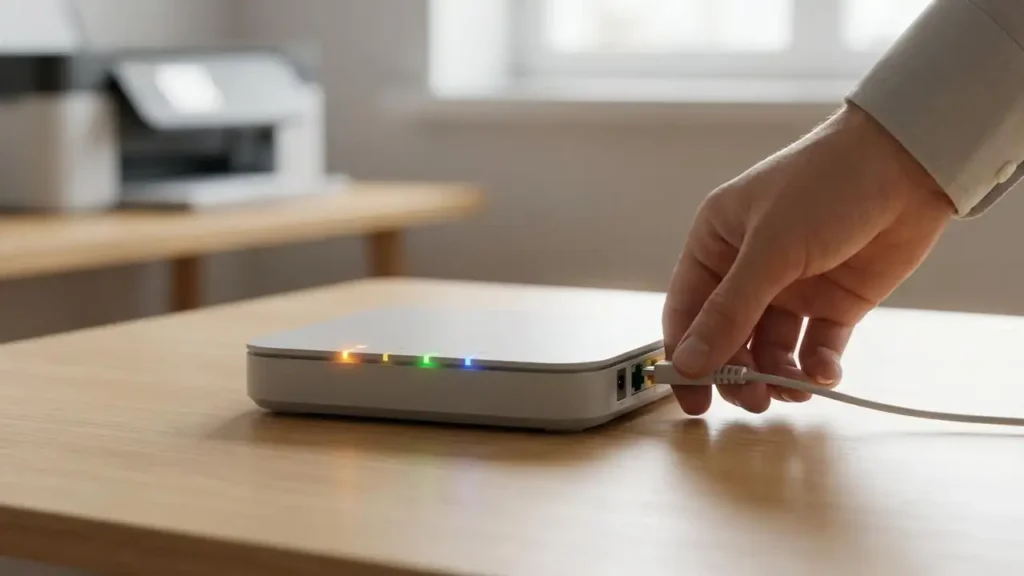
When Your PC’s Wifi Keeps Disconnecting: Check Power Management
Specifically for Windows users, a common culprit when your wifi keeps disconnecting is power management settings. The operating system might be aggressively trying to save power, inadvertently shutting down your wireless adapter. Disabling this feature ensures your Wi-Fi card remains active, providing a stable connection. Always ensure your device drivers are also up to date, as outdated drivers can also contribute to instability.
Safety & Warranty Note: When troubleshooting, always unplug devices from power before physically moving them or performing reboots involving power cycling. Avoid touching internal components unless you are an experienced technician. If you are unsure about any step, especially those involving router settings or firmware updates, consult your router’s manual or seek professional assistance. Improper changes or updates can potentially void warranties or render devices inoperable.
Prevention Tips: To minimize future instances where your wifi keeps disconnecting, regularly reboot your modem and router (once a month is a good habit), keep your router firmware updated, and periodically check your network for unknown devices. Ensure your router is placed optimally for signal strength and consider upgrading to a newer, more capable router if yours is several years old and struggling to support multiple modern devices. Monitoring your network for consistent performance can help catch minor issues before they escalate into persistent disconnections.
FAQ: Why Does My Wifi Keeps Disconnecting?
Understanding why your wifi keeps disconnecting is the first step to a stable connection. By systematically addressing potential issues from basic reboots to advanced settings, you can restore reliable Wi-Fi.
