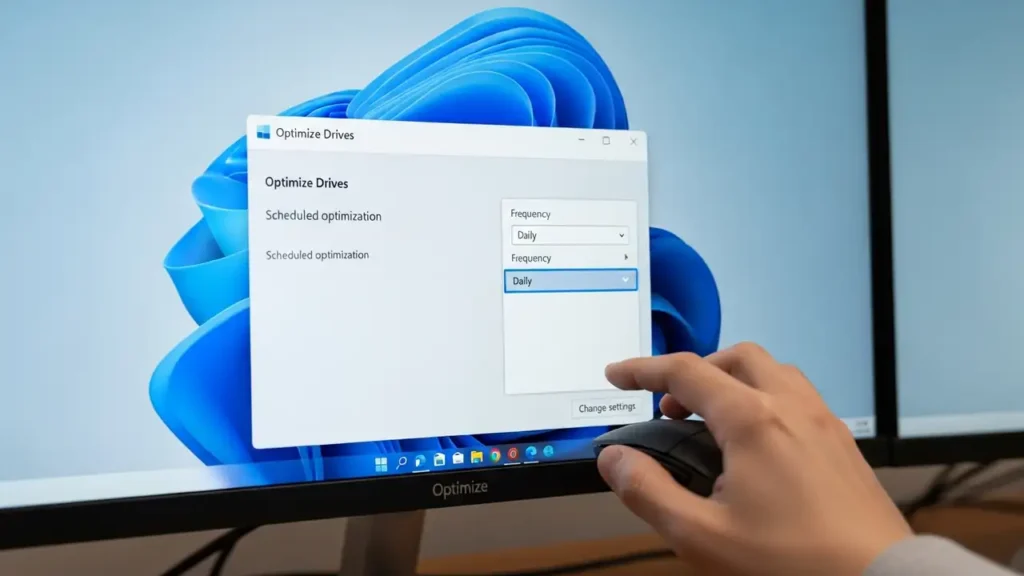
Optimize SSD Windows Trim for Peak Performance
Maintain the responsiveness of your solid-state drive on Windows 11 by properly configuring its data management.
Your solid-state drive (SSD) relies on the ssd windows trim command to sustain optimal performance. This crucial feature informs your drive which data blocks are no longer necessary following file deletions. While Windows operating systems usually perform this maintenance weekly by default, demanding tasks such as video editing or extensive database operations can greatly benefit from a more frequent, daily cycle to speed up ssd performance. Adjusting this schedule proactively prevents sluggishness and ensures your system remains responsive, contributing to overall speed up your pc efforts.
Understanding SSD Windows Trim Benefits
The primary role of ssd windows trim is to streamline how your drive reclaims storage space. When you delete a file, the operating system simply marks that space as available; it doesn’t immediately clear the data from the SSD’s physical blocks. Without TRIM, when new data needs to be written to these “dirty” blocks, the SSD must first read the entire block, erase the unneeded portions, modify the remaining data, and then write the updated block back to the drive. This process, known as read-modify-write, is significantly slower than writing to already empty blocks.
Implementing ssd windows trim helps in several key ways. Firstly, it facilitates faster space reclamation. If a substantial game is removed on Monday, a daily TRIM schedule ensures those blocks are cleared quickly, making them ready for immediate, fast writes. Secondly, consistent trimming prevents the performance degradation some users experience as their drive accumulates uncleaned blocks throughout the week. Regular maintenance keeps your drive in a consistent, high-performance state. Lastly, proper TRIM reduces write amplification. By informing the drive exactly which blocks are free, the SSD performs fewer internal erase-and-rewrite operations, which can extend its operational lifespan.
How to Adjust Your SSD Windows Trim Schedule
You can modify the frequency of your solid-state drive’s optimization cycle directly using Windows’ integrated tools. This adjustment ensures that your drive maintains peak efficiency, a vital step to speed up laptop windows 11 systems. The process is straightforward, requiring interaction with a few system menus to configure the drive’s self-maintenance routine.
Follow these steps to change your drive’s optimization settings:
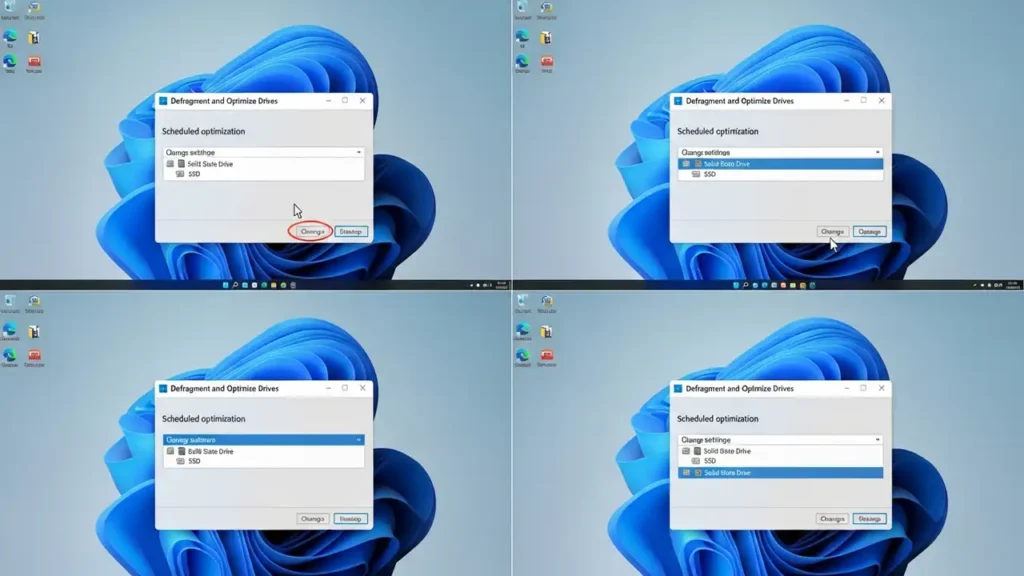
- Launch Drive Optimizer: Initiate a search by pressing the Start key. Type “Optimize” into the search bar. From the results, select the “Defragment and Optimize Drives” application. This utility is the central hub for managing your drive’s maintenance tasks.
- Access Optimization Settings: Within the “Optimize Drives” window, locate the “Scheduled optimization” area at the bottom. Click on the “Change settings” button to open the configuration options for automated drive maintenance.
- Configure Frequency: In the new settings window, you will find a dropdown menu that controls the optimization frequency. Change this option from its default “Weekly” setting to “Daily.” This change instructs your system to perform regular TRIM operations every day.
- Confirm Drive Selection: Before finalizing your changes, verify that your solid-state drive is selected under the “Drives” section. It’s crucial that the correct storage device is targeted for these optimization routines. Once confirmed, click “OK” to save your new ssd windows trim schedule.
By adjusting this setting, your Windows 11 system will now execute the TRIM command on your SSD daily, ensuring that deleted data blocks are reclaimed much more frequently. This proactive maintenance is essential for preserving the rapid write speeds and overall responsiveness characteristic of an SSD, preventing slowdowns over time, and contributing to overall speed up your pc goals.
Setting a Daily SSD Windows Trim Cycle
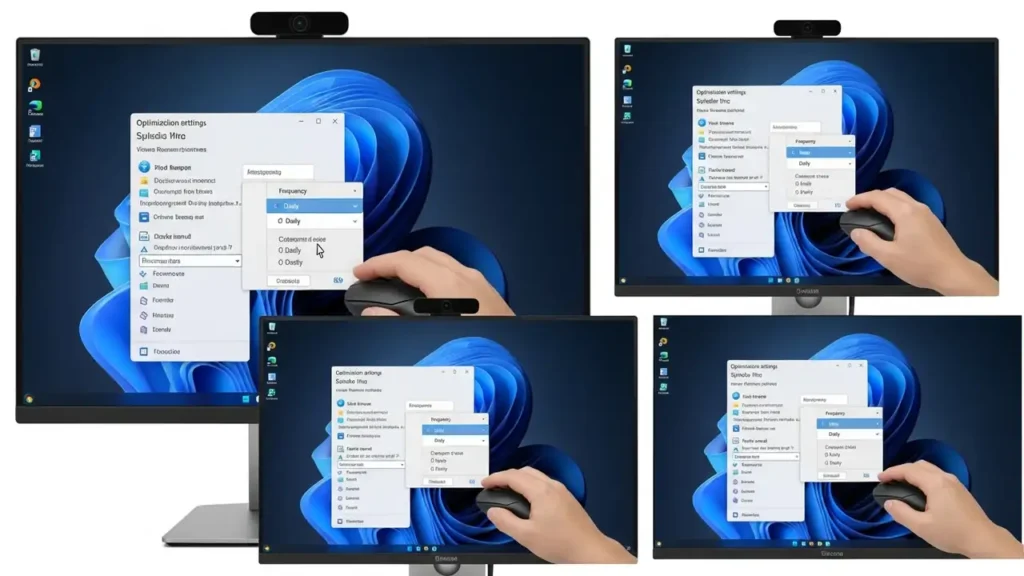
Configuring your solid-state drive to run ssd windows trim on a daily basis is a proactive measure that significantly contributes to sustained performance. Once you are in the “Optimization settings” window, you must specifically alter the frequency dropdown. The default “Weekly” cycle is often adequate for light use, but for environments involving frequent file manipulation, like video production or game development, “Daily” ensures immediate block reclamation. After making this selection, always double-check that your SSD is explicitly chosen within the “Drives” list to ensure the daily TRIM applies to the correct storage component. This ensures that the system is correctly instructed to perform daily optimization on the intended drive.
Immediate SSD Windows Trim with Command Line
There are situations where you might need to perform an immediate ssd windows trim operation, such as after deleting a particularly large number of files. Instead of waiting for the next scheduled optimization, you can manually trigger the TRIM command using administrative tools within Windows. This provides an on-demand method to quickly clear unneeded data blocks and restore your drive’s performance.
To execute an immediate TRIM operation, use one of the following methods:
- Using PowerShell (Admin):
- Open PowerShell with administrative privileges. Press the Start key, type “powershell”, right-click on “Windows PowerShell”, and select “Run as administrator”.
- In the PowerShell window, type the following command and press Enter:
Optimize-Volume -DriveLetter C -ReTrim -Verbose - This command specifically instructs the system to re-TRIM the C: drive. The
-Verboseflag provides detailed output regarding the operation’s progress. Use this code with caution.
- Using Command Prompt (Admin):
- Open Command Prompt with administrative privileges. Press the Start key, type “cmd”, right-click on “Command Prompt”, and select “Run as administrator”.
- In the Command Prompt window, type the following command and press Enter:
defrag C: /O - Although
defragis traditionally associated with hard disk drives, the/Oparameter specifically triggers optimization on compatible drives, including the TRIM command for SSDs. This provides an alternative way to initiate the necessary optimization.
These manual methods are particularly useful for immediately reclaiming space and potentially boosting performance right after significant data deletion events, providing an instant way to speed up ssd functionality without waiting for the next scheduled cycle.
Prevention and Best Practices
Maintaining a proper ssd windows trim schedule is one of the simplest yet most effective ways to preserve your SSD’s speed and extend its functional lifespan. By ensuring that your drive regularly processes the TRIM command, you prevent the accumulation of “dirty” blocks that can slow down write operations. A daily schedule, particularly for heavy users, ensures that your drive operates at its peak, avoiding the common “sluggishness” often experienced as a drive fills up with deleted, but still occupied, blocks. This consistent maintenance reduces the overall workload on the drive, minimizes wear, and is a fundamental practice for anyone looking to speed up your pc with an SSD. Regularly checking your drive’s optimization status and adjusting the frequency as needed will help maintain your system’s agility for years to come.
Frequently Asked Questions About SSD Windows Trim
Optimizing your ssd windows trim schedule is a straightforward and effective way to ensure your Windows 11 system remains fast and responsive. By taking a few moments to adjust this setting or manually trigger the command when needed, you actively contribute to the longevity and peak performance of your solid-state drive, helping to speed up your pc for everyday tasks and demanding workloads alike.