Fix Your Safari not loading pages on Mac or iPhone
Experiencing issues with Safari not loading pages, displaying a spinning wheel, or operating slowly can be frustrating whether you’re on a Mac or an iPhone. This guide provides solutions to common problems that prevent Safari from performing optimally, helping you restore a smooth browsing experience.
When your web browser can’t open pages or becomes unresponsive, the underlying causes often relate to cached data, browser settings, or network connectivity. Addressing these elements systematically can resolve most instances where Safari not loading pages becomes an issue.
Initial Checks for Safari not loading pages
Before diving into more specific fixes, it’s beneficial to perform a few fundamental checks. These steps can often clear minor glitches or temporary slowdowns that cause web pages to load slowly or not at all.
- Manage Open Tabs: Too many active tabs consume system memory and processor resources, leading to a slow Safari performance. Close any browser tabs you are not actively using to free up resources. This simple action can significantly improve responsiveness.
- Restart Your Device: A complete restart of your iPhone or Mac can resolve various temporary system issues. This action clears the system’s memory and reinitializes all running processes, which may fix instances of Safari not loading pages or displaying a spinning wheel.
- Update Software: Ensure that your device’s operating system is running the latest available software version. Updates often include performance enhancements and bug fixes that can address browsing difficulties.
- Examine Network Connection: A poor internet connection is a common reason for web pages failing to load. Verify your internet connection by trying to access websites on another device or through a different application. If you are using a Virtual Private Network (VPN), temporarily disable it, as VPNs can sometimes interfere with page loading.
Optimizing Safari Performance
To tackle persistent problems like Safari slow or pages not opening, focusing on how Safari manages its data and integrates with extensions is critical. These steps help maintain a clean and efficient browsing environment.

Clear Browsing Data to Address Safari not loading pages
Accumulated browsing history, cookies, and cached website files can become corrupted or excessive, negatively impacting browser speed and functionality. Removing this data is a key troubleshooting step.
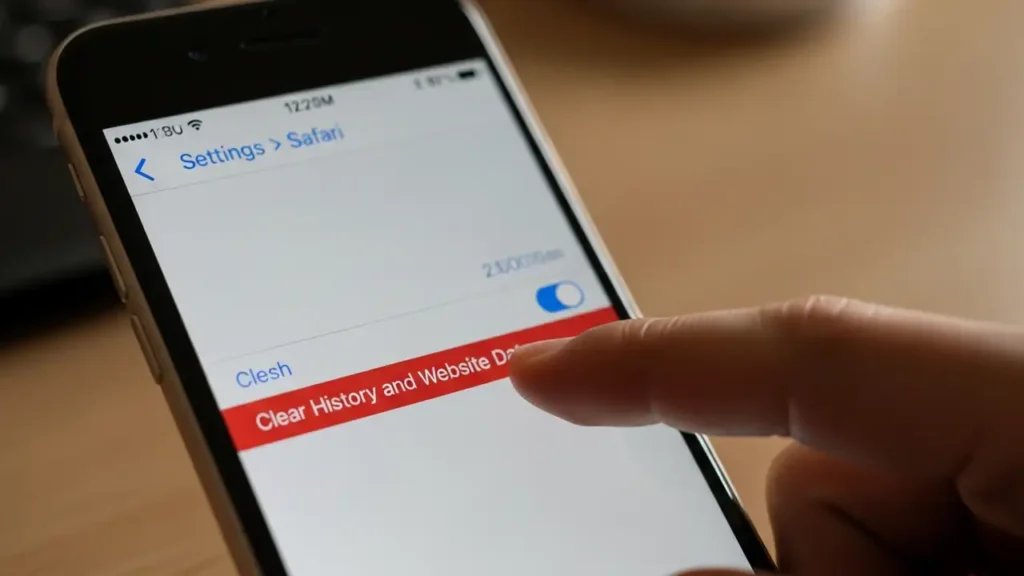
- On iPhone: Navigate to Settings, then Safari, and tap “Clear History and Website Data.” This action removes stored information that may be causing Safari to be unresponsive.
- On Mac: Access Safari’s settings and clear your history and website data through the privacy or general settings. This helps eliminate potentially corrupted files that could cause pages to fail loading.
- Remove or Disable Extensions: Browser extensions, while useful, can significantly slow down your browser or even cause conflicts that lead to Safari not loading pages. On a Mac, go to Safari > Settings > Extensions. Disable or uninstall any extensions you don’t recognize or no longer use. Test Safari’s performance after removing each extension to identify the culprit.
Advanced macOS Safari not loading pages Solutions
For Mac users encountering stubborn browsing problems, there are specific settings and cache management options available to enhance Safari’s stability and speed. These steps delve deeper into the browser’s configuration.
- Disable “Preload Top Hit”: Safari attempts to preload what it thinks will be your “Top Hit” search result, which can sometimes consume resources unnecessarily or cause loading glitches. On your Mac, open Safari, go to Settings, then Search, and disable the option labeled “Preload Top Hit.” This can prevent potential conflicts or resource drain.
- Empty Caches: Beyond clearing history and website data, Safari maintains a separate cache for developer purposes. Clearing this specific cache can resolve deeper issues preventing pages from loading.
- First, enable the “Develop” menu in Safari’s Advanced Settings.
- Once enabled, go to the “Develop” menu in the Safari menu bar and choose “Empty Caches.” This process clears temporary files that might be interfering with normal browsing and may resolve instances of Safari not loading pages.
iPhone Network Troubleshooting
If your iPhone consistently struggles with Safari not loading pages despite general troubleshooting, the issue might stem from deeper network configuration problems on the device itself.
- Reset Network Settings: This action resets all network-related settings on your iPhone, including Wi-Fi passwords, cellular settings, and VPN configurations, back to their factory defaults. This can often resolve underlying network connectivity issues that prevent Safari from properly accessing the internet. Go to Settings > General > Transfer or Reset > Reset Network Settings. You will need to re-enter Wi-Fi passwords afterward.
Addressing Persistent Issues
If, after applying all the above solutions, you still face challenges with Safari not loading pages, consider external factors.
- Check for Service Outages: Occasionally, problems are not with your device but with the website you are trying to access or your internet service provider. Check if other websites are loading normally or if there are reported outages for the specific site or your ISP.
- Switch to a Different Network: Try connecting your device to an alternative network, such as a different Wi-Fi network or cellular data (if applicable), to determine if the problem is specific to your primary internet connection.
Safety and Maintenance Tips
Always exercise caution when making changes to device settings. If you are unsure about a particular step, it’s advisable to seek assistance. Regular maintenance, such as managing open tabs and clearing browsing data, can prevent many common browsing issues.
Prevention Tips
Maintaining a smooth browsing experience with Safari involves proactive measures. Regularly close unused tabs and ensure your device’s software is updated to the latest version. Periodically clear your browsing history and website data to prevent the accumulation of potentially corrupted files. Review and manage your Safari extensions on Mac to ensure only necessary and trusted extensions are active, which will help keep Safari not loading pages problems at bay.
Frequently Asked Questions
By systematically applying these solutions, you can troubleshoot and resolve the common issues that cause Safari not loading pages or make the browser unresponsive, ensuring a more reliable and faster web browsing experience.