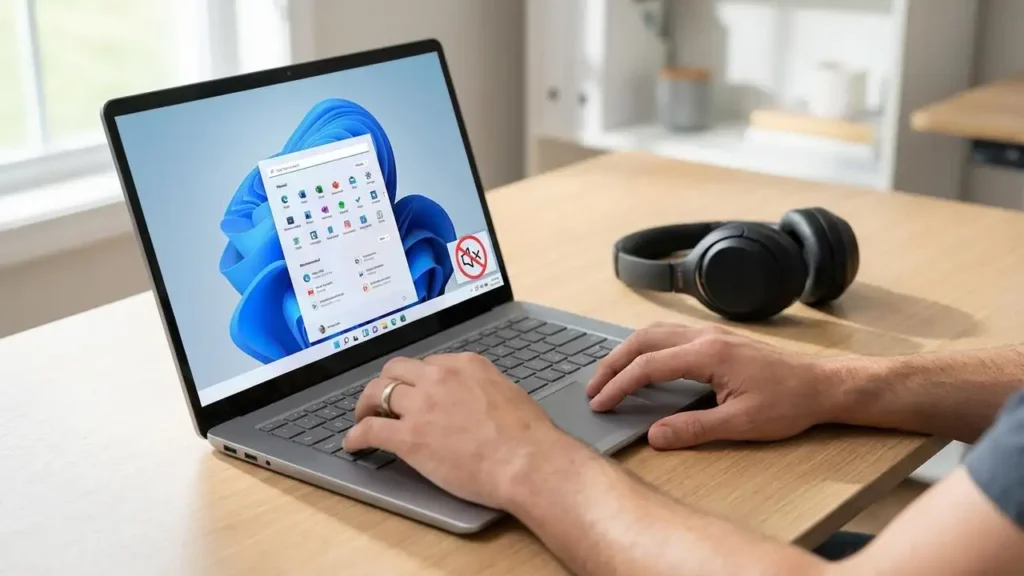
Fix Your No Sound Windows 11 Issue Today
Restore audio quickly on your Windows 11 PC with these straightforward troubleshooting steps.
Experiencing no sound Windows 11 can be frustrating, especially when you need your computer for work, entertainment, or communication. This common issue can stem from various sources, ranging from simple muted settings or disconnected cables to more complex driver problems or system glitches. Fortunately, most audio problems on Windows 11 can be resolved with a series of logical checks and fixes.
This guide will walk you through a detailed troubleshooting process, starting with basic inspections and progressing to more advanced solutions like updating drivers or restarting audio services. By following these steps, you can systematically diagnose and fix the lack of sound on your Windows 11 device, ensuring your audio experience is restored.
Initial Checks for No Sound Windows 11
Before diving into complex solutions, it’s crucial to confirm the most basic elements. Often, the solution to no sound Windows 11 is simpler than anticipated. These initial checks help rule out common oversight issues related to volume, connections, and power.
- Check Volume Levels and Mute Status:
- Click the speaker icon in the taskbar (bottom right corner).
- Ensure the volume slider is not at zero and that the speaker icon does not show a mute symbol (a circle with a line through it). If it’s muted, click the icon to unmute.
- Also, check the volume settings for individual applications. Some apps have their own volume controls that might be muted independently.
- Verify Physical Connections:
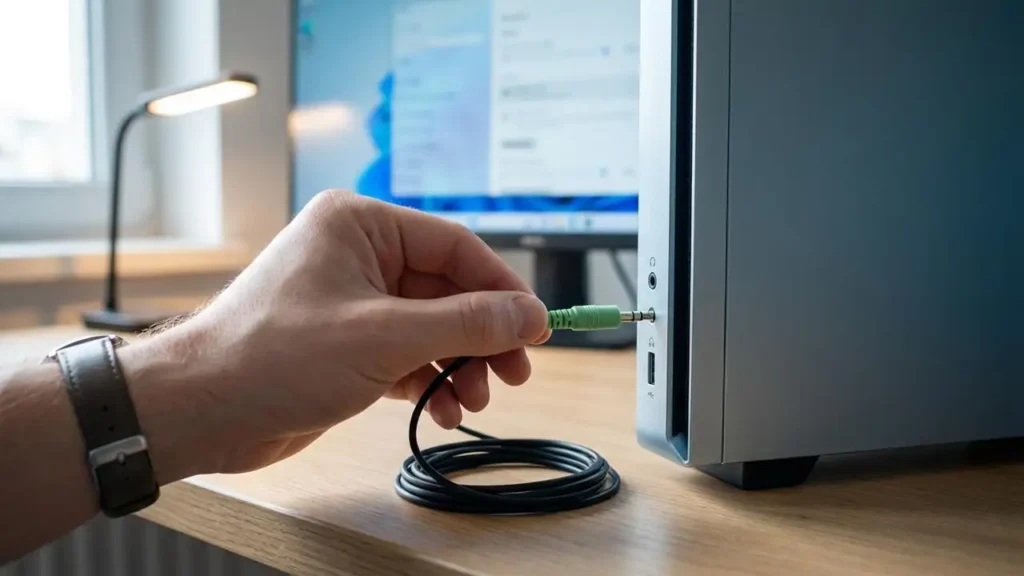
- If using external speakers or headphones, ensure they are securely plugged into the correct audio jack on your PC. The jack is typically green for line-out or headphones.
- Check that external speakers are powered on and their own volume knob is turned up.
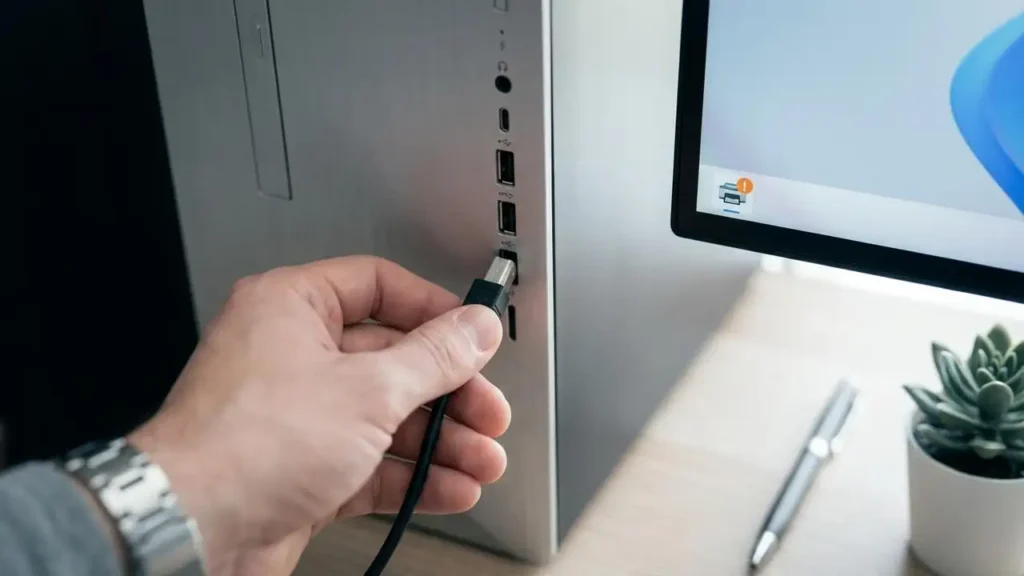
- If you use USB headphones or speakers, try unplugging and re-plugging them into a different USB port.
- Restart Your PC:
- A simple restart can resolve temporary software conflicts or glitches that might be causing no sound Windows 11. Save your work, then select “Restart” from the Start menu. This is a quick and effective first step for many computer issues.
Configure Sound Output and Troubleshoot
Once basic checks are complete, the next step involves confirming that Windows 11 is directing sound to the correct output device. Incorrect output selection is a frequent cause of no sound Windows 11. The built-in troubleshooter can also automatically detect and fix many common audio problems.
- Select the Correct Output Device:
- Right-click the speaker icon in the taskbar.
- Select “Sound settings” from the context menu.
- Under the “Output” section, click the arrow (>) next to the volume slider.
- From the list of available devices, ensure the correct audio output device (e.g., “Speakers (Realtek(R) Audio),” “Headphones,” or your monitor’s name if using HDMI audio) is selected. If you see multiple options, try each one to see if sound is restored. If your périphérique audio non détecté windows 11 message appears here, your driver might need attention.
- Use the Sound Troubleshooter:
- In the “Sound settings” window (Settings > System > Sound), scroll down to “Troubleshoot common sound problems.”
- Click “Output devices” and then “Troubleshoot” or “Run troubleshooter.”
- Follow the on-screen prompts. The troubleshooter will attempt to identify and fix audio issues automatically. This tool is often effective in diagnosing why there is not working sound Windows 11.
Update and Manage Your Audio Drivers
Outdated, corrupted, or incompatible audio drivers are a common culprit for no sound Windows 11. Managing these drivers through Device Manager is a critical step in troubleshooting. This includes checking for updates, rolling back drivers, or even reinstalling them entirely. This is also where you would address a pilote audio windows 11 problem or issues with a realtek audio driver windows 11.
Updating Your No Sound Windows 11 Audio Drivers
- Open Device Manager:
- Right-click the Start button (Windows icon) on the taskbar.
- Select “Device Manager” from the power user menu.
- Locate Audio Devices:
- In Device Manager, expand the “Sound, video and game controllers” section.
- Look for your audio device. Common names include “Realtek High Definition Audio,” “Intel Display Audio,” or “NVIDIA High Definition Audio.” If you see a yellow exclamation mark next to a device, it indicates a driver issue.
- Update Driver Software:
- Right-click on your audio device.
- Select “Update driver.”
- Choose “Search automatically for drivers.” Windows will search your computer and the internet for the latest driver.
- If Windows finds an update, install it and then restart your PC. This step is crucial for fixing no sound Windows 11 after update issues.
- Roll Back Driver (If Applicable):
- If the sound stopped working after a recent driver update, you might need to roll back the driver.
- Right-click your audio device in Device Manager, select “Properties.”
- Go to the “Driver” tab and click “Roll Back Driver” (if available). This can revert to a previous working version.
- Uninstall and Reinstall Driver:
- If updating or rolling back doesn’t work, right-click the audio device and select “Uninstall device.”
- Check the box that says “Attempt to remove the driver software for this device” if available, then click “Uninstall.”
- Restart your PC. Windows will usually reinstall a generic audio driver upon reboot. You may need to manually download the latest
realtek audio driver windows 11or other specificpilote audio windows 11from your PC manufacturer’s website. If you are also having issues withinstaller périphérique audio windows 10, consider similar steps for that system.
Restart Audio Services and Your PC
Sometimes, the Windows audio services themselves can stop responding, leading to no sound Windows 11. Restarting these services can often resolve the issue without requiring a full system reboot. Combining this with a final PC restart can ensure all changes take effect and temporary glitches are cleared.
- Restart Windows Audio Services:
- Press
Windows key + Rto open the Run dialog. - Type
services.mscand press Enter. - In the Services window, scroll down and find “Windows Audio.”
- Right-click “Windows Audio” and select “Restart.”
- Do the same for “Windows Audio Endpoint Builder” and “Remote Procedure Call (RPC).”
- After restarting these services, test your sound.
- Press
- Perform a Final PC Restart:
- Even if restarting audio services seemed to fix the issue, a full PC restart can consolidate any changes and ensure all system components are working correctly. This is a reliable last step to confirm the fix for no sound Windows 11.
Preventing Future Audio Problems
Proactive measures can help minimize the chances of encountering no sound Windows 11 in the future. Regular maintenance and careful system management are key to a stable audio environment.
- Keep Drivers Updated: Regularly check your PC manufacturer’s website or use Windows Update to ensure your audio drivers are current. Outdated drivers are a frequent cause of
not working sound windows 11. - Avoid Unnecessary Software: Be cautious when installing third-party audio enhancement software, as these can sometimes conflict with system audio drivers.
- Perform Regular Windows Updates: Windows updates often include security patches and driver updates that can improve system stability, including audio functionality. Staying updated can prevent
no sound windows 11 after updateissues that sometimes arise from compatibility problems. - Backup Your System: Create system restore points or full backups periodically. If an update or software installation causes no sound Windows 11, you can revert your system to a previous working state.
Frequently Asked Questions
By systematically working through these steps, you should be able to identify and resolve the causes of no sound Windows 11 on your computer. Remember to start with the simplest checks and gradually move to more technical solutions.