
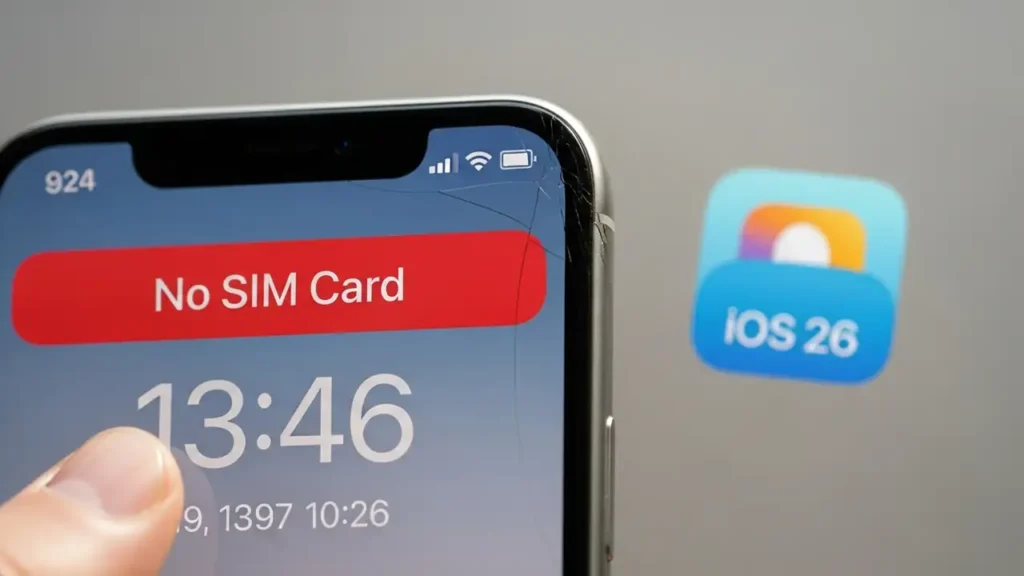
Fix When my sim is not working in my iphone but working in other phones
Resolve cellular service disruptions on your iPhone following an iOS 26 update.
After updating your iPhone to iOS 26, including version 26.2, you might encounter frustrating “No SIM Card” or “SOS Only” warnings. A common scenario is when my sim is not working in my iphone but working in other phones, indicating the issue is specific to your device’s software or configuration rather than the card itself. These connectivity problems are often attributable to software anomalies, improperly seated SIM cards, or out-of-date carrier configurations.
The good news is that several straightforward troubleshooting steps can address these issues. This guide will walk you through a series of actions, starting with basic checks and progressing to more in-depth system resets, to help restore your iPhone’s cellular functionality.
Initial Troubleshooting for iOS 26 Problems
When your iPhone displays connectivity warnings after an iOS 26.2 update, begin with quick, non-invasive checks. These steps can often resolve temporary communication glitches between your device and the cellular network, especially if the problem surfaced immediately after system modifications.
- Toggle Airplane Mode: Activating Airplane Mode temporarily disconnects your device from all wireless networks, including cellular. Turn Airplane Mode on, wait approximately 30 seconds, then disable it. This action can refresh the network connection and resolve minor communication errors.
- Restart Your iPhone: A simple restart is a fundamental troubleshooting step for many software-related issues. Power down your iPhone completely and then turn it back on. This process helps to clear transient bugs and can reinitialize system processes, potentially resolving why my sim is not working in my iphone but working in other phones.
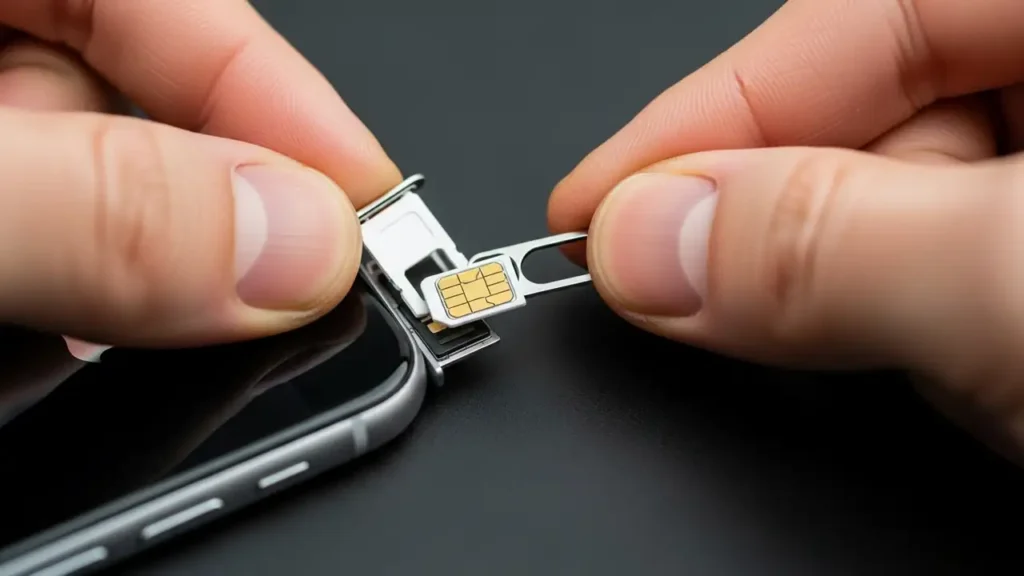
- Inspect and Reseat the SIM Card: The physical SIM card might have become dislodged or improperly seated during the update process or due to minor impacts.
- Carefully remove the physical SIM card from its tray.
- Examine the card and its tray for any visible damage or accumulated dirt.
- Reinsert the SIM card firmly and securely into the tray, ensuring it sits correctly before placing the tray back into the iPhone.
Addressing Carrier Settings and Software Configuration
If initial checks do not resolve the problem, the issue might stem from your device’s carrier settings or other deeper software configurations. Keeping these elements up-to-date is crucial for proper network interaction.
Check for Carrier Settings Updates when my sim is not working in my iphone but working in other phones
Carrier settings contain information essential for your iPhone to connect to your mobile provider’s network. Outdated settings can lead to “No SIM Card” or “SOS Only” errors, especially after major iOS updates.
- Look for Available Updates: Navigate to Settings > General > About on your iPhone. If your carrier has released an update for your device, a notification will appear on this screen. Follow the on-screen instructions to install any available carrier settings update. This step ensures your iPhone is using the latest network configurations provided by your service provider.
Deeper Software Adjustments for Connectivity Issues
When basic troubleshooting and carrier setting updates fail to fix the problem, it’s time to consider more significant software resets. These steps can resolve underlying network configuration conflicts or software bugs introduced by the iOS 26 update.
- Reset Network Settings: This action clears all current network configurations on your iPhone, including saved Wi-Fi networks, cellular settings, and VPN setups. It can be particularly effective if the iOS 26.2 update corrupted these settings.
- Go to Settings > General > Transfer or Reset iPhone > Reset.
- Select “Reset Network Settings.” You will need to re-enter Wi-Fi passwords afterward. This resets your device’s networking components to their default state, which can be critical when my sim is not working in my iphone but working in other phones.
- Update iOS Again: Sometimes, Apple identifies critical bugs shortly after a major release and provides a follow-up sub-version update to fix them. If you are experiencing persistent “No SIM Card” or “SOS Only” errors, check if a newer iOS version is available.
- Go to Settings > General > Software Update to see if a more recent patch has been released. Installing this update may contain specific fixes for iOS 26 problems and solutions related to cellular connectivity.
Safety and Warranty Considerations
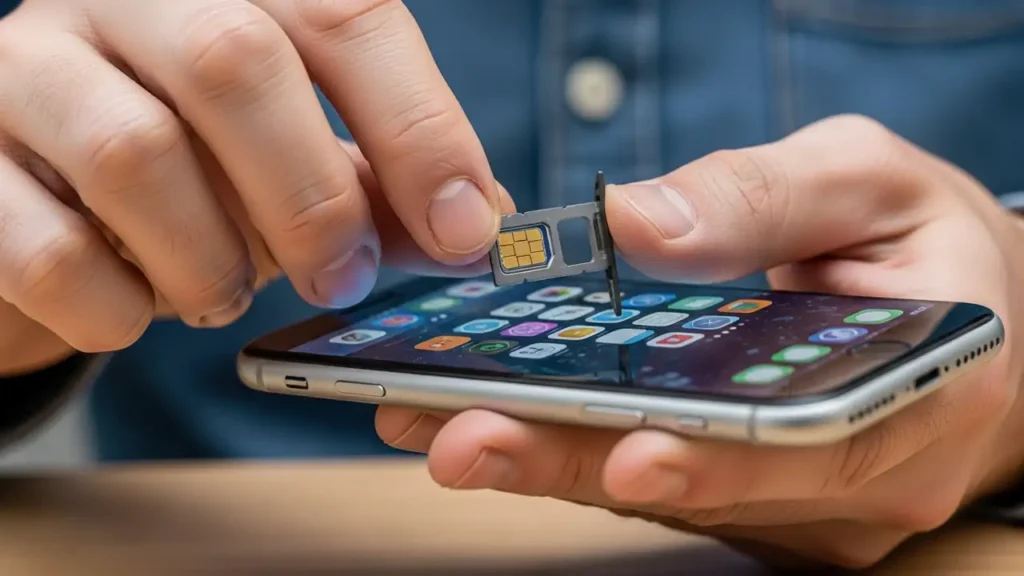
When troubleshooting your iPhone, always prioritize safety. Ensure your device is powered off before physically handling the SIM card. Avoid using excessive force or unapproved tools that could damage your iPhone or the SIM card tray. If you are uncertain about any step or suspect physical damage to your device, consider seeking professional assistance. Attempting repairs or modifications beyond the scope of these software and SIM card adjustments could void your device’s warranty.
Prevention Tips for Future iOS Updates
To minimize the chance of encountering “No SIM Card” or “SOS Only” errors after future iOS updates:
- Ensure Sufficient Battery: Make sure your iPhone has adequate battery life or is connected to power during an iOS update.
- Stable Network Connection: Perform updates over a stable Wi-Fi connection to prevent corrupted downloads.
- Backup Your Device: Always back up your iPhone before any major iOS update. While not directly preventing SIM issues, it protects your data if a factory reset becomes necessary.
Frequently Asked Questions about iPhone SIM Problems
Experiencing problems where my sim is not working in my iphone but working in other phones after an iOS 26 update can be inconvenient. However, by systematically following these troubleshooting steps, you can often identify and resolve the underlying cause. Remember to perform checks and changes methodically, and if the issue persists after all these steps, reach out to your service provider or Apple for specialized support.
