
Fixing Microsoft Store not opening Issues
Troubleshoot common problems preventing app access and downloads on Windows.
When your Microsoft Store not opening, or you face persistent issues like downloads getting stuck or applications failing to install, it can disrupt your workflow. These problems manifest in various ways, from the entire Store application being unresponsive or even appearing missing, to specific apps showing a “stuck pending” status during installation. Fortunately, a systematic approach can resolve most of these common hitches, helping you regain full functionality of your system’s app ecosystem.
Initial Checks and Quick Fixes for Microsoft Store not opening
Before delving into more complex solutions, several straightforward steps can often resolve issues with the Store. These actions address common underlying causes such as corrupted caches or minor software glitches that prevent the Microsoft Store not opening or functioning correctly. Begin with these basic troubleshooting methods to efficiently diagnose and fix the problem.
1. Clear the Store Cache with WSReset
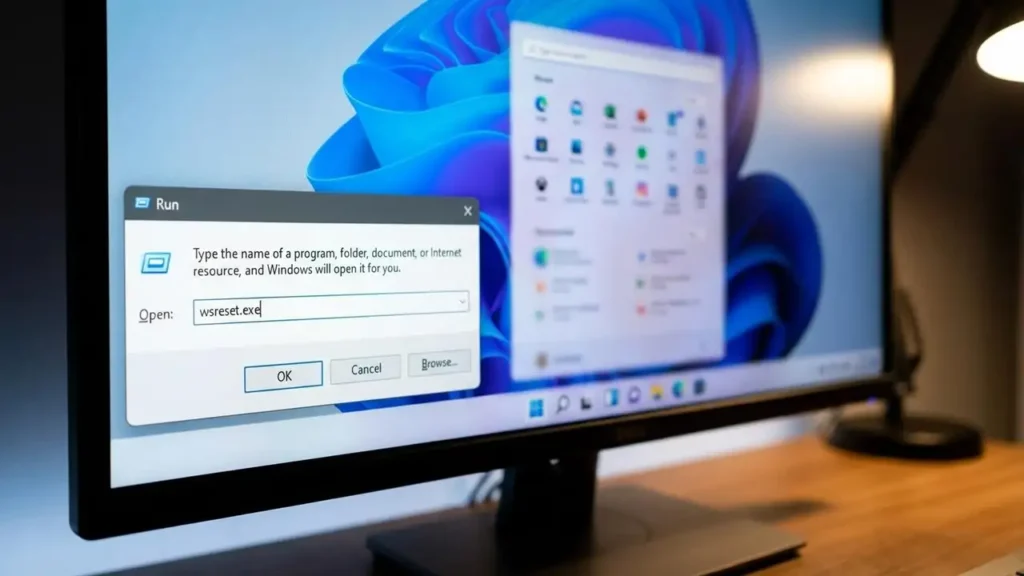
A common reason for the Microsoft Store not opening or misbehaving is a corrupted cache. Windows provides a built-in utility to clear these temporary files.
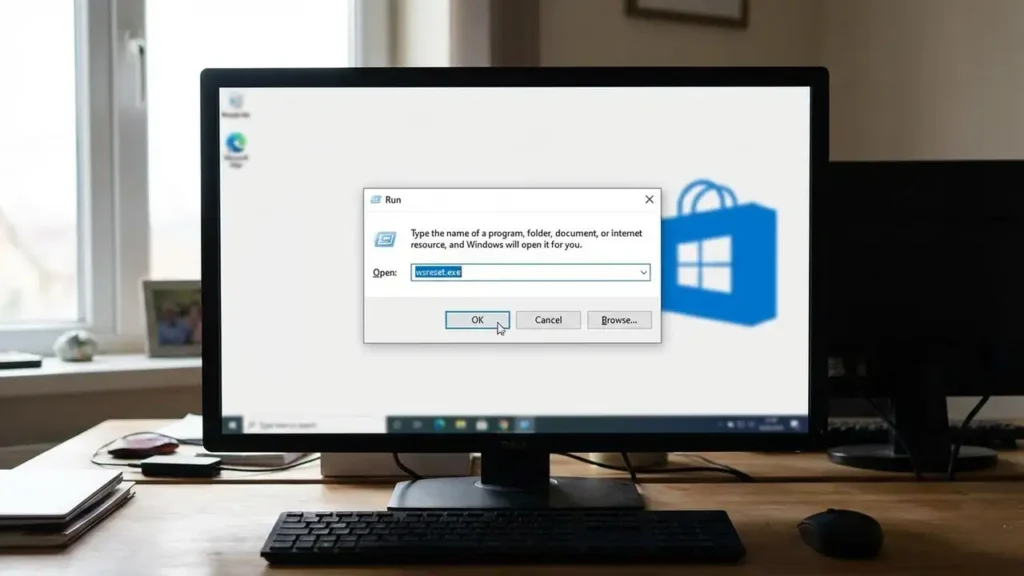
- Press the Windows key + R to open the Run dialog.
- Type
wsreset.exeinto the dialog box. - Press Enter. A blank Command Prompt window will appear briefly. Once the cache clearing process finishes, the Microsoft Store application should launch automatically.
2. Repair or Reset the Application
If clearing the cache doesn’t resolve the issue, repairing or resetting the Store app itself can often fix internal errors without affecting your data.
- Navigate to your system’s Settings.
- Go to “Apps” and then “Installed Apps.”
- Locate “Microsoft Store” in the list.
- Select “Advanced Options.”
- Choose either “Repair” to attempt to fix minor issues, or “Reset” to completely reinitialize the application, which will clear its data.
3. Run the Windows Troubleshooter
Windows includes a dedicated troubleshooter for Store-related issues. This tool can automatically detect and fix common problems.
- Open Settings.
- Go to “System,” then select “Troubleshoot.”
- Choose “Other troubleshooters.”
- Find and run the “Windows Store Apps” troubleshooter. Follow any on-screen instructions.
4. Verify System Time and Date
Incorrect system time, date, or region settings can often interfere with the Microsoft Store’s ability to connect to servers and manage downloads. Ensure these are accurately set on your device.
- Check that your computer’s date, time, and region settings are correct and synchronized. Discrepancies here can prevent the Store from operating as expected, potentially leading to a Microsoft Store not opening scenario.
5. Manage the Microsoft Store Install Service
The Microsoft Store relies on a dedicated service to handle installations. Ensuring this service is running and configured correctly is vital.
- Open the Services manager by typing
services.mscinto the Run dialog (Win + R) and pressing Enter. - Locate the “Microsoft Store Install Service” in the list.
- Ensure its status is “Running” and its “Startup type” is set to “Automatic.” If not, start the service and adjust its startup setting.
6. Re-authenticate Your Account
Sometimes, a simple account re-authentication can resolve connectivity issues with the Store.
- Within the Microsoft Store application, sign out of your profile.
- Close the Store, restart your computer, and then open the Store again.
- Sign back into your Microsoft account. This action can refresh your connection and resolve persistent problems like a Store download stuck or app install failed Microsoft Store.
Advanced Troubleshooting for Persistent Microsoft Store not opening Issues
If the initial quick fixes do not resolve the problem, more advanced steps may be necessary. These methods involve deeper system interactions to address potentially corrupted application components or conflicts with other software. Proceed with these solutions if you are still experiencing issues such as a Store stuck pending status or if the Store remains unresponsive.
1. Use PowerShell to Re-register Store Components
A more comprehensive reset can be achieved by re-registering the Microsoft Store components using PowerShell. This process can repair deeply corrupted installations.
- Open PowerShell as an administrator. To do this, search for “PowerShell” in the Start menu, right-click on “Windows PowerShell,” and select “Run as administrator.”
- In the PowerShell window, type or paste the following command and press Enter:
Get-AppXPackage -AllUsers | Foreach {Add-AppxPackage -DisableDevelopmentMode -Register "$($_.InstallLocation)\AppXManifest.xml"} - Allow the command to complete. This process will re-register all installed AppX packages, including the Microsoft Store, potentially resolving severe corruption that prevents the Microsoft Store not opening.
When Microsoft Store not opening Persists: Re-registering Components
This PowerShell command forces the re-registration of all AppX applications for all user accounts, which can be particularly effective if the Store’s core files have become damaged. It’s a robust solution for a truly corrupted installation or if the Windows Store missing completely. After running the command, restart your computer and attempt to open the Microsoft Store again.
2. Address Network and Security Software
Third-party antivirus programs or VPNs can sometimes interfere with the Microsoft Store’s network connectivity, leading to downloads getting stuck or installations failing.
- Temporarily disable any third-party VPN software or antivirus programs you have running.
- Attempt to access the Microsoft Store and perform a download or installation. If the issue resolves, consider adjusting the settings of your security software to exclude the Microsoft Store from its monitoring or contact the software vendor for assistance.
3. Perform a System Cache Cleanup
Beyond the Store’s specific cache, general system temporary files can also accumulate and cause conflicts. Clearing these can sometimes indirectly resolve Store issues.
- Go to Settings, then “System,” and select “Storage.”
- Click on “Cleanup recommendations” to identify and remove unnecessary temporary files. This action can free up system resources and prevent conflicts that might contribute to a Store download stuck situation.
Preventing Future Microsoft Store Issues
Maintaining your system’s health and configuration can help prevent recurring problems with the Microsoft Store. Regularly ensuring your system settings are accurate and managing third-party software can create a stable environment for app installations and updates. Always verify that your date, time, and region settings remain correct, as these are fundamental for the Store’s proper operation. Additionally, be mindful of how security software might interact with system applications; configuring appropriate exceptions or adjusting settings can prevent future conflicts. A proactive approach to system maintenance reduces the likelihood of encountering a Microsoft Store not opening problem again.
Frequently Asked Questions
Experiencing a Microsoft Store not opening can be frustrating, but these steps provide a comprehensive guide to resolving the most common issues. By systematically working through these solutions, from basic cache resets to advanced PowerShell commands, you can restore full functionality to your Microsoft Store and ensure smooth app installations and updates.
