
Resolve Your iPhone notification problem After iOS 26.5 Update
If you’ve encountered missing notifications following an update to iOS 26.5, you’re likely facing an iPhone notification problem that can disrupt your daily device usage. Crucial alerts and messages may not appear, leading to missed information. Fortunately, several troubleshooting steps can help restore your notification functionality and ensure your device communicates effectively.
This guide outlines a methodical approach to diagnose and fix the common factors behind a sudden iPhone notification problem. From basic restarts to detailed setting adjustments, these steps are designed to help you regain full control over your device’s alert system. Addressing these areas can frequently bring your notifications back to normal operation.
Immediate Checks for Your iPhone notification problem
Begin troubleshooting with a few rapid checks that often resolve temporary software glitches or incorrect physical settings. These initial actions can quickly restore expected device behavior without requiring deep configuration changes. They are useful first steps when you notice a new iPhone notification problem.
Force Restart Your Device
A force restart can clear minor software anomalies that might be interfering with notification delivery. This action refreshes your system processes without erasing any data. Perform this by quickly pressing and releasing the Volume Up button, then immediately pressing and releasing the Volume Down button. Afterward, hold down the Side button continuously until the Apple logo appears on your screen.
Toggle Silent Mode On and Off
Sometimes, the physical mute switch can become stuck or misregistered by the software. To rule this out as a cause for your iPhone notification problem, repeatedly switch the mute toggle on and off several times. Ensure it feels responsive and that your device acknowledges each change, indicated by on-screen alerts.
Verify Focus or Do Not Disturb Status
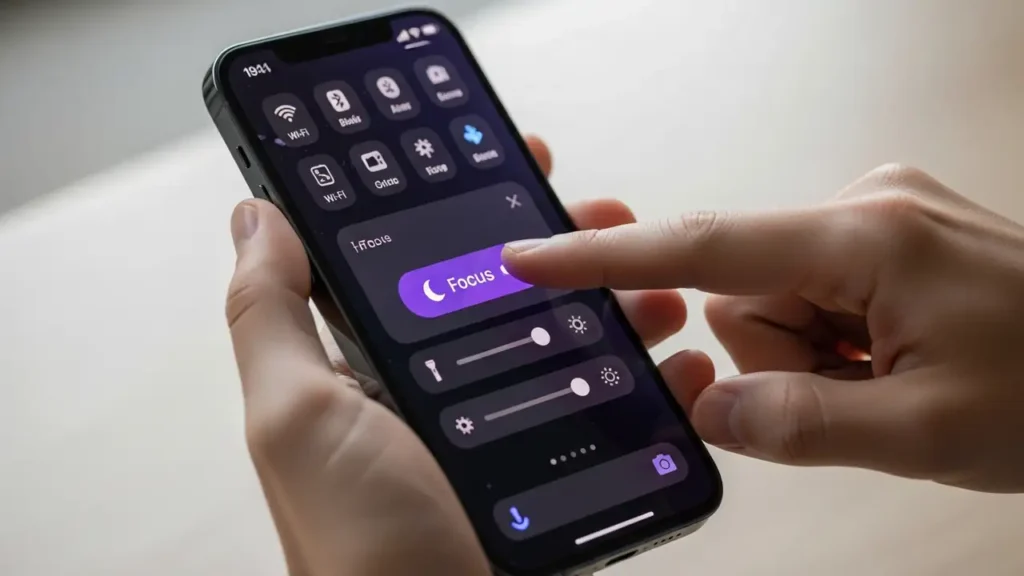
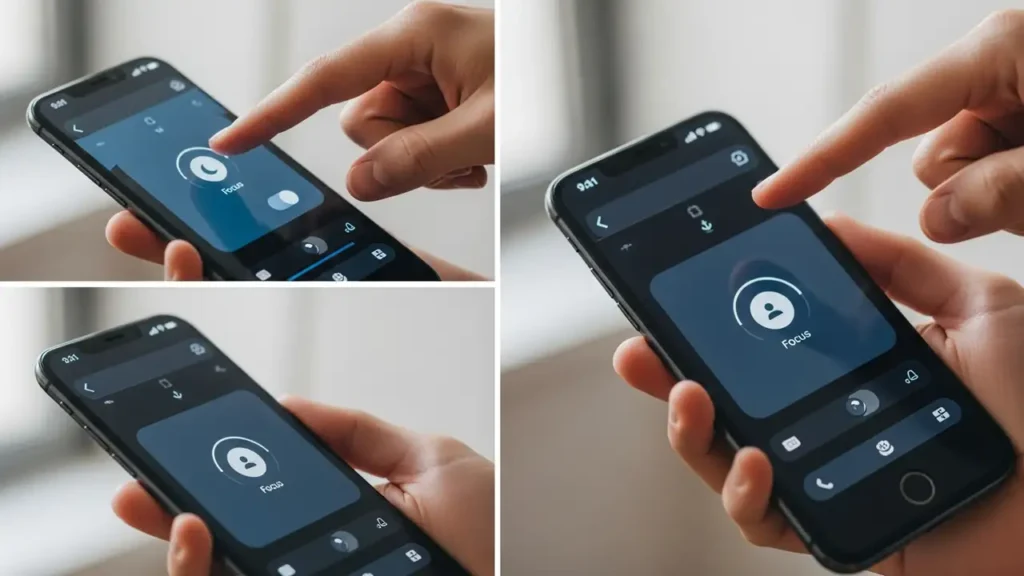
Focus modes, including Do Not Disturb, are designed to suppress notifications. If one is inadvertently active, it will prevent alerts from appearing. Swipe down from the top-right corner of your screen to open the Control Center. Visually inspect the Focus icon (often a crescent moon or person icon) to confirm that no Focus modes are currently active. Tap the icon to deactivate any active modes if necessary.
Fine-Tuning Notification Preferences
After the initial checks, the next set of solutions involves diving into your device’s notification settings. Misconfigured app-specific preferences or overall display rules can easily lead to a persistent iPhone notification problem. Adjusting these ensures that apps have the necessary permissions to deliver alerts.
Ensuring App-Specific Notification Delivery for Your iPhone notification problem
Individual applications maintain their own notification permissions, which may become disabled or altered during an iOS update. Access your device’s main Settings application and navigate to Notifications. From there, select a specific application that is experiencing the notification issue. Confirm that “Allow Notifications” is enabled. Further, ensure that options for “Lock Screen,” “Notification Center,” and “Banners” are all checked to allow diverse alert presentations.
Adjusting Show Previews Settings
The “Show Previews” setting dictates when notification content is displayed on your screen. If this is configured too restrictively, you might miss alerts. Within the main Notifications section of your device’s Settings, find “Show Previews.” For optimal visibility, set this option to “Always” or “When Unlocked.” This ensures that you can see notification content either at all times or whenever your device is actively in use.
Disabling Scheduled Summary Features
Some applications might be configured to deliver notifications only during a scheduled summary, rather than immediately. This can make it seem like notifications are missing. In your device’s main Settings, proceed to Notifications. Review the list of apps and verify that they are not exclusively configured to appear within a Scheduled Summary. Adjust these settings to allow for instant alerts for important applications.
System and Connectivity Adjustments
Beyond specific notification settings, broader system configurations, such as power management and background app activities, can impact alert delivery. Reviewing these system-level controls helps ensure your device operates in a state conducive to receiving all expected notifications, preventing a recurring iPhone notification problem.
Deactivate Low Power Mode
Low Power Mode is designed to conserve battery life by limiting background activities and visual effects, which can sometimes extend to notification fetching. Navigate to Settings, then tap on Battery. Locate and turn off Low Power Mode. By doing this, you allow your device to perform all operations, including checking for new notifications, at full capacity.
Enable Background App Refresh
For many applications, receiving fresh notifications depends on their ability to refresh content in the background. If Background App Refresh is disabled, apps may not fetch new data until you open them. Go to Settings, then General, and select Background App Refresh. Confirm that this feature is switched on for applications where you expect timely notifications.
Reset All Device Settings
As a more comprehensive step, resetting all settings can resolve underlying configuration conflicts without deleting any of your personal data, media, or applications. This action reverts network settings, keyboard dictionary, home screen layout, location settings, privacy settings, and other preferences to their default states. To perform this, go to Settings, then General, then “Transfer or Reset iPhone,” and finally choose “Reset” followed by “Reset All Settings.” This can often resolve complex configuration issues contributing to an iPhone notification problem.
Safety Information & Maintenance
When performing any troubleshooting steps on your device, always prioritize safety. Ensure your hands are clean and dry, and work in a clear, well-lit area. If you are unsure about any step or suspect hardware damage, it is advisable to seek professional assistance. Attempting repairs or alterations beyond software settings without proper knowledge could void your warranty or cause further damage. Regularly backing up your device is also good practice before making significant changes.
Frequently Asked Questions about iPhone notification problem
.
Resolving a persistent iPhone notification problem after an iOS update often involves a methodical approach to checking both general system settings and app-specific configurations. By diligently working through the steps outlined, from force restarting your device to adjusting preview settings and ensuring background refresh, you can effectively restore your notification functionality. This ensures you stay informed and connected without missing any important alerts on your updated device.
