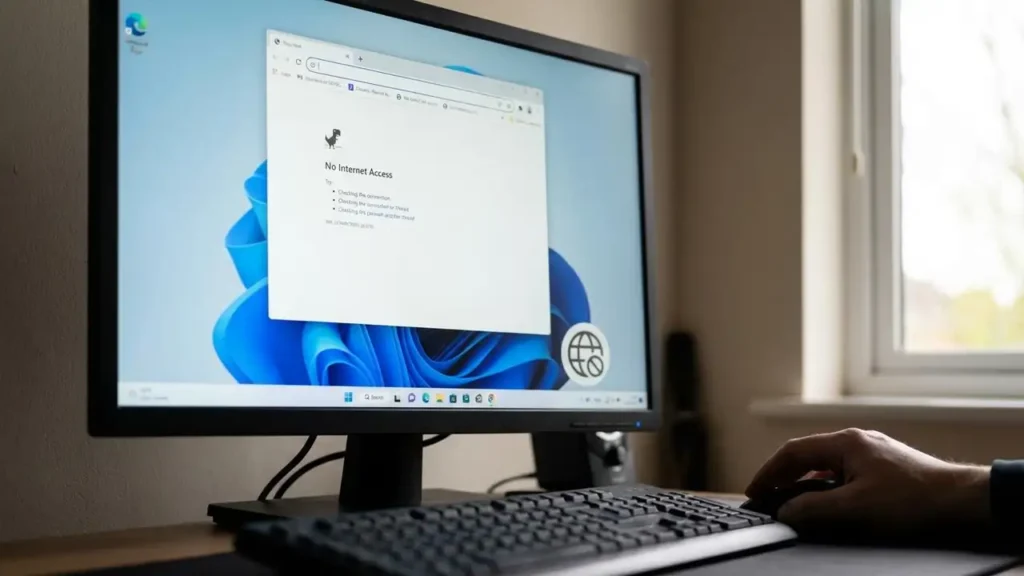
How to Fix DNS server not responding Windows 11
Resolve internet connectivity issues with these essential troubleshooting steps for your Windows 11 PC.
Encountering the “DNS server not responding Windows 11” error can be frustrating, often preventing you from accessing the internet despite your Wi-Fi or Ethernet connection appearing active. This common issue indicates a problem with how your computer translates website names into IP addresses, a critical step for online communication. Fortunately, most instances of DNS server not responding Windows 11 can be resolved quickly using straightforward methods.
This guide provides a series of effective solutions to get your Windows 11 system back online. We’ll start with the simplest checks and move to more in-depth network adjustments, helping you fix corrupted connection data, temporary server unavailability, or network configuration conflicts. If you’re seeing messages like “there’s a problem with the dns cache” or experiencing “dns server not responding no internet,” these steps are designed to help.
Understanding DNS server not responding Windows 11
The Domain Name System (DNS) acts like a phonebook for the internet, translating human-readable website names (like google.com) into machine-readable IP addresses (like 172.217.160.142). When your Windows 11 PC reports “DNS server not responding Windows 11,” it means your computer couldn’t connect to a DNS server to perform this translation. This can stem from various causes, including issues with your local DNS cache, problems with your internet service provider’s (ISP) DNS servers, router glitches, or specific network adapter settings.
This error can manifest as a complete lack of internet access, slow loading times, or only affecting certain websites. Sometimes, you might notice the “dns server not responding wifi” error specifically on wireless connections, or “dns server not responding on one computer only” if other devices on your network are working fine. Identifying the cause is key to selecting the right fix.
Quick Fixes for DNS server not responding Windows 11
When facing the “DNS server not responding Windows 11” problem, starting with quick, non-invasive solutions can often resolve the issue without complex adjustments. These initial steps tackle common culprits like outdated cached data or temporary network glitches, offering immediate relief in many cases. Always restart your computer after performing network changes to ensure they are fully applied.
1. Flush the DNS Cache and Reset Winsock
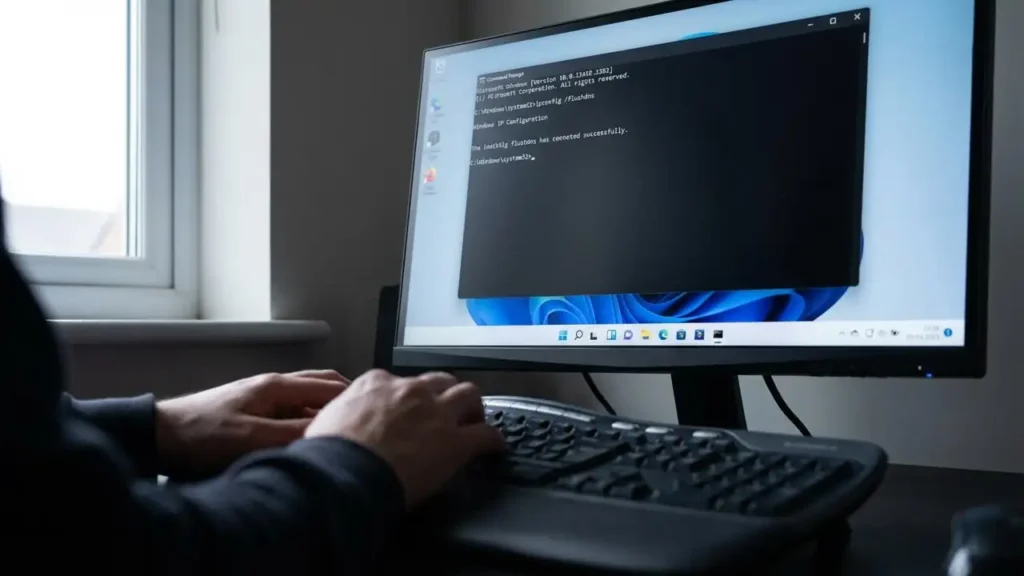
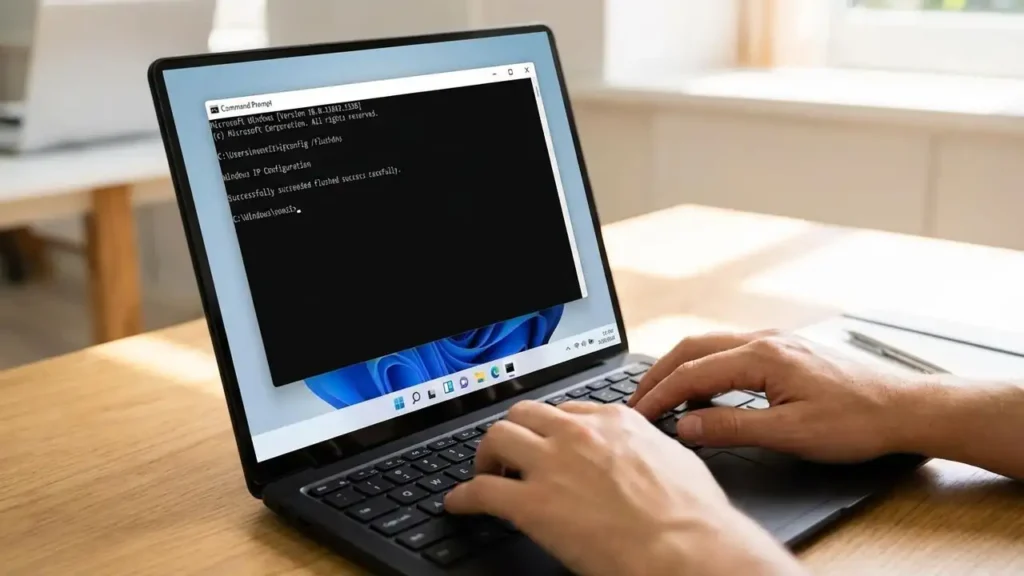
A corrupted DNS cache is a frequent cause of connection issues, leading to “there’s a problem with the dns cache” messages. Flushing it removes outdated or incorrect DNS records, forcing your system to retrieve fresh information. Resetting the Winsock catalog then helps refresh the network communication protocols. This step is often the most effective solution for addressing corrupted connection data that results in a DNS server not responding Windows 11 error.
To flush your DNS cache and reset Winsock:
- Search for
CMDor “Command Prompt” in the Start menu. - Right-click on “Command Prompt” and select “Run as administrator.”
- In the Command Prompt window, type
ipconfig /flushdnsand press Enter. This command clears your DNS resolver cache. - Next, type
netsh winsock resetand press Enter. This resets the Winsock catalog, which manages how Windows accesses network services. - Restart your Windows 11 PC to ensure all changes are applied. This is a critical step after resetting network components.
2. Change Your DNS Server Manually
Your default DNS servers, often provided by your ISP, may be experiencing temporary outages or performance issues, causing the DNS server not responding Windows 11 error. Switching to public, reliable DNS servers like Google’s or Cloudflare’s can often bypass these problems. These public servers are known for their stability and speed.
To manually change your DNS server settings:
- Go to “Settings” by pressing
Windows key + I, then navigate to “Network & Internet.” - Select your active network connection. This could be “Wi-Fi” or “Ethernet,” depending on how your computer is connected.
- Scroll down to the “DNS server assignment” section and click the “Change” button.
- In the pop-up window, switch the “Automatic (DHCP)” setting to “Manual.”
- Enable the “IPv4” toggle switch.
- Enter your preferred DNS server addresses:
- For Google DNS: Type
8.8.8.8in the “Preferred DNS” field and8.8.4.4in the “Alternate DNS” field. - For Cloudflare DNS: Type
1.1.1.1in the “Preferred DNS” field and1.0.0.1in the “Alternate DNS” field.
- For Google DNS: Type
- Click “Save” to apply the new DNS settings. Test your internet connection afterward.
3. Restart the Router and Computer
Sometimes, the simplest solutions are the most effective. A power cycle of your router and computer can resolve many temporary network glitches, including instances where the DNS server not responding Windows 11 message appears. This process clears the routing table, renews IP addresses, and flushes any temporary errors stored in the device memory. It’s a fundamental troubleshooting step that can quickly fix “dns server not responding after reboot” issues.
To power cycle your network equipment:
- Locate your internet router and modem (if they are separate devices).
- Turn off both devices using their power buttons, then unplug them from their power outlets.
- Wait for at least 30 seconds. This allows the devices to fully discharge and reset.
- Plug the modem (if separate) back in first and wait for all its indicator lights to stabilize (usually about 60 seconds).
- Next, plug in your router and wait for its indicator lights to stabilize, indicating it’s ready (this can take up to 2 minutes).
- While your network equipment is restarting, restart your Windows 11 computer simultaneously. This ensures both your PC and network are starting fresh together.
4. Temporarily Disable IPv6
While IPv6 is the successor to IPv4, some older routers, specific websites, or network configurations may not fully support it or might encounter conflicts. This can lead to the DNS server not responding Windows 11 error, as your system attempts to use an unsupported protocol for DNS resolution. Disabling IPv6 temporarily can help determine if it’s the root cause of your connectivity issues.
To disable IPv6 on your network adapter:
- Press
Windows key + Rto open the Run dialog. - Type
ncpa.cpland press Enter to open the Network Connections window. - Right-click on your active network adapter (e.g., “Wi-Fi” or “Ethernet”) and select “Properties.”
- In the properties window, locate “Internet Protocol Version 6 (TCP/IPv6)” in the list.
- Uncheck the box next to “Internet Protocol Version 6 (TCP/IPv6).”
- Click “OK” to save the changes and close the window.
- Restart your computer and test your internet connection to see if the DNS server not responding Windows 11 error is resolved.
Addressing “DNS server not responding on one computer only“
If other devices on your network are connecting to the internet without issues, but your Windows 11 PC still shows “DNS server not responding Windows 11,” the problem is likely specific to that computer. In such cases, thoroughly follow all the steps above, as they directly address PC-specific network configurations and caches. Checking for any recently installed software, VPNs, or antivirus programs that might interfere with network connections is also advised. Perform a full system scan with your antivirus software to rule out malware affecting network settings.
Prevention Tips for DNS Issues
To minimize the chances of encountering a DNS server not responding Windows 11 error in the future, consider these preventative measures. Regularly flushing your DNS cache, for instance, prevents the accumulation of outdated records that can lead to errors. Keeping your network adapter drivers updated ensures optimal compatibility and performance.
- Keep Drivers Updated: Ensure your network adapter drivers are always up-to-date. Outdated drivers can cause various connectivity problems.
- Regularly Flush DNS: Periodically flush your DNS cache (e.g., once a month) using the
ipconfig /flushdnscommand to prevent cache corruption. - Use Reliable DNS Servers: Consider permanently switching to public DNS servers like Google (8.8.8.8, 8.8.4.4) or Cloudflare (1.1.1.1, 1.0.0.1) known for their stability and speed.
- Check Firewall/Antivirus Settings: Ensure your firewall or antivirus software isn’t overly aggressive and blocking legitimate DNS queries. Temporarily disabling them for testing can help identify conflicts.
- Router Firmware: Keep your router’s firmware updated to benefit from the latest security patches and performance improvements.
Frequently Asked Questions
By systematically working through these solutions, you can effectively troubleshoot and resolve the “DNS server not responding Windows 11” error. Remember to restart your computer after making significant network changes to ensure they take full effect. If the issue persists across all devices or after all these steps, contacting your Internet Service Provider for further assistance is recommended.