
Fix Your iPhone Stuck on Apple Logo Using DFU Mode
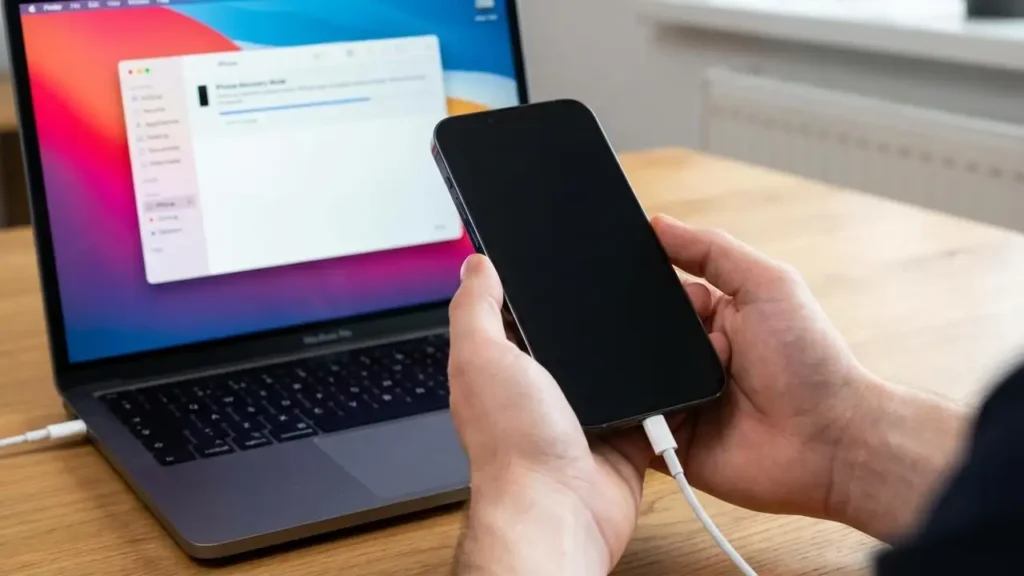
If your iPhone is unresponsive and displaying only the Apple logo after an update or restore, a more advanced solution may be required.
Your iPhone might be experiencing a critical system error that standard troubleshooting or even recovery mode cannot fix. In such scenarios, DFU mode (Device Firmware Update) serves as the most powerful last resort. It allows your device to be restored to factory settings by completely reloading the firmware without loading the iBoot bootloader, which is crucial for correcting deep-seated software issues.
Important Warning: Data Erasure
A DFU mode restore erases all data on your device. It is imperative to have a recent backup on iCloud or your computer (Mac or Windows PC) before attempting this process. Proceed only if you understand and accept the risk of data loss for any unbacked-up information.
Understanding DFU Mode and its Importance
DFU mode offers a deeper level of system restoration compared to standard recovery mode. While recovery mode utilizes the iBoot bootloader to initiate a restore, DFU mode bypasses this bootloader entirely. This allows for a complete, fresh installation of the iOS firmware, which can resolve complex software glitches that cause your iPhone to be stuck on the Apple logo or other severe boot issues. It’s often the solution when an iPhone stuck on Apple logo after update or restore problem persists despite other efforts.
Using DFU mode is not a casual troubleshooting step; it’s a measure for serious software corruption. If you’ve tried force-restarting your iPhone and traditional recovery mode without success, then entering DFU mode becomes necessary to bring your device back to a functional state. This method ensures that no corrupted system files from the previous installation interfere with the new one.
Prepare for a DFU Mode Restore
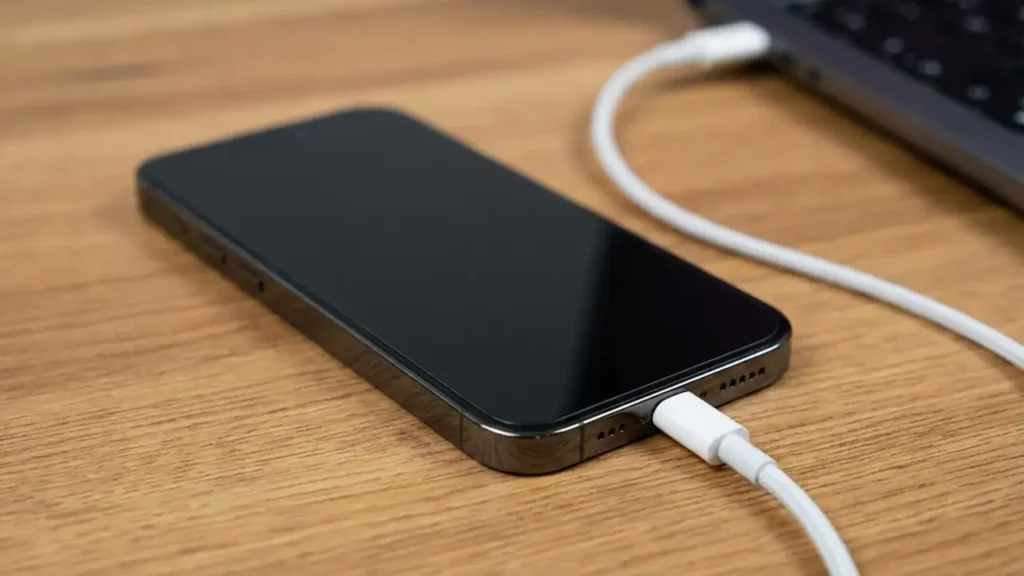
Before attempting to enter DFU mode, ensure you have the necessary tools and have taken critical precautions. Preparation minimizes complications and protects your data. Skipping these steps can lead to further frustration or irreversible data loss.
- Computer Access: You will need a computer—either a Mac or a Windows PC.
- macOS Catalina (10.15) or later: Use the Finder to manage your iPhone.
- macOS Mojave (10.14) or earlier, or Windows PC: Use the latest version of iTunes. Ensure your iTunes is updated to prevent compatibility issues.
- USB Cable: Use an original Apple USB cable or a certified MFi (Made For iPhone) cable. Generic or damaged cables can cause connection failures during the sensitive DFU mode process.
- Data Backup: As previously warned, a DFU mode restore will completely wipe your iPhone. Verify that you have a recent backup of your device on iCloud or your computer. Without a backup, all your photos, apps, messages, and settings will be permanently lost.
How to Enter DFU Mode by iPhone Model
The precise steps for entering DFU mode vary slightly depending on your iPhone model. Follow the instructions carefully for your specific device to avoid accidentally entering standard recovery mode or simply restarting your iPhone. The key is precise timing and button presses.
Entering DFU Mode on iPhone 8, X, 11, 12, 13, 14, 15, and 16
This method applies to newer iPhone models, including the iPhone 15 recovery mode steps. It requires a specific sequence of quick presses and holds.
- Connect your iPhone to your computer using the USB cable.
- Quickly press and release the Volume Up button.
- Quickly press and release the Volume Down button.
- Press and hold the Side (Power) button. Keep holding it until your iPhone’s screen goes completely black. This can take several seconds.
- As soon as the screen turns black, immediately press and hold both the Volume Down button and the Side button simultaneously for exactly 5 seconds. Do not release too early or too late.
- After 5 seconds, release the Side button but continue to hold the Volume Down button for approximately 10 additional seconds.
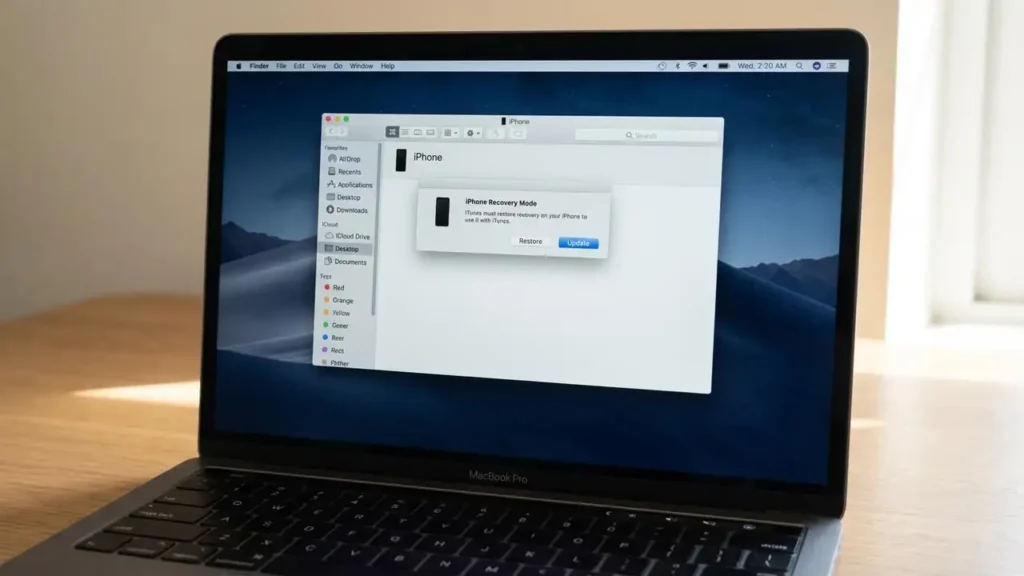
- Success Indicator: Your iPhone’s screen should remain completely black. If iTunes or Finder on your computer displays a message indicating that an iPhone in “recovery mode” has been detected, you have successfully entered DFU mode.
- Failure Indicator: If the Apple logo appears, or if you see the “Connect to Computer” (recovery mode) icon, you have not successfully entered DFU mode. You must disconnect your iPhone and start the process again from step 1.
Entering DFU Mode on iPhone 7 and 7 Plus
The iPhone 7 series uses a different combination of buttons due to its solid-state Home button.
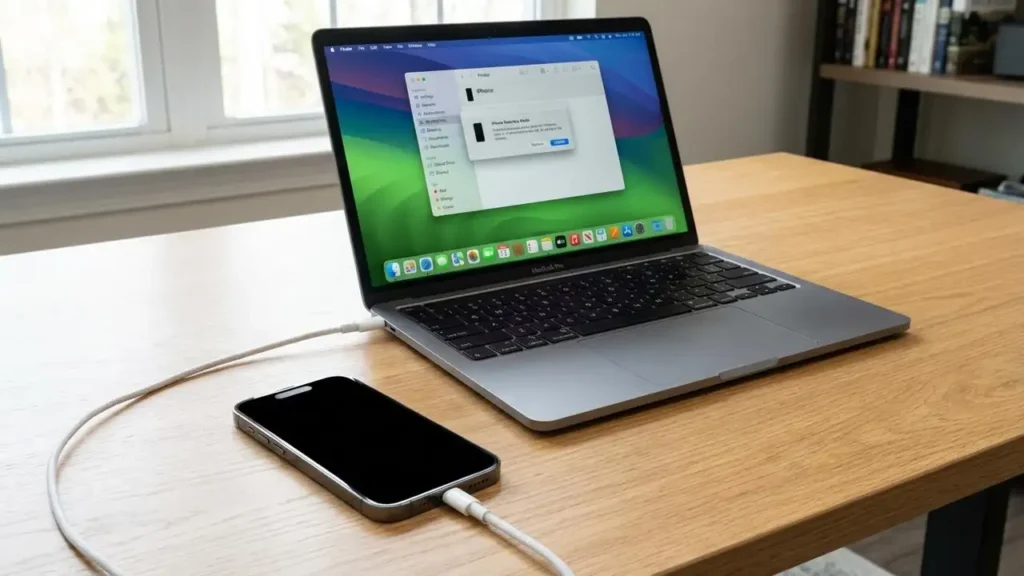
- Connect your iPhone to your computer and open iTunes or Finder.
- Press and hold both the Volume Down button and the Side (Power) button simultaneously for 8 to 10 seconds.
- After this duration, release the Side button but continue holding the Volume Down button.
- Keep holding the Volume Down button until your computer detects the device in “recovery mode” (which indicates successful DFU mode entry). The iPhone screen should remain black.
- If the Apple logo appears, you need to retry the steps.
Entering DFU Mode on iPhone 6s and Earlier Models
For older iPhones with a physical Home button, the process involves holding the Home button.
- Connect your iPhone to your computer and open iTunes or Finder.
- Press and hold both the Home button and the Side (Power) button simultaneously for 8 to 10 seconds.
- Release the Side button but continue holding the Home button.
- Keep holding the Home button until your computer detects the device in “recovery mode,” indicating that DFU mode has been successfully entered. The iPhone screen should remain black.
- If the Apple logo appears, restart the process from the beginning.
Restoring Your iPhone After Entering DFU Mode
Once your iPhone is successfully in DFU mode and detected by your computer, the restoration process is straightforward. This step will reinstall iOS and resolve software issues causing your iPhone stuck on Apple logo.
- Locate Restore Option: On your computer, you will see a prompt from iTunes or Finder. It will indicate that an iPhone in recovery mode has been detected and offer options to “Update” or “Restore.” Select “Restore.”
- Confirm Restore: Acknowledge any warnings about erasing data. Confirm your decision to restore the device.
- Download iOS: Your computer will begin downloading the latest version of iOS firmware. This download can take some time, depending on your internet connection speed. Do not disconnect your iPhone during this process.
- Install iOS: Once the firmware is downloaded, your computer will install it cleanly on your iPhone. Your iPhone’s screen may show an Apple logo with a progress bar during this phase.
- Setup iPhone: After the installation is complete, your iPhone will restart. You can then proceed with the initial setup process, either setting it up as a new iPhone or restoring from your most recent backup.
Safety, Prevention, and When to Seek Professional Help
Successfully using DFU mode often resolves the most stubborn software issues. However, it’s essential to understand device care and when to escalate problems. Regular data backups are the most critical preventive measure against data loss during any troubleshooting, including an unexpected iphone stuck on apple logo after update or restore. Always use reliable charging accessories and avoid unofficial software updates.
If your iPhone consistently enters DFU mode unintentionally, or if the DFU mode restoration fails repeatedly, it may indicate a hardware problem rather than just a software glitch. In such cases, it’s advisable to contact Apple Support or visit an authorized service provider. Attempting further DIY fixes for potential hardware failures can cause more damage or void your warranty.
Frequently Asked Questions
Successfully navigating DFU mode provides a powerful solution for an iPhone stuck on Apple logo after update or restore scenarios. Always prioritize backing up your data to safeguard against unforeseen issues, ensuring that even the most extreme troubleshooting steps like DFU mode don’t result in permanent data loss.
