Fix Your dell touchpad driver Issues on Windows
Troubleshoot unresponsive keyboards and touchpads on Dell and Alienware systems.
Experiencing a non-responsive keyboard or touchpad can be frustrating, especially when it hinders basic computer use. If your input devices suddenly stop working, the first and simplest step is always to restart your computer. This can often resolve temporary software glitches that might be interfering with your dell touchpad driver or keyboard functionality. If the problem persists after a restart, you’ll need an external mouse and keyboard to navigate Windows and perform further troubleshooting.
This guide will walk you through systematic steps to diagnose and resolve common issues, from basic hardware checks to advanced driver and system solutions. Whether you’re dealing with a dell touchpad locked or a completely unresponsive keyboard, these methods will help you pinpoint the root cause and get your devices working again on Windows 10 or Windows 11.
Quick Hardware Checks for Your Input Devices
Before diving into software or driver solutions, it’s essential to rule out simple hardware-related issues. Physical obstructions or accidental toggles can often be the culprit behind an unresponsive touchpad or keyboard. These initial checks are quick and require no specialized tools.
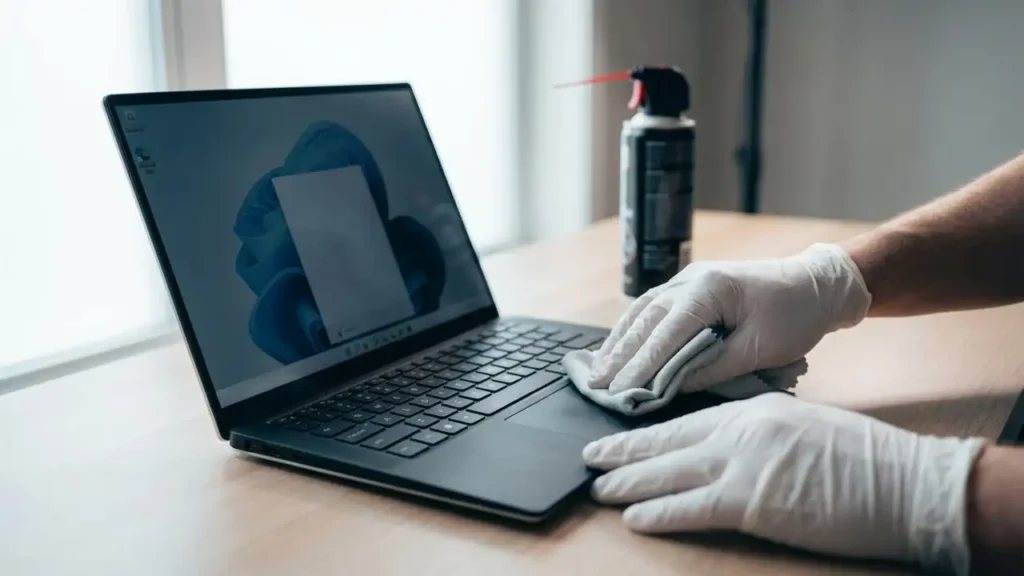
- Clean Input Surfaces: Dust, crumbs, or moisture can accumulate on your touchpad or under keyboard keys, interfering with their operation. Use a soft, lint-free cloth to gently wipe the surfaces. For hard-to-reach areas, a can of compressed air can effectively dislodge debris from key gaps or around the touchpad edges.
- Check Keyboard Shortcuts: Many laptops have dedicated function keys to enable or disable the touchpad. Look for icons on your F-keys (e.g., F6, F7, F8) that resemble a touchpad with a line through it. Try pressing the “Fn” key simultaneously with the corresponding F-key to toggle the touchpad state. This is a common reason for a dell touchpad locked state.
- Inspect for Swollen Battery: On some Dell laptop models, an aging or faulty battery can swell over time. This swelling can exert pressure on the underside of the touchpad or keyboard, leading to intermittent or complete non-functionality. Visually inspect the underside of your laptop for any bulging, or feel for pressure points around the touchpad area. If a swollen battery is suspected, it is a safety hazard and should be addressed by a professional.
Managing Your dell touchpad driver and Software
If hardware checks don’t resolve the issue, the problem likely lies with your system’s software, particularly the device drivers. Outdated, corrupted, or incompatible drivers are a frequent cause of input device problems. Windows provides several tools to manage these, including the Device Manager and Accessibility settings. This section will guide you through updating, reinstalling, or rolling back your dell touchpad driver and other essential software checks.
Troubleshooting with dell touchpad driver in Device Manager
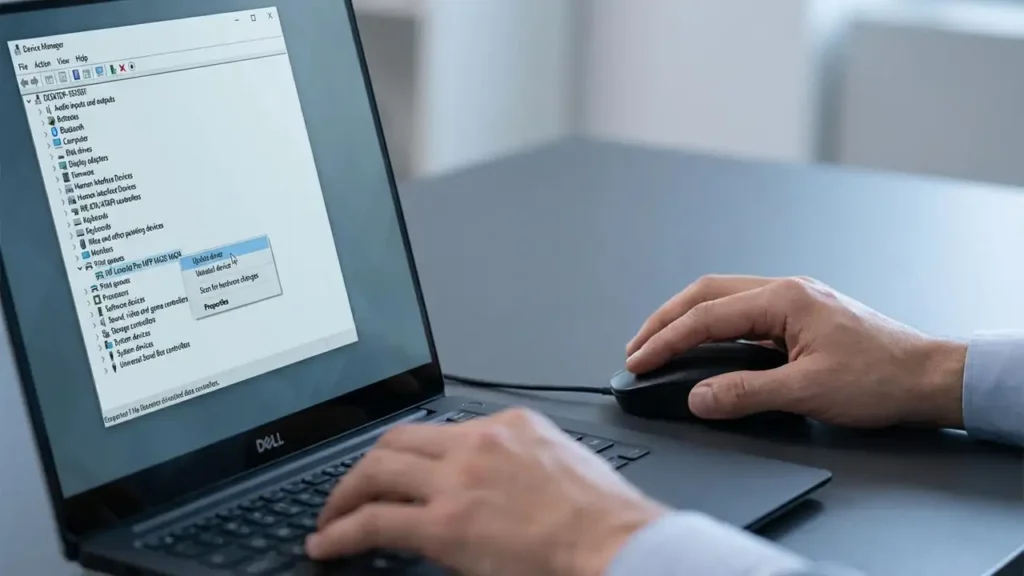
The Device Manager is your primary tool for addressing driver-related issues. It allows you to view all recognized hardware, check their status, and manage their associated drivers. Using an external mouse, you can navigate these settings to correct driver conflicts that affect your touchpad and keyboard. This is a critical step for fixing a non-functional dell touchpad driver.
- Access Device Manager: Press the
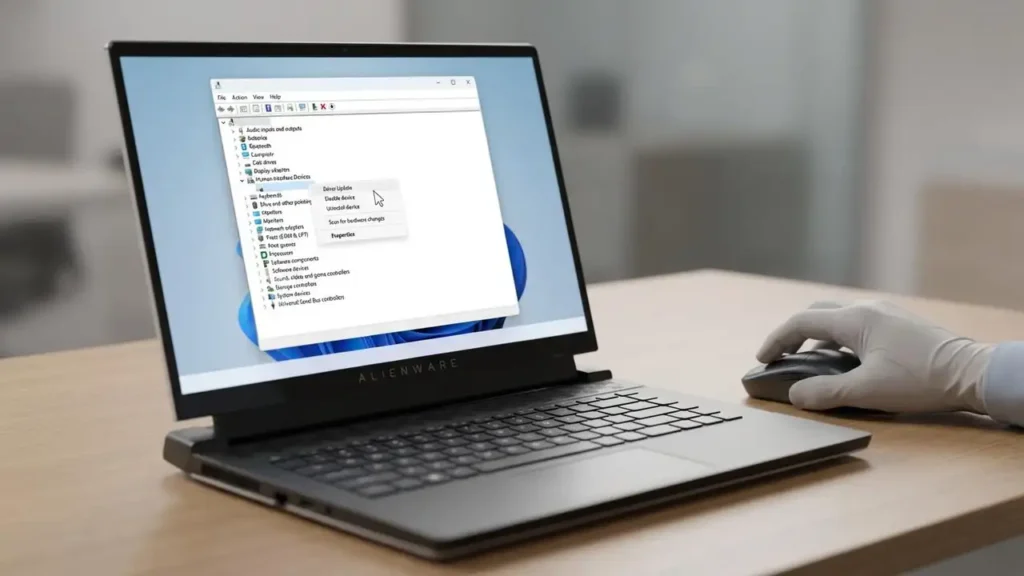
Win + Xkeys simultaneously on your external keyboard to open the Quick Link menu. From the list, select “Device Manager.” - Locate Input Devices: In Device Manager, expand the “Keyboards” section and the “Mice and other pointing devices” section. Your touchpad might be listed as “HID-compliant mouse,” “PS/2 Compatible Mouse,” or specifically as a Dell Touchpad. For Alienware systems, you might see “Alienware Touchpad” or similar entries.
- Update Driver:
- Right-click on the problematic device (your keyboard or touchpad entry).
- Select “Update driver.”
- Choose “Search automatically for updated driver software.” Windows will attempt to find and install the latest dell touchpad driver or keyboard driver.
- If Windows doesn’t find a new driver, consider visiting the Dell support website (or Alienware support for alienware drivers) directly to download the latest touchpad driver Windows 11 or touchpad driver Windows 10 for your specific model. Install it manually.
- Reinstall Driver:
- If updating doesn’t work, right-click the device again and select “Uninstall device.”
- Confirm the uninstallation. Do NOT check the box that says “Delete the driver software for this device” unless specifically instructed by Dell support, as this might make it harder for Windows to automatically reinstall.
- Restart your PC. Windows will usually detect the missing hardware upon reboot and automatically reinstall a generic or the previously used dell touchpad driver.
- Roll Back Driver:
- If the problem started immediately after a recent Windows update or driver installation, rolling back the driver might help.
- Right-click the device, select “Properties,” then go to the “Driver” tab.
- If available, click “Roll Back Driver.” Follow the prompts. This option is only active if a previous driver version is available.
- Check for Disabled Devices: Within Device Manager, right-click on your keyboard or touchpad entry. Ensure that “Enable device” is selected, rather than “Disable device.” A disabled device will prevent the dell touchpad driver from functioning.
- Disable Filter Keys: Filter Keys is an accessibility setting designed to ignore brief or repeated keystrokes. While helpful for some, it can make your keyboard seem unresponsive for others.
- Go to
Settings > Accessibility > Keyboard. - Ensure that “Filter Keys” is turned off.
- Go to
Advanced System Solutions for Your dell touchpad driver
If basic hardware checks and driver management haven’t resolved your keyboard or dell touchpad driver issues, you might need to delve into more advanced system-level solutions. These steps involve checking BIOS/UEFI settings and performing system diagnostics to rule out deeper software or firmware conflicts.
- Check BIOS/UEFI Settings:
- Restart your computer. As it powers on, repeatedly press the designated key to enter the BIOS or UEFI setup (commonly F2 or Del, but consult your Dell model’s documentation if unsure).
- Once in the BIOS/UEFI menu, look for options related to “Internal Pointing Device,” “Touchpad,” or “Keyboard.” Ensure that these are enabled. The exact location varies by BIOS version.
- If your keyboard works perfectly within the BIOS/UEFI environment but not within Windows, this strongly indicates a software or dell touchpad driver issue rather than a hardware defect. Save changes and exit.
- Perform a Static Discharge:
- A buildup of static electricity can sometimes cause peripherals to stop responding. To discharge residual electricity:
- Shut down your computer completely.
- Unplug the power adapter and remove the battery (if removable).
- Disconnect all external peripherals (USB drives, external mouse/keyboard, monitors, etc.).
- Press and hold the power button for 15 to 30 seconds.
- Reconnect only the power adapter (and battery if applicable) and restart your computer.
- Use Manufacturer Utilities:
- Dell provides diagnostic tools like Dell SupportAssist, which can automatically detect hardware and driver issues.
- Download and run Dell SupportAssist from the official Dell support website. It can often identify missing or corrupted dell touchpad driver files, as well as other system issues. Run a full system scan, including hardware diagnostics. For alienware drivers, use Alienware Command Center or Dell SupportAssist.
Frequently Asked Questions
Prevention and Next Steps
To prevent future keyboard and dell touchpad driver issues, regularly update your system and drivers through Windows Update and Dell SupportAssist. Keep your laptop’s input areas clean to avoid physical obstructions. If all troubleshooting steps fail to resolve your problem, especially after trying to fix your dell touchpad driver, it may indicate a deeper hardware malfunction requiring professional service. Contact Dell support or a certified technician for further assistance.