
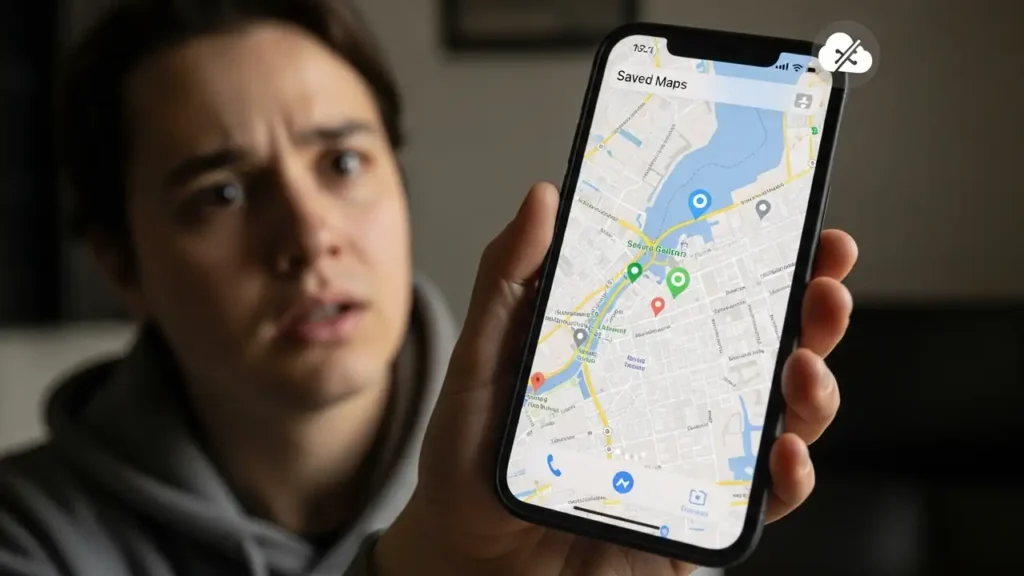
Restoring Your Apple Maps Saved Locations After iOS 26.2.1
Troubleshooting missing saved places following a recent iOS update.
Many users are experiencing an unexpected issue: their apple maps saved locations have vanished following the iOS 26.2.1 software update. This problem specifically affects location information previously stored within the application, leading to a loss of valuable data. If you’ve found your essential favorite spots or pinned places missing, you are encountering a recognized problem that several other individuals have also reported.
This guide provides steps to help recover your lost apple maps saved locations. The disappearance often stems from an interruption in how your device handles syncing during the update process or changes in how the application organizes its data. By systematically checking key settings and features, you can attempt to reinstate your personalized map data.
Addressing Missing Apple Maps Saved Locations
One primary reason for the unexpected disappearance of your map data is an interruption in synchronization with your cloud services. The iOS 26.2.1 update might have caused a temporary disconnection or reconfigured certain preferences. Restoring this connection is often the first and most effective step to retrieve your data.
- Reactivate iCloud Sync
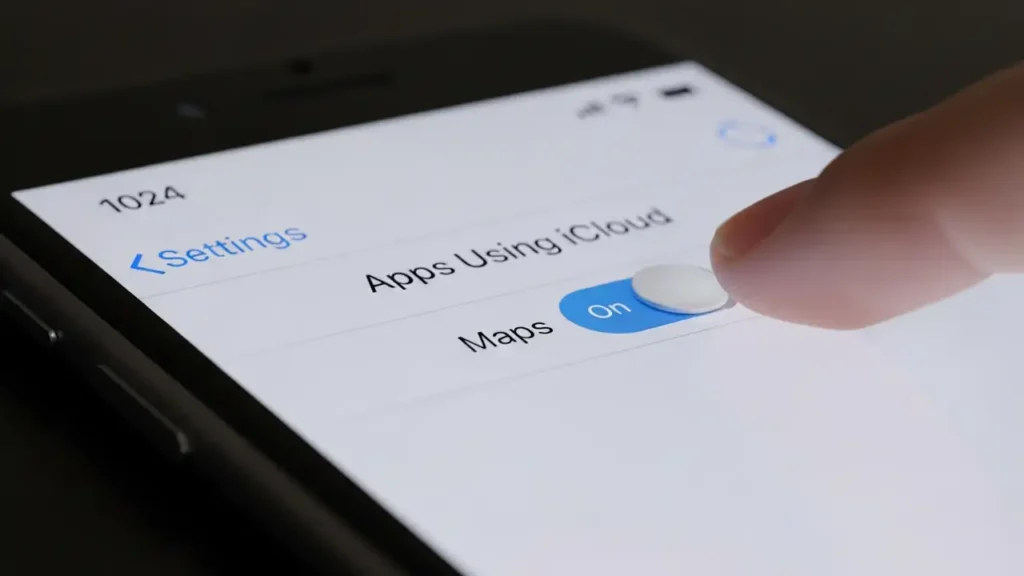
An interrupted syncing process during the software update is a frequent cause for data appearing to be lost. You need to verify that Maps is actively using iCloud for data storage and retrieval.- Navigate to your iPhone’s main “Settings” application.
- Tap on “[Your Name]” at the top of the menu to access your Apple ID settings.
- Select “iCloud.”
- Locate and tap “Show All” within the “Apps Using iCloud” section.
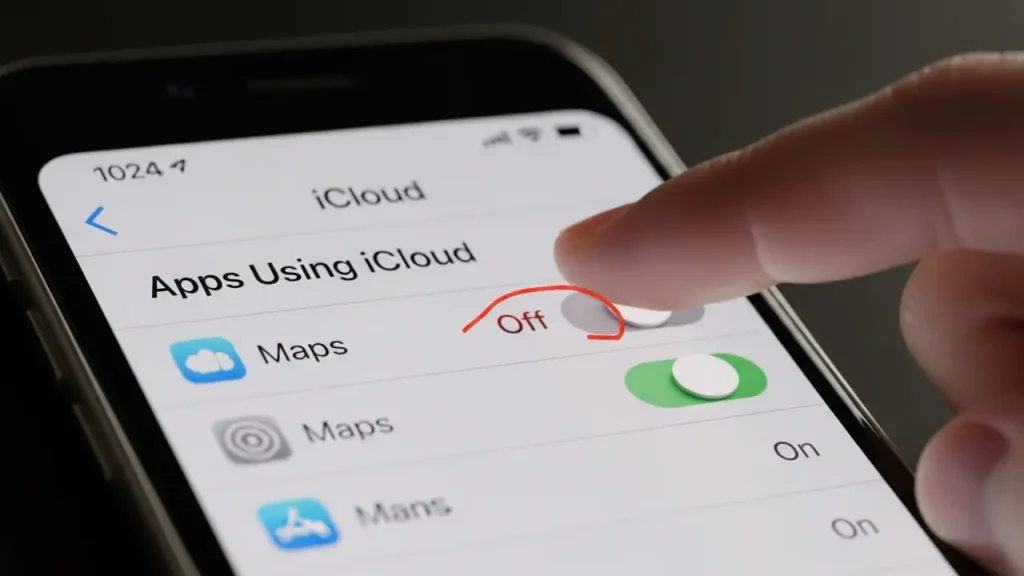
- Ensure the toggle next to “Maps” is set to the “on” position.
- Tip: If the switch is already active, turn it off for approximately one minute, then switch it back on. This action can force a new synchronization attempt from iCloud, potentially bringing back your apple maps saved locations.
Locating Your Guides and Pinned Apple Maps Saved Locations
With recent iterations of iOS, the way certain content is displayed and accessed within the application has evolved. Your previously saved points of interest might not be gone but rather reorganized into a different, dedicated area within the application’s interface. Familiarizing yourself with these changes can help you quickly find your data.
- Check the “Library” Section
Apple Maps has undergone some organizational changes in its newer versions. What you previously considered favorites or saved spots might now be grouped under a different designation.- Open the “Maps” application on your device.
- Tap your profile picture, which is situated on the right side of the search bar at the bottom of the screen.
- From the menu that appears, select “Library.” This section now consolidates various forms of saved content, including your pinned places, any custom guides you’ve created, and saved routes. Your original apple maps saved locations might be found within these categories.
Adjusting Location Settings for Your Apple Maps Saved Locations
The iOS 26 update introduced new functionalities that manage how location data is tracked and displayed. These additions can sometimes influence the visibility or retrieval of your personal map data, especially if they are not configured correctly. Checking these new settings is crucial for ensuring your saved information is accessible.
Enabling “Places Visited” for Apple Maps Saved Locations
A new feature designed to track frequent destinations can impact how the application organizes and displays your personal location data. Ensuring this feature is active can sometimes help resolve visibility problems for your saved places.
- Enable “Places Visited”
iOS 26 introduced a new feature for tracking locations you frequent, which could influence how your long-standing favorites are presented within the application.- Go to the main “Settings” application on your device.
- Scroll down and tap on “Apps.”
- Find and select “Maps” from the list of applications.
- Tap on “Locations” within the Maps settings.
- Confirm that “Places Visited” is turned on. Ensuring this setting is active can help the system properly manage and display your apple maps saved locations.
General Workarounds and Next Steps
Beyond specific application settings, basic troubleshooting steps related to your device’s connectivity and system state can often resolve display glitches or temporary data access problems. These general actions address common underlying issues that might prevent data from loading correctly.
- Basic Network and Device Checks
Sometimes, the problem isn’t with the saved data itself but with the device’s ability to retrieve it.- Network Connection: Confirm that your device has a stable internet connection. Both iCloud guides and your personal apple maps saved locations require a reliable Wi-Fi or cellular network to load successfully. A poor connection might prevent this data from appearing.
- Forced Restart: A simple restart of your iPhone can often clear temporary software glitches that might be preventing the correct display of your saved information. Perform a forced restart according to your iPhone model’s instructions. This action refreshes the operating system and can resolve various visual display anomalies.
- Reporting Persistent Issues
If, after trying all the above steps, your map data remains missing, the problem might be more widespread or indicative of a deeper software bug.- If your apple maps saved locations do not reappear, it suggests the issue could be a known software bug affecting the iOS 26.2.1 version. You have the option to directly report this persistent problem through Apple Support. Alternatively, you may need to wait for a subsequent minor update, such as iOS 26.2.2, which might include a fix for this data loss issue.
Frequently Asked Questions
In conclusion, the loss of your apple maps saved locations following the iOS 26.2.1 update is a recognized issue. By diligently checking your iCloud sync settings, exploring the new “Library” section, enabling “Places Visited,” and performing basic network and device restarts, you can often recover your valuable location data. If these methods do not resolve the problem, it may indicate a deeper software fault that requires intervention from Apple or a forthcoming system update.
